Technology
Setting Up Multi-Factor Authentication using a FIDO2 Security Key
Last modified 8/21/2026
The University is now allowing the use of FIDO2 security keys as an option for Multi-Factor Authentication (MFA). These security keys provide the most secure form of authentication by replacing standard password-based authentication with hardware-based authentication and a unique PIN. To set up this method, you will need to purchase your own FIDO2 security key. Please see the following link for a list of all compatible Microsoft security keys. If you have not yet enabled MFA on your account, please refer to the steps in the Enabling Multi-Factor Authentication article.
Registering Your Security Key
Depending on the security key you choose, there may be additional steps before it can be registered. Please see your key's manufacturer's instructions for any setup or troubleshooting information.
Registering a FIDO2 Security Key as a sign-in method
1. Head to the MFA Security Info portal, sign in normally, and click Add sign-in method.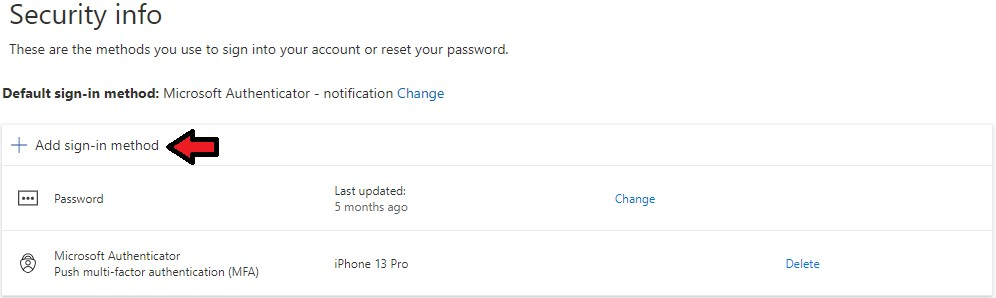
2. Under Add a method, click the drop-down arrow and choose Security key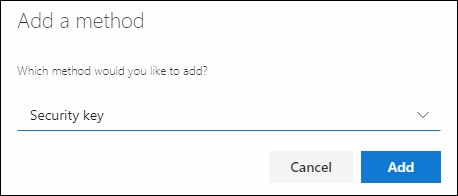
3. Select Add, and then select the type of security key you have, either USB device or NFC device.
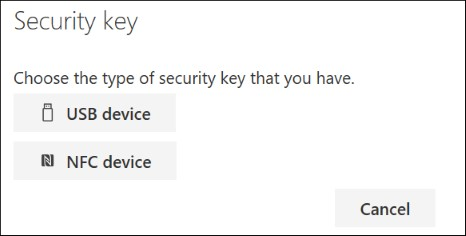
4. Either insert your USB device or tap your NFC device to your reader. You may be prompted with a QR code. If you are, hit the "Use a different device button.
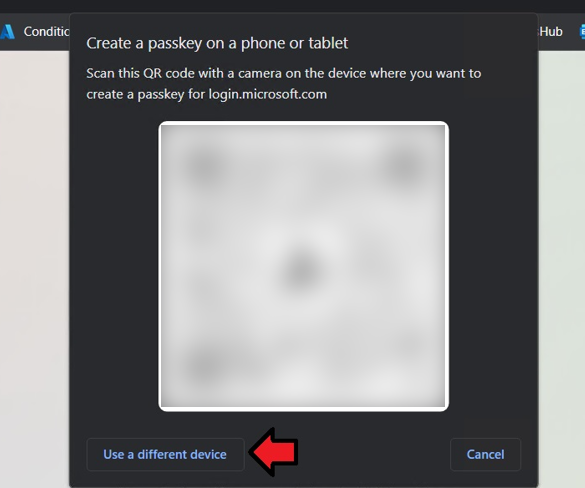
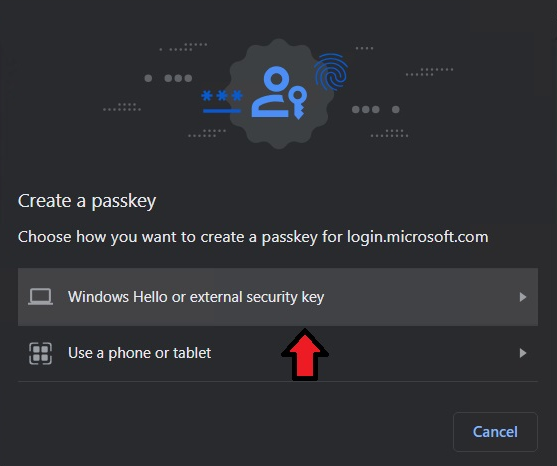
5. Another screen will pop up asking you to choose how you want to create a passkey. Choose Windows Hello or an external security key.
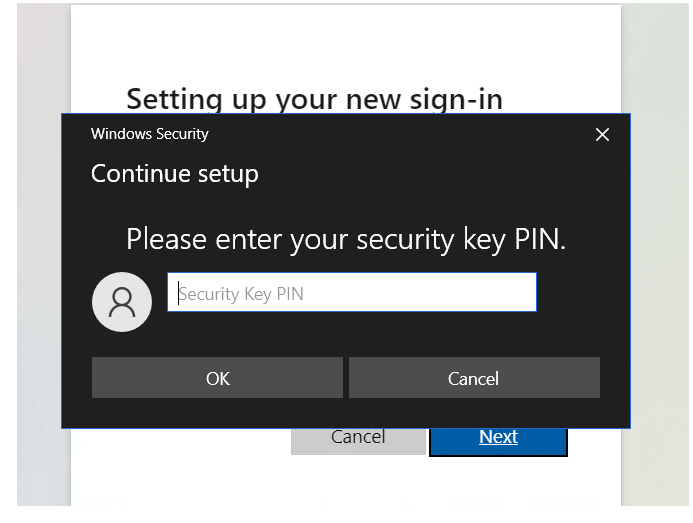
6. When prompted, enter your unique security key PIN into the Windows security box. Select OK to return to the Setting up your new sign-in method box.
Obtaining Your Security Key PIN
To obtain your security key's unique PIN, please refer to your key manufacturer's instructions.
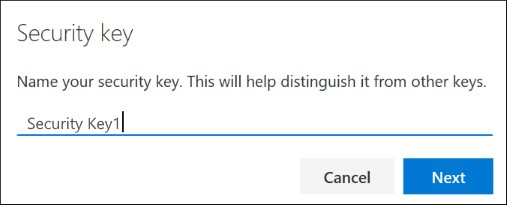
7. Select Next, and return to the Security info page. Once here, type in a name for your security key and hit Next
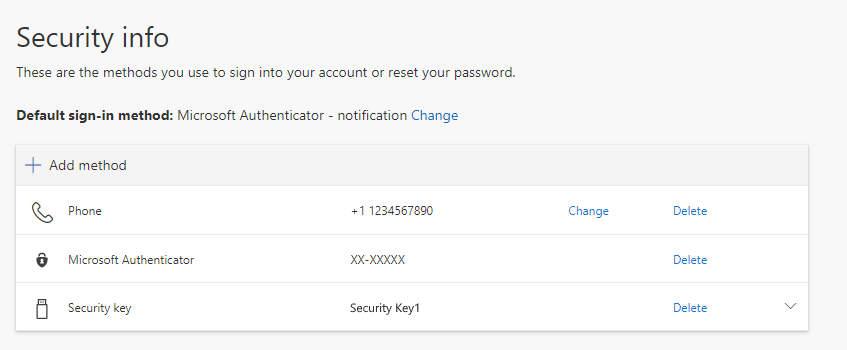
8. You should now see your new key successfully added and named in your list of sign-in methods
Multiple MFA verification methods are recommended.
It is recommended that you set up at least two multi-factor authentication methods so you have a backup if one fails. Please see Adding Additional Verification Methods for Multi-Factor Authentication for instructions on setting up additional method(s). To change your default method, see Change the Default Method for Authenticating with MFA. Below are the three main options for verification:
- Setting Up Multi-Factor Authentication using your Phone Number - Text Message Verification
- Setting Up Multi-Factor Authentication using your Phone Number - Phone Call Verification
- Setting Up Multi-Factor Authentication using the Mobile App
- Setting Up Multi-Factor Authentication using Passkey
How to Get Help
For questions about MFA, account access issues, MFA resets, or other technical assistance, contact the Technology Support Center at:
- Phone: (309) 438-4357
- Email: SupportCenter@IllinoisState.edu
- Submit a Request via Web Form: Get IT Help Form
- Live Chat: IT Help Live Chat
For in-person support, visit TechZone on the 1st floor of the Bone Student Center.
- Visit their website to see their opening hours, as they vary throughout the semester: TechZone.
Feedback
To suggest an update to this article, ISU students, faculty, and staff should submit an Update Knowledge/Help Article request and all others should use the Get IT Help form.