Technology
Requesting a uPrint/Pharos Refund
Last modified 11/3/2026
Use this process to request a refund when a Pharos/uPrint printer does not print a job correctly.
Examples include:
- The printer does not print the job.
- The printer prints blank pages.
- The printer prints pages that are damaged or illegible.
Submit a refund request
- Go to the Get IT Help page.
- Select Submit Detailed Request on the right side of the page.
- Sign in with Central Login if prompted.
- Enter uPrint Support in the search bar. Select uPrint Support from the search results.
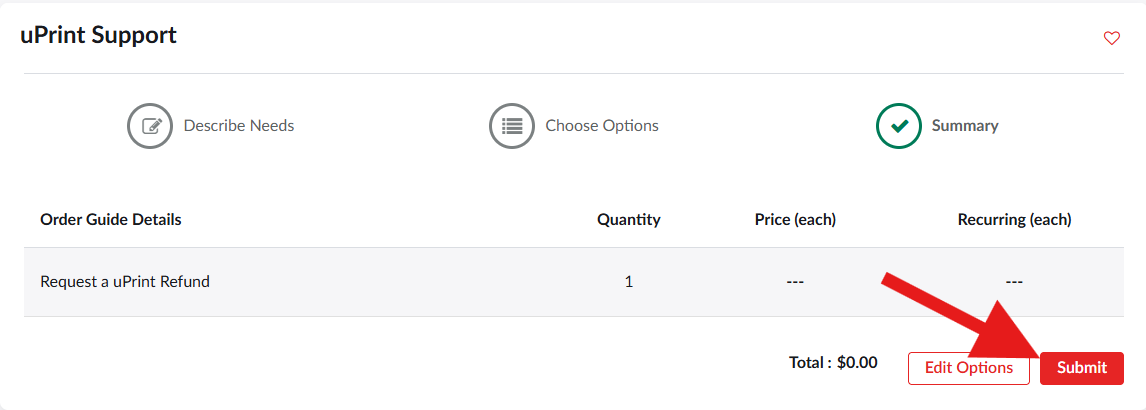
- Select Request a uPrint Refund from the available request types. Select Next to continue.
Complete the refund request form

Complete the following fields:
- Please enter the building location and room: Enter the building and room number where the uPrint printer is located. You can also select the down arrow next to the field to view the list of locations.
- At what date and time did you have an issue?: Enter the date and time when the print issue occurred. This information is required to verify the refund request. You can also select the calendar icon to choose a date.
- What was the cost of the job?: Enter the cost of the print job.
- Please describe what happened with your print job: Describe the problem with the print job. Include details about what happened. For example, the printer may have ben out of paper or toner, the paper may have jammed, or the printer may have produced blank pages.
Submit the request
Review the information you entered. Make sure that it is correct.
Select Submit on the right side of the page.
Similar Articles
- uPrint Mobile Printing on Campus
- Releasing a Print Job at a uPrint Station
- Submitting a Print Job via the uPrint Web Portal
- Bringing Your Own Printer to Campus
- Reporting a Problem with a Print Workstation in a Computer Lab that uses Pharos/uPrint
- Requesting Paper and Toner for a Computer Lab that uses Pharos/uPrint
- Student Print Allowance
- Submitting a Print Job via Email
- Submitting a Print Job via Pharos Mobile App
- Submitting a Print Job via the uPrint Web Portal
- Where to pick up and pay for your uPrint print job
How to Get Help
Technical assistance is available through the Illinois State University Technology Support Center at:
- Phone: (309) 438-4357
- Email: SupportCenter@IllinoisState.edu
- Submit a Request via Web Form: Get IT Help Form
- Live Chat:
IT Help Live Chat
Feedback
To suggest an update to this article, ISU students, faculty, and staff should submit an Update Knowledge/Help Article request and all others should use the Get IT Help form.