Technology
How to use Ditto Screensharing
Last modified 7/8/2026
Ditto is a wireless presentation tool used in classrooms and conference rooms at Illinois State University. It allows faculty and staff to mirror their screens on a mobile projector without connecting physical cables.
Before you Begin
If you already have the Ditto Connect application installed, you can connect directly using the app.
- If you do not have the app installed:
- Windows: Install Ditto through Software Center for Windows.
- MacOS: Install Ditto through Self Service for MacOS.
- You can also connect without installing anything by using connect.goditto.com in a support browser.
Currently Google Chrome, Microsoft Edge, and Safari are the only supported browsers; Firefox is not currently supported.
Choose a Connection Method
| Option | Best For | Description |
|---|---|---|
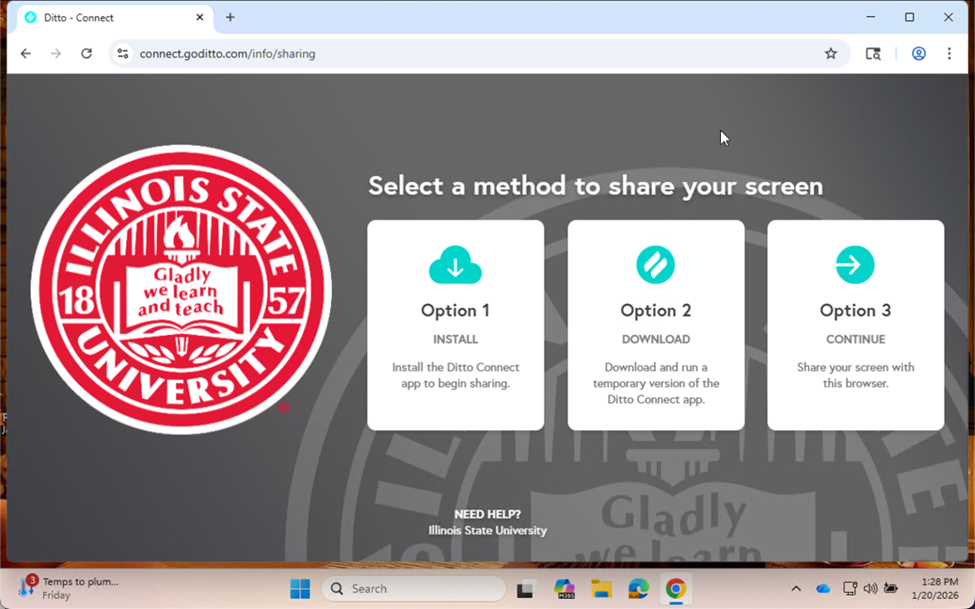
| Install | Frequent Users | Installs the full Ditto Connect application for future use. |
| Download | Guests or one-time Users | Downloads a temporary version of Ditto that runs once and does not require installation. |
| Continue | Quick Sharing | Shares your screen directly from Chrome, Microsoft Edge, or Safari without downloading software. Firefox is not currently supported. |
Connect via Web Browser
Step 1: Enter the Room Code
- Go to connect.goditto.com
- Enter the Room Code into the box and click Connect.
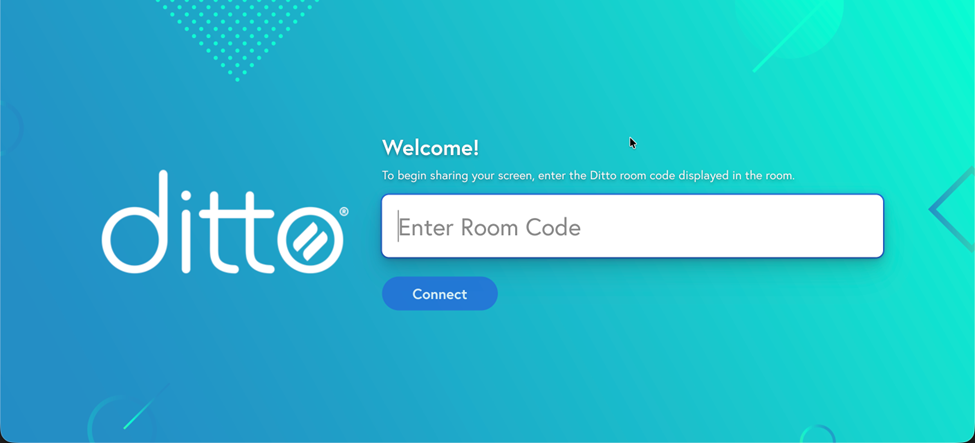
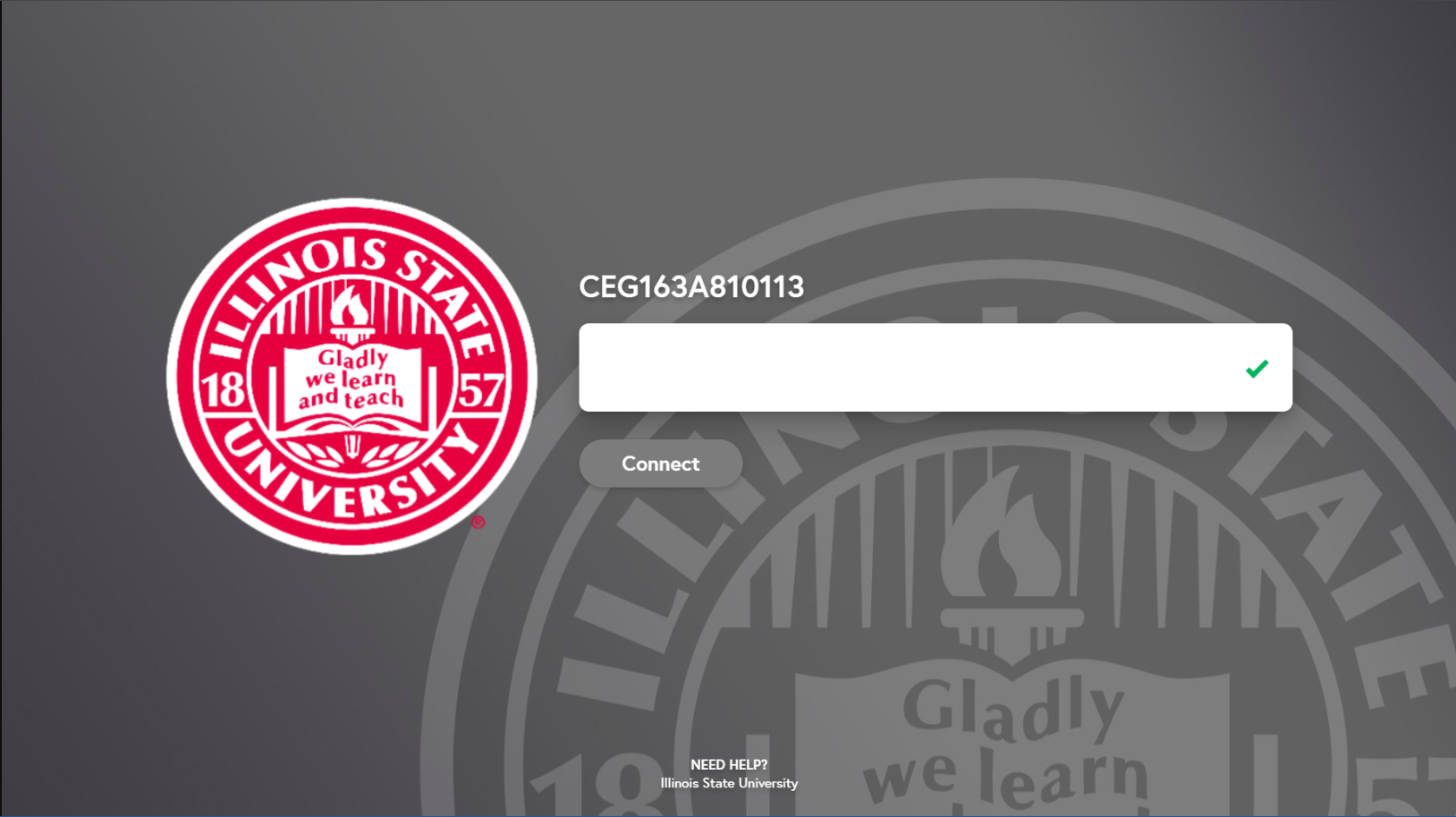
- When you enter a room code, ISU branding should appear in your browser tab.
Step 2: Select a Connection method
- Once you have entered the room code, you will see three options for sharing your screen.
Step 3: Start Sharing
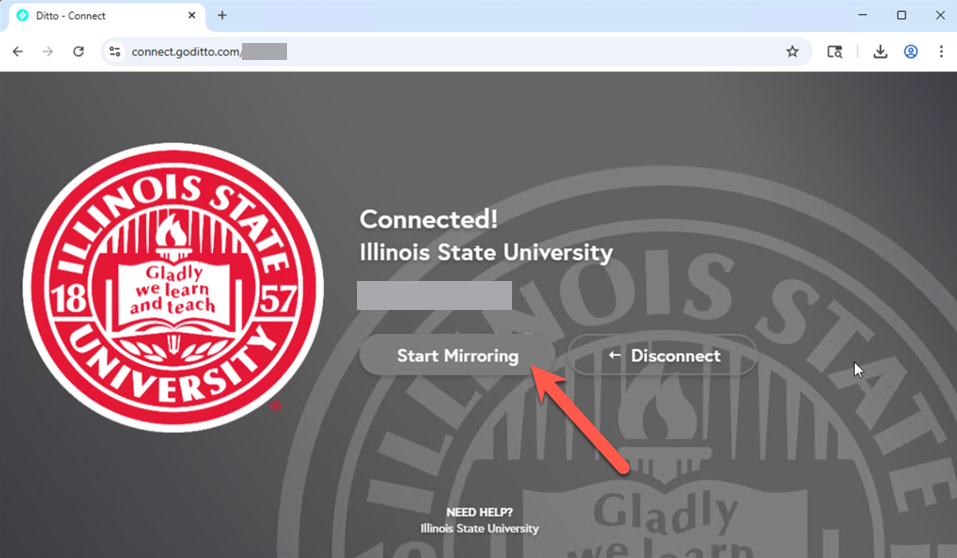
- Click Start Mirroring on the webpage.
- A pop-up will ask what you want to share.
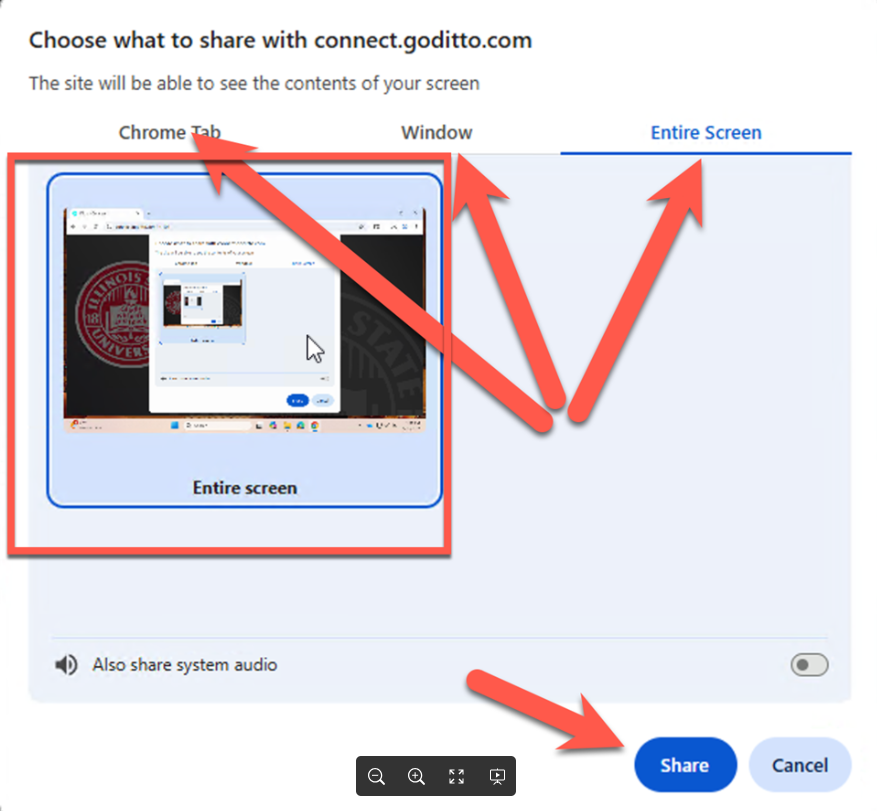
- Click Share.
Step 4: Start Sharing
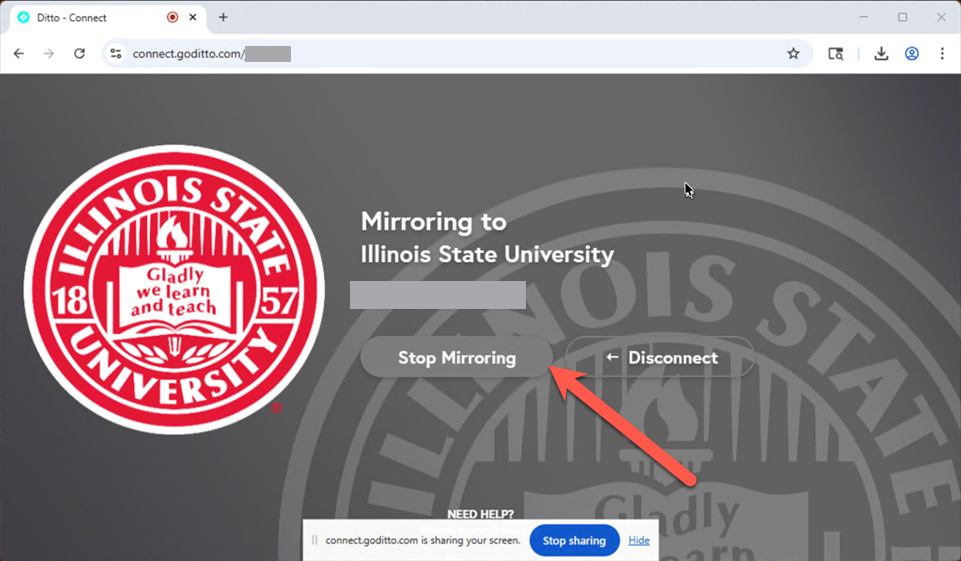
- Click Stop Mirroring in the Ditto - Connect browser tab where you started your session.
Connect via Desktop App
Step 1: Open the Ditto App
Open the Ditto application on your device.
The Ditto app can be downloaded onto University computers using:
Step 2: Enter the Room code

Step 3: Share Your Screen
Using the dropdown in the middle of the Ditto window, select the display or window you would like to share.
Once your content is selected, click Start Sharing.

MacOS Users Only: Enabling Permissions
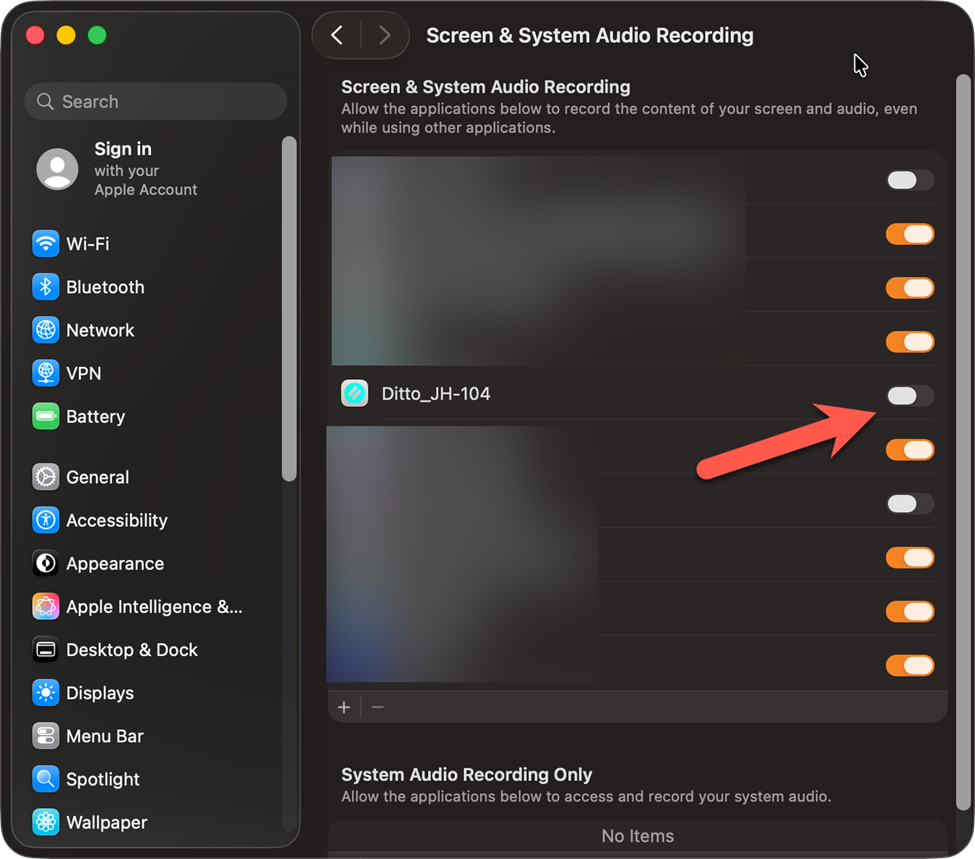
If your screen appears black or does not display correctly, you may need to enable Screen Recording permissions.
- Open System Settings > Privacy & Security.
- Find Screen & System Audio Recording.
- Ensure the toggle next to Ditto is turned ON.
Step 4: Stop Sharing
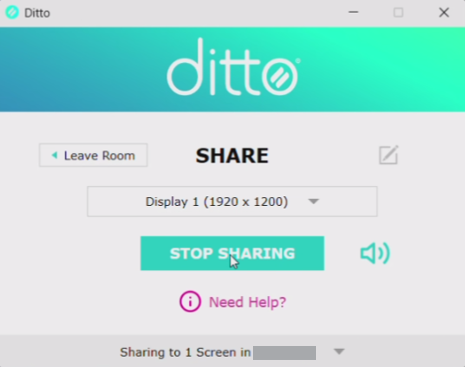
To stop sharing, find the Ditto window and click Stop Sharing.
Joining a Zoom or Microsoft Teams Meeting
If you are presenting to both in-person and remote participants, first connect to Ditto using the steps above to display your content in the room.
After connecting to Ditto:
- Join your Zoom or Microsoft Teams meeting.
- Select Share Screen (Zoom) or Share (Microsoft Teams).
- Choose the window you are presenting through Ditto (for example, your PowerPoint presentation or web browser).
- Start Sharing.
Your selected application will be displayed on the room's projector through Ditto while also being shared with participants in the Zoom or Microsoft Teams meeting.
When you are finished presenting:
- Stop sharing in Zoom or Microsoft Teams.
- Stop sharing in Ditto.
For more information, please see our help article on How To Share a Screen with Users.
How to Get Help
Technical assistance is available through the Illinois State University Technology Support Center at:
- Phone: (309) 438-4357
- Email: SupportCenter@IllinoisState.edu
- Submit a Request via Web Form: Get IT Help Form
- Live Chat: IT Help Live Chat
Feedback
To suggest an update to this article, ISU students, faculty, and staff should submit an Update Knowledge/Help Article request and all others should use the Get IT Help form.