Technology
How To Share a Screen with Users
Last modified 4/21/2026
Overview
Zoom allows for screen sharing on desktop, tablet and mobile devices running Zoom. When screen sharing is enabled, the screen that is shared by the user is visible to everyone in the meeting. Read below on how to enable screen sharing in Zoom.
Prerequisites
- Zoom Desktop Client
- Zoom Mobile App
Starting the Screenshare
- Click the Share Screen button located in your Meeting tool bar (See Figure 1).
Figure 1
- Select the screen you want to share (See Figure 2). You can choose an individual application that is already open on your computer, the desktop, a whiteboard, or an iPhone/iPad.
Figure 2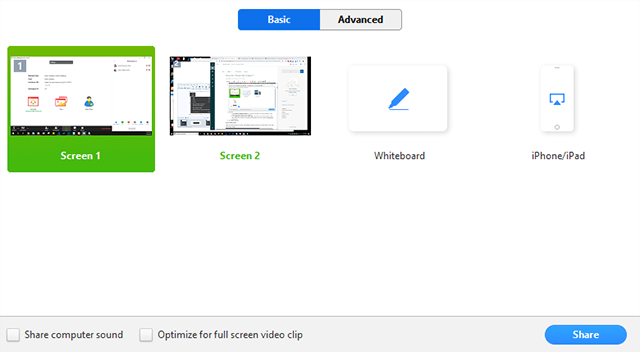
- Click Share to confirm your choice. Below are some optional choices for screen sharing, such as optimizing video playback.
Optional Choices for Screen Sharing:
- Check Share Computer Sound: if you check this option, any sound played by your computer will be shared into the meeting.
- Check Optimize for full screen video clip: Check this if you will be sharing a video clip in full screen mode. Do not check this otherwise, as it may cause the screenshare to be blurry.
- Click Share to confirm your choice.
- Once you need to end screensharing, simply navigate back to the meeting toolbar and click Stop Share.
Figure 3
- Once you need to end screensharing, simply navigate back to the meeting toolbar and click Stop Share.
Screen Sharing Features
Zoom offers a multitude of features under its screen sharing capabilities. For more information about these features, click here to be directed to Zoom’s support page concerning screen sharing.
How to Get Help
Technical assistance is available through the Illinois State University Technology Support Center at:
- Phone: (309) 438-4357
- Email: SupportCenter@IllinoisState.edu
- Submit a Request via Web Form: Get IT Help Form
- Live Chat: IT Help Live Chat
Feedback
To suggest an update to this article, ISU students, faculty, and staff should submit an Update Knowledge/Help Article request and all others should use the Get IT Help form.