Technology
Navigating Onedrive in Microsoft Education
Last modified 9/17/2025
This guide provides basic navigation steps for using OneDrive within the Microsoft Education LTI within your canvas course.
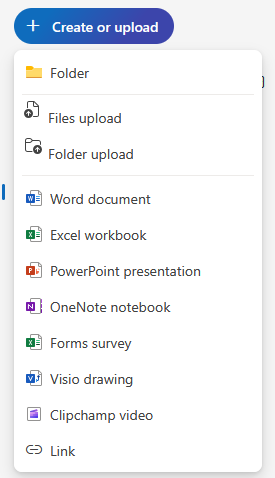
The primary button for adding content is the blue "+Create or upload" button in the top-left corner.
- Clicking this button reveals a drop-down menu with options to create or upload different types of content
- Create a new file: You can select from options like a Word document, Excel Workbook, or PowerPoint presentation.
- Upload existing files: Choose to upload a sing file or an entire folder with "File upload" or "Folder upload"
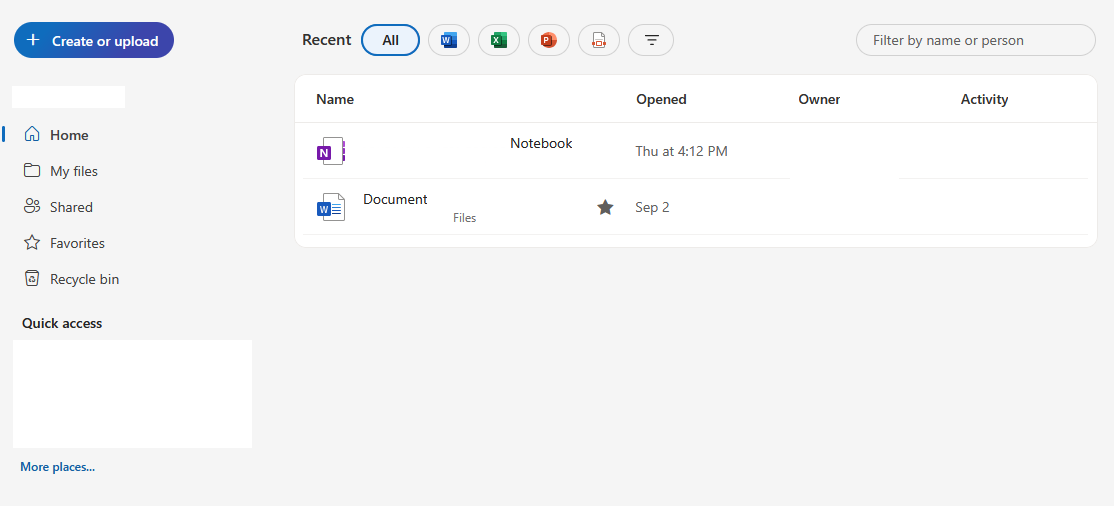
- Home: This is a shortcut to your most recent and frequently used files.
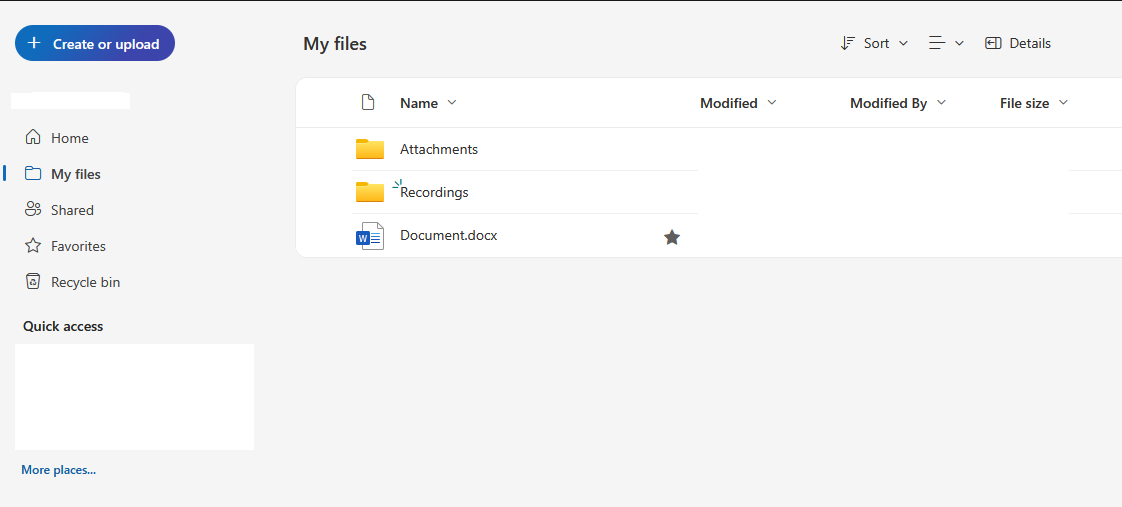
- My Files: This is the main section where all your personal files and folders are stored.
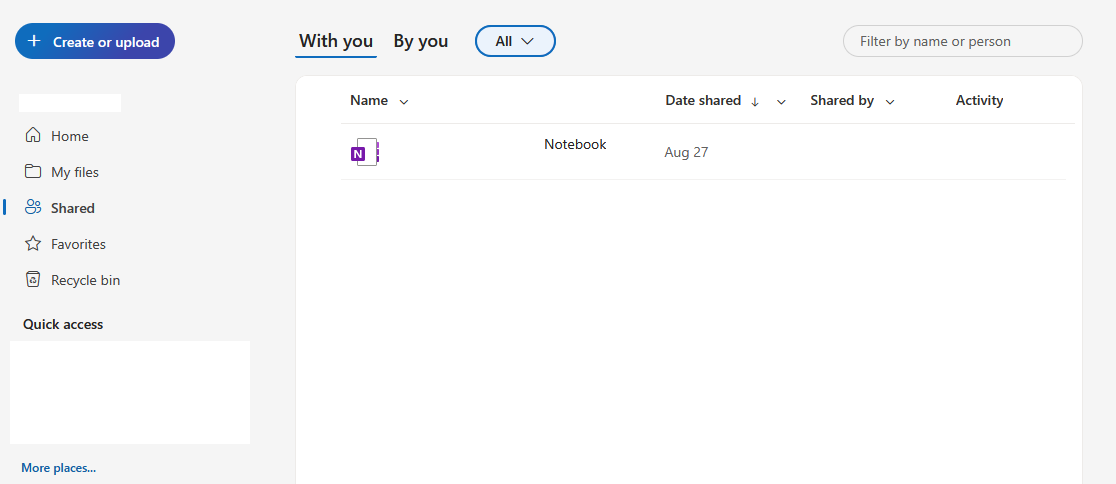
- Shared: Here you can find files and folders that have been shared with you by other users.
- Favorites: This section displays any files you have marked as a favorite for quick and easy access to your documents.
- Clicking on the Favorites tab will open a new browser tab.
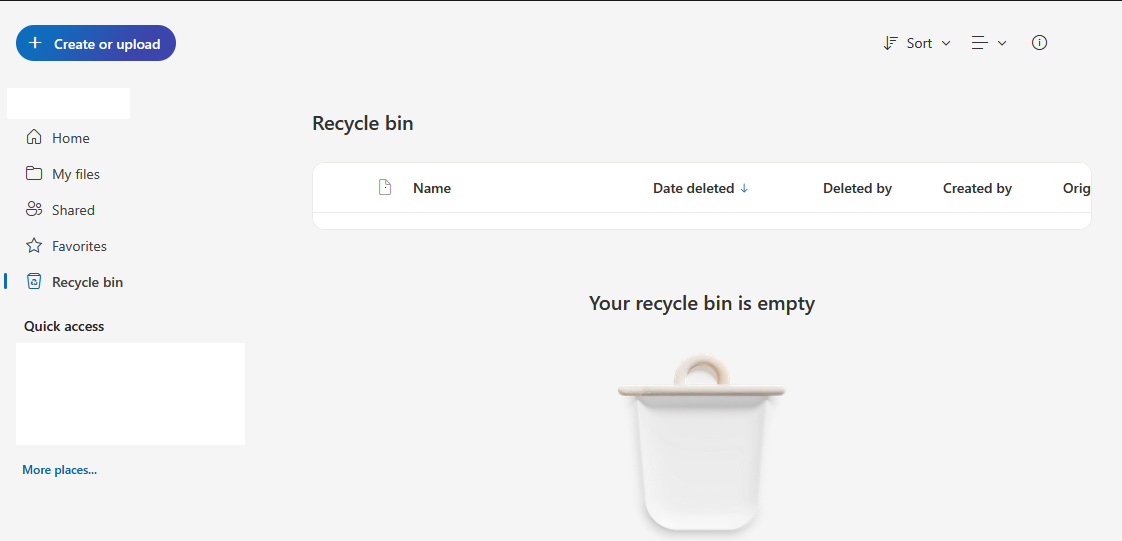
- Recycle bin: Files and Folders that have been deleted are temporarily stored here. You can restore them from this section until they have been automatically cleared after a certain period.
Additional Sources For Help
How to Get Help
Technical assistance is available through the Illinois State University Technology Support Center at:
- Phone: (309) 438-4357
- Email: SupportCenter@IllinoisState.edu
- Submit a Request via Web Form: Help.IllinoisState.edu/get-it-help
- Live Chat: Help.IllinoisState.edu/get-it-help
Feedback
To suggest an update to this article, ISU students, faculty, and staff should submit an Update Knowledge/Help Article request and all others should use the Get IT Help form.