Technology
Navigating Onedrive in Microsoft 365 Education
Last modified 7/31/2026
This guide provides basic navigation steps for using OneDrive within the Microsoft 365 Education LTI within your Canvas course.
Access OneDrive by selecting Microsoft Education in the Course Navigation and then selecting OneDrive: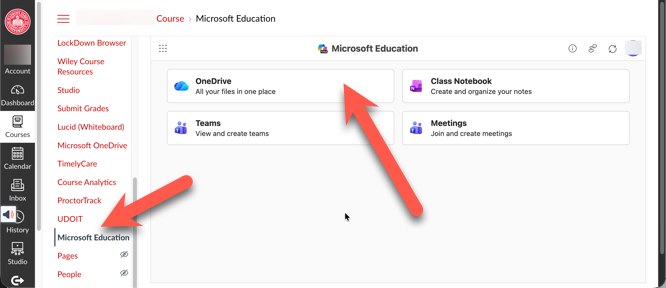
You will see your OneDrive account, with all your content and features that you would see when accessing OneDrive outside of Canvas:
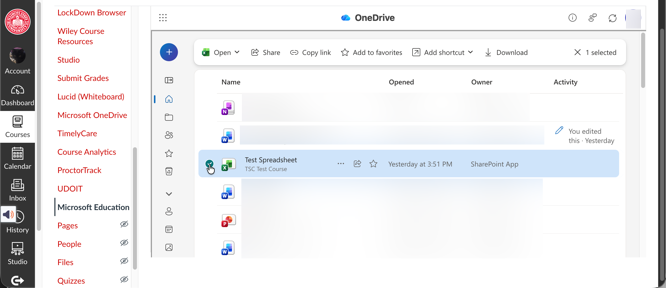
You will use the OneDrive navigation on the left to toggle to your OneDrive content. These options are as follows:
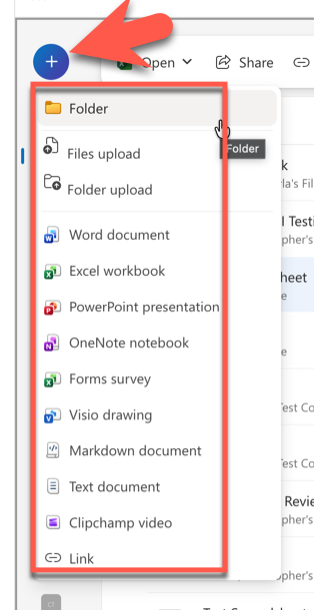
Create New: The primary button for adding new content to OneDrive here is the blue "+" Plus Sign button in the top-left corner.
- Clicking this button reveals a drop-down menu with options to create or upload different types of content
- Create a new file: You can select from options like a Word document, Excel Workbook, or PowerPoint presentation.
- Upload existing files: Choose to upload a sing file or an entire folder with "File upload" or "Folder upload"
- Home: This is a shortcut to your most recent and frequently used files.
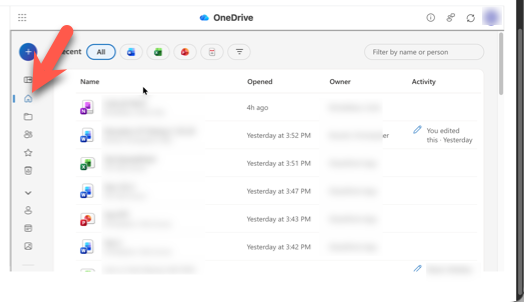
- My Files: This is the main section where all your personal files and folders are stored.
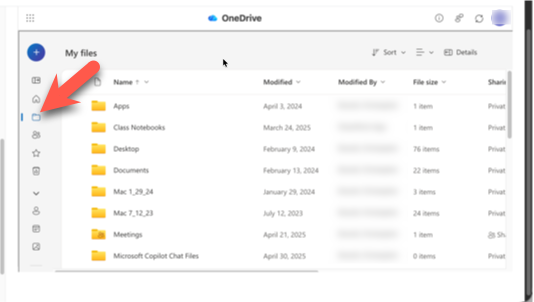
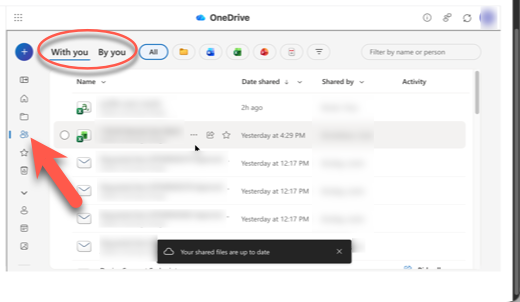
- Shared: Here you can find files and folders that have been shared by you with others, and also shared with you by other users:
- Favorites: This section displays any files you have marked as a favorite for quick and easy access to your documents.
- Clicking on the Favorites tab will open a new browser tab.
- Clicking on the Favorites tab will open a new browser tab.
- Recycle bin: Files and Folders that have been deleted are temporarily stored here. You can restore them from this section until they have been automatically cleared after a certain period.
Additional Sources For Help
How to Get Help
Technical assistance is available through the Illinois State University Technology Support Center at:
- Phone: (309) 438-4357
- Email: SupportCenter@IllinoisState.edu
- Submit a Request via Web Form: Get IT Help Form
- Live Chat: IT Help Live Chat
Feedback
To suggest an update to this article, ISU students, faculty, and staff should submit an Update Knowledge/Help Article request and all others should use the Get IT Help form.