Technology
Downloading Adobe Creative Cloud Applications
Last modified 7/31/2026
Who Should Use This Guide?
This article is intended for users with an assigned Adobe Creative Cloud license who need to download Adobe Creative Cloud applications.
If you are unsure which Adobe license you need or whether you require Adobe Creative Cloud access, refer to:
Downloading Adobe Creative Cloud Applications
- Navigate to the Adobe website and enter your ISU email address in the Email Address field. This will redirect you to Central Login.
- Log in to Adobe via Central Login.
- For more information about Central Login at ISU, please refer to: Central Login
- Click the Apps menu in the left side bar on the front page to view your Creative Cloud apps. (Figure 1).
Figure 1:
- Here you will see the applications you may have installed already and several other applications to download immediately. If you wish to download one of these featured applications, then click the Install button under the desired application. Or, if you would like to search for a specific application, you can use the search bar at the top. You can also sort the applications based off what platform they are available on (Desktop, Mobile, Web) (Figure 2).
Figure 2: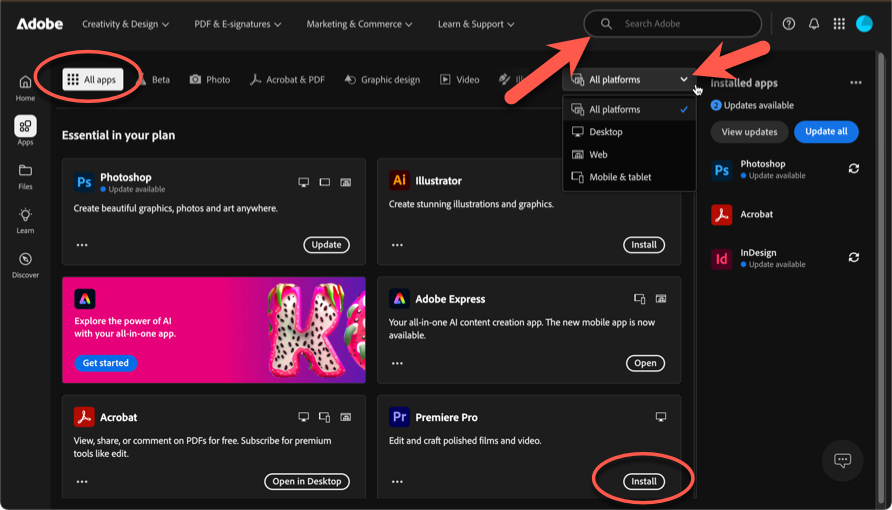
- The application should now begin installing.
- Once installed, you will now find the application located in the Installed section of Adobe. Click Open to run the application.
Downloading Applications on your Mobile Device
- Download applications on your mobile device by searching for them in the Apple App Store or Google Play Store, and installing them from those locations.
- After the app is downloaded open it.
- Press Sign In.
- Enter your iSU email address, after which you will be redirected to Central Login.
- Log in to Adobe via Central Login.
- For more information about Central Login at ISU, please refer to: Central Login
You are now able to use the application.
Additional Assistance
How to Get Help
Technical assistance is available through the Illinois State University Technology Support Center at:
- Phone: (309) 438-4357
- Email: SupportCenter@IllinoisState.edu
- Submit a Request via Web Form: Get IT Help Form
- Live Chat: IT Help Live Chat
Adobe support can be reached at 1 800-833-6687 or via the Adobe Help Center.
Feedback
To suggest an update to this article, ISU students, faculty, and staff should submit an Update Knowledge/Help Article request and all others should use the Get IT Help form.