Technology
Adobe Acrobat: Color Printing
Last modified 4/23/2026
Paper Tray and Type
You must specify paper type and tray prior to printing. Otherwise, the printer will default to letter-sized, plain paper.
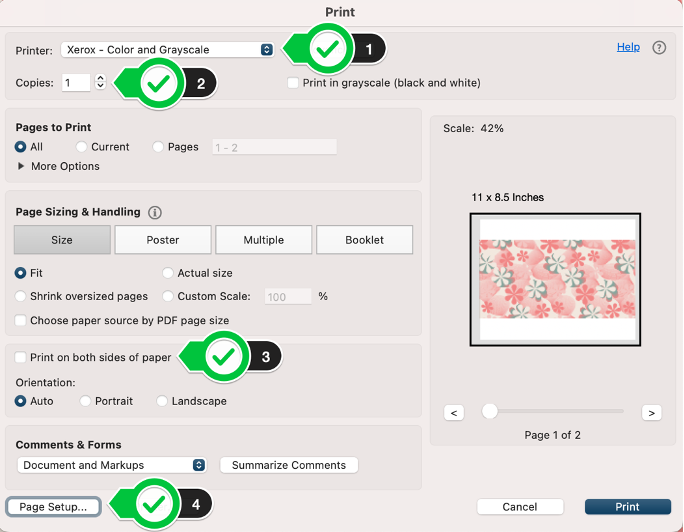
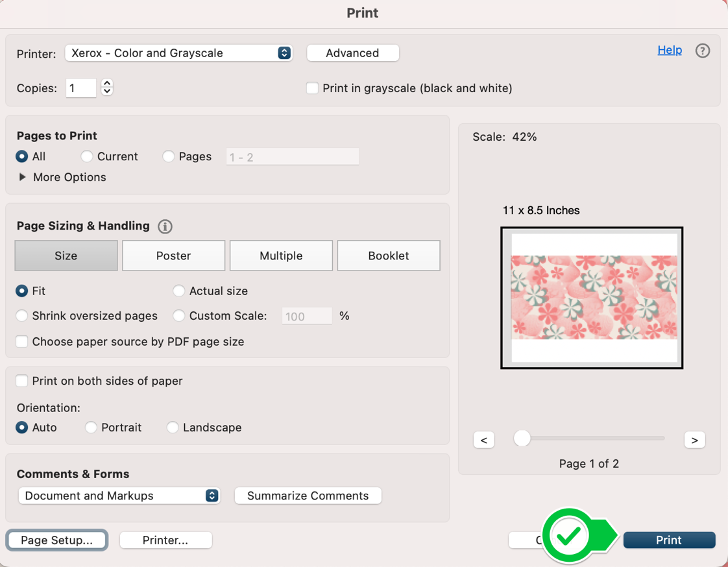
- Choose the color printer (Xerox- Color and Grayscale )
- Select the number of copies you would like (if any)
- (Optional) Select double-sided print if desired
- Ensure that the settings are the same in Xerox Features
- Click on “Page Setup…”
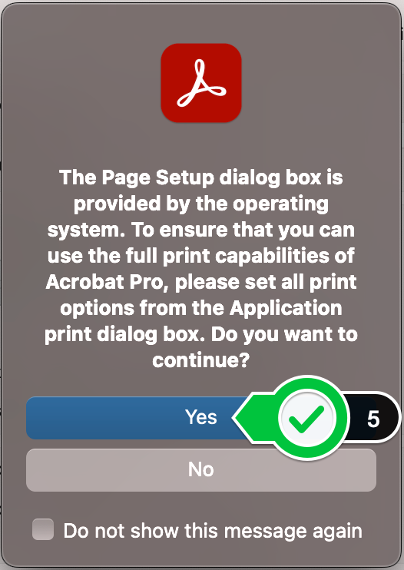
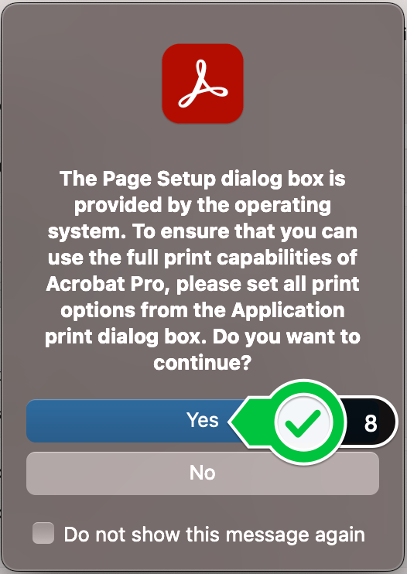
- You will possibly get a prompt like the picture below. If so, click on “Yes”
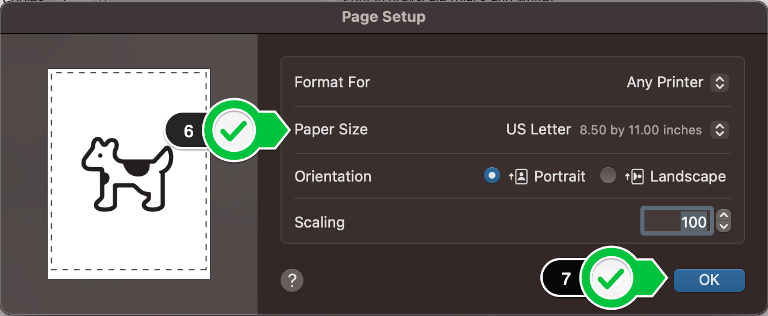
- Set paper size – this will determine what size paper your image prints on
- US Letter = 8.5” x 11”
- Tabloid = 11” x 17”
- Tabloid Oversize = 12’ x 18’
- Click “OK”
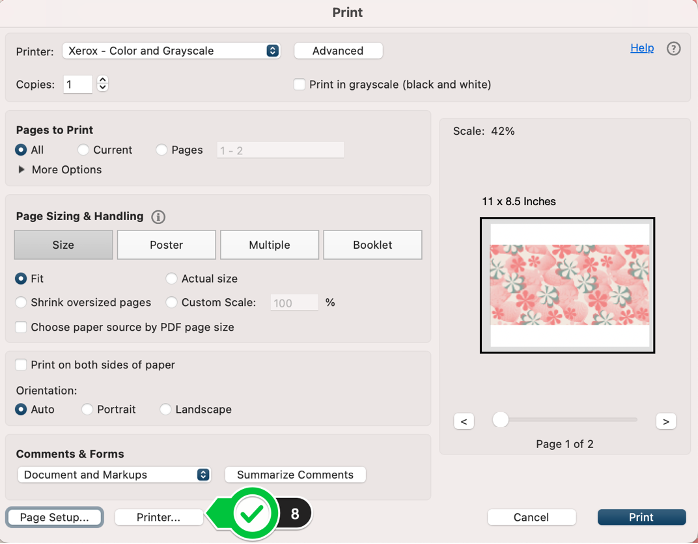
- To change paper type (ex. Copy paper vs. Cardstock), click on “Printer…”
- This prompt may pop up again. If so, click “Yes”
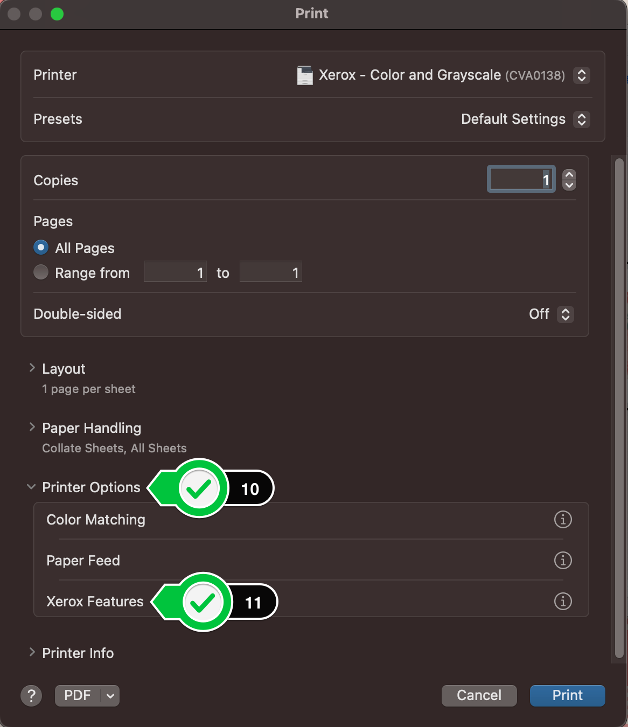
- Click on the “Printer Options” drop down menu
- Click “Xerox Features”
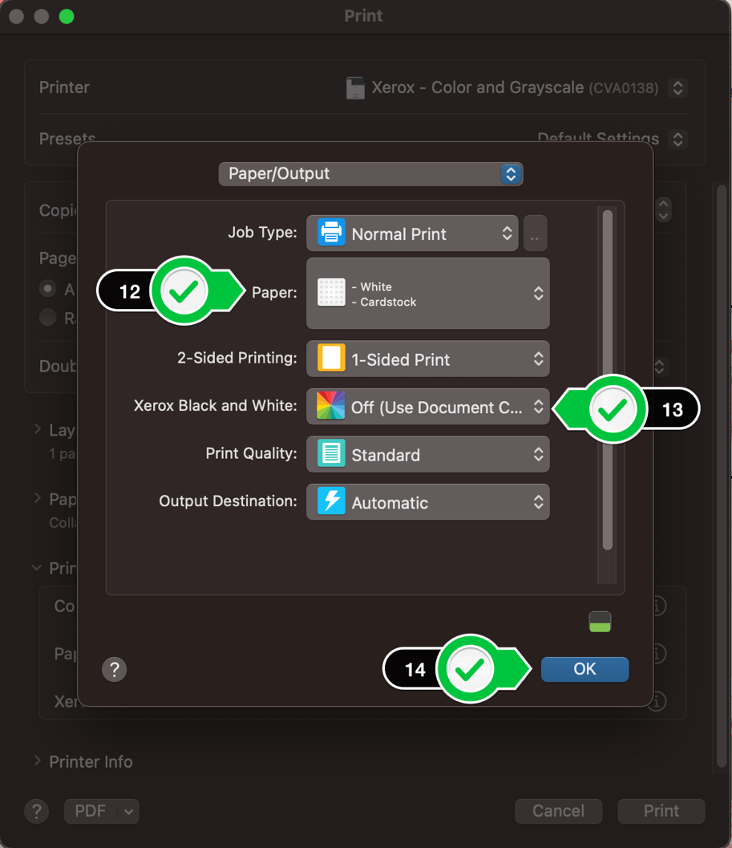
- IMPORTANT: this step will determine if your print goes to the correct paper tray
- Choose “white” as your paper color
- Choose “Plain” for paper and “Cardstock” for cardstock. The printer will then pick the correct tray containing the media type you wish to print.
- Check your settings for the “Xerox Black and White” option.
- Choosing “Off (Use Document Color)” will result in your project printing in color.
- Choosing “On” will result in your project printing in black and white
- Click OK
- Click “Print”
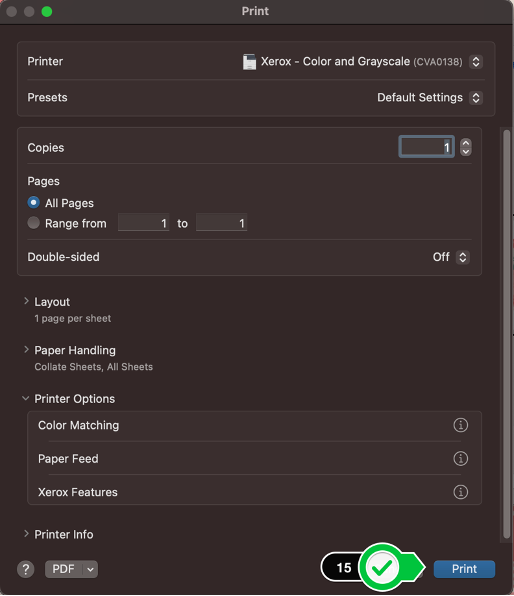
- Click “Print”
To learn more about uPrint and printing on campus, please see Where to pick up and pay for your uPrint print job | Help - Illinois State
Feedback
To suggest an update to this article, ISU students, faculty, and staff should submit an Update Knowledge/Help Article request and all others should use the Get IT Help form.