Technology
Navigating Teams Meeting in Microsoft Education
Last modified 4/17/2026
This guide provides basic navigation steps for using Teams Meeting within the Microsoft Education LTI within your canvas course.
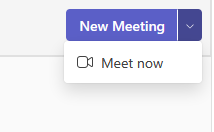
- New meeting: This button is located in the upper-right corner and is for scheduling future meetings. It's the preferred option for planning a class session or student conference in advance. It allows you to set a title, date, and time.
- Meet Now: This button creates an immediate meeting for a quick session. This button would be used for a quick check-in with a student, as it will instantly create the room.
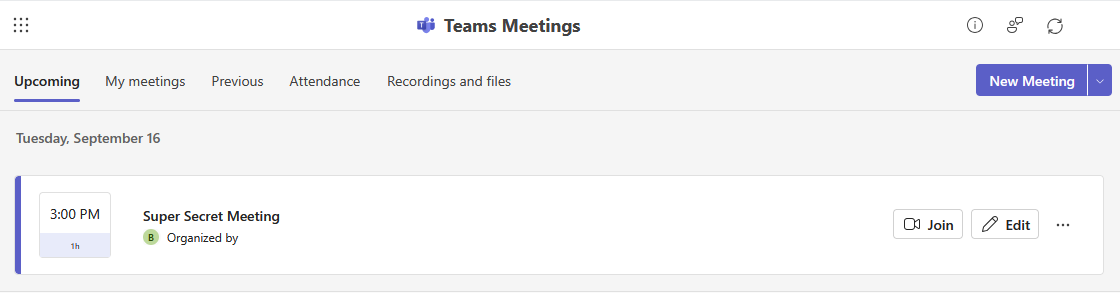
- Upcoming: View all future meetings you have scheduled or been invited to in the future.
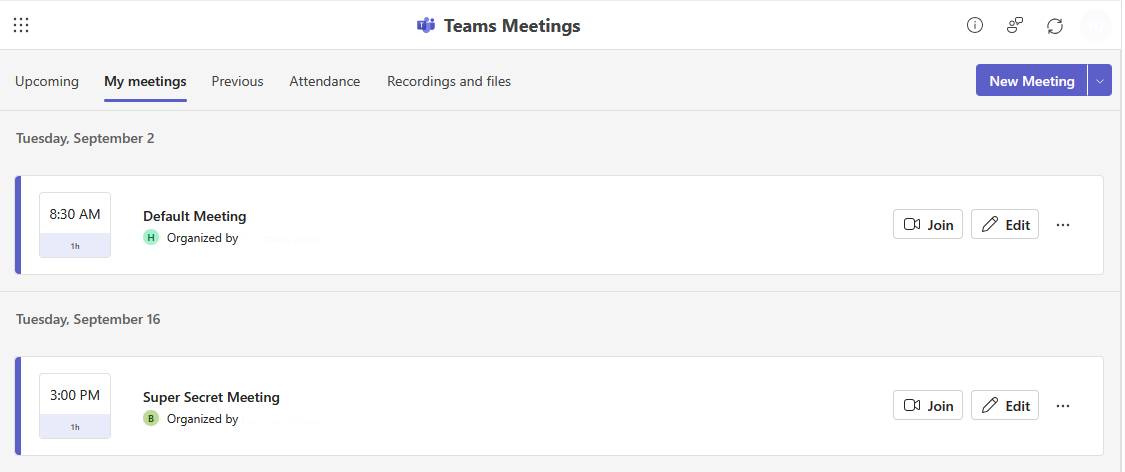
- My Meetings: See a complete list of meetings where you are either the organizer or an invited Participant
- Previous: Access a list of all past meetings you were involved in.
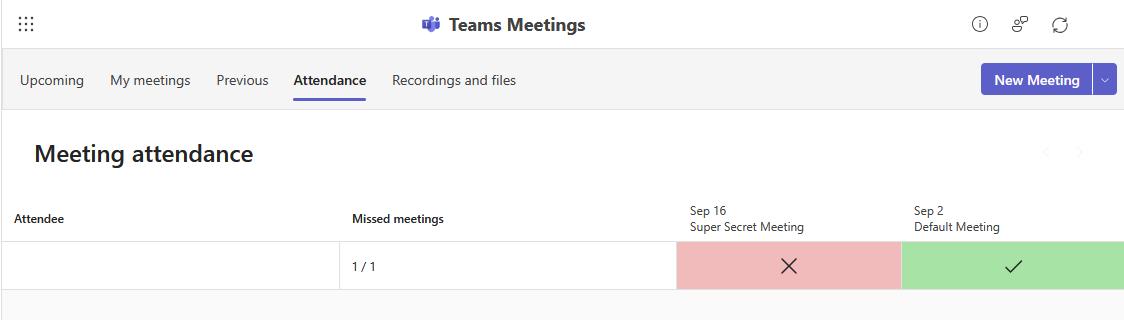
- Attendance: View attendance reports for previous or present meetings you were part of. The attendance report uses a simple visual system to show participation
- A Green check mark indicates a user was present, and a Red X means they were absent.
- Recordings and files: Access recordings and any shared files from a meeting you have attended.
Additional Resources
How to Get Help
Technical assistance is available through the Illinois State University Technology Support Center at:
- Phone: (309) 438-4357
- Email: SupportCenter@IllinoisState.edu
- Submit a Request via Web Form: Get IT Help Form
- Live Chat: IT Help Live Chat
Feedback
To suggest an update to this article, ISU students, faculty, and staff should submit an Update Knowledge/Help Article request and all others should use the Get IT Help form.