Technology
Navigating Reflect in Microsoft Education
Last modified 3/12/2026
This guide provides basic navigation steps for using Reflect within the Microsoft Education LTI within your canvas course.
- Check-ins: The central hub to view and create new well-being questions for your course. You can initiate and manage all student reflections from here.
- New Check-in: Use the button in the upper-right corner to create a new question for your students. These questions are designed to check in on your students' well-being and provide an opportunity for them to share their feelings.
- First Check-in: Before you make your first check-in, the button will appear as a Blue Box.
- New Check-in: Use the button in the upper-right corner to create a new question for your students. These questions are designed to check in on your students' well-being and provide an opportunity for them to share their feelings.
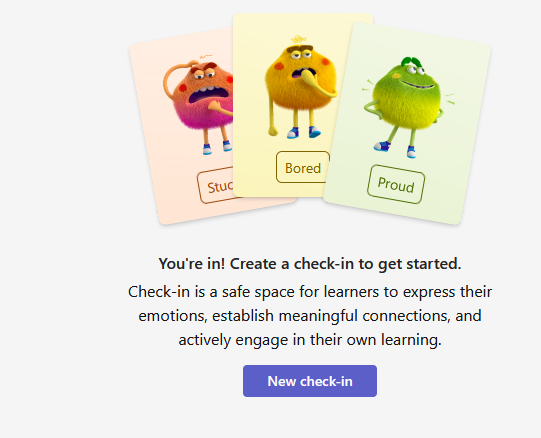
- Subsequent Check-ins: After you have made your first check-in, the button will change to a white box for all future check-ins.

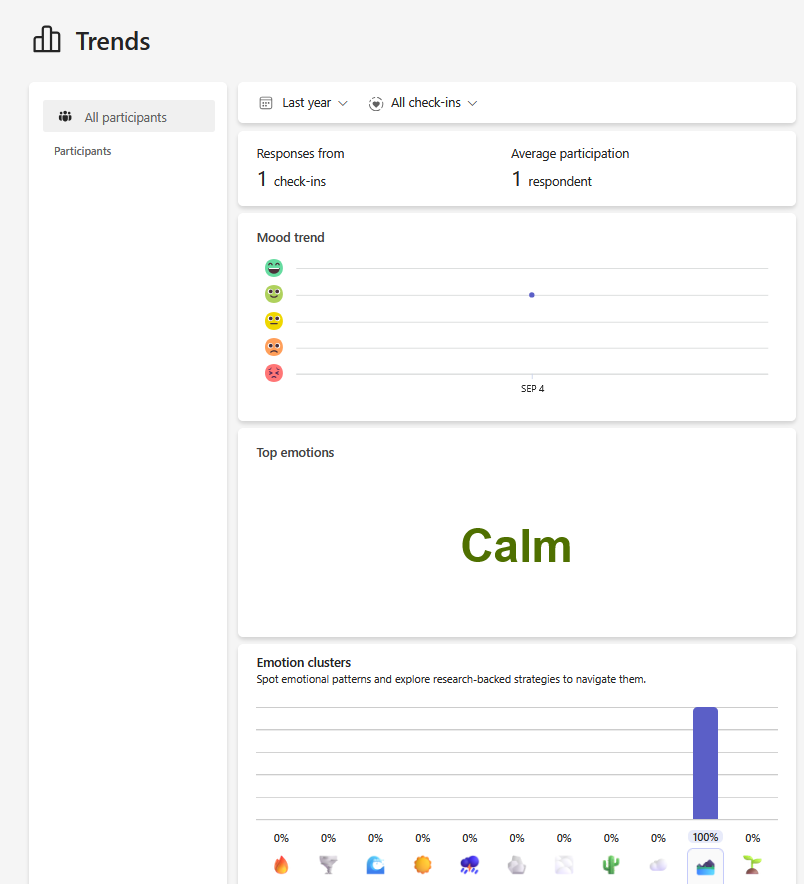
- Trends: See an overview of check-in responses over time to identify trends in your class. You can view data on responses, participation rates, and other insight into your students' well-being.
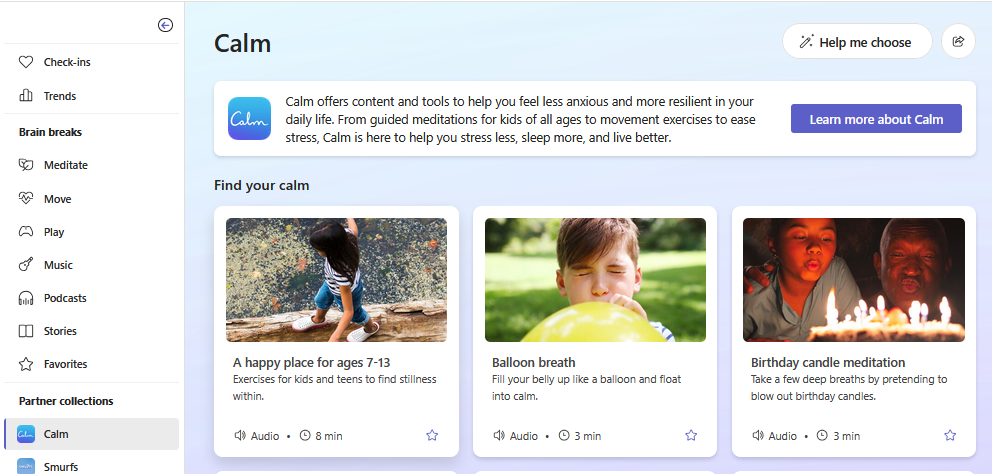
- Partner Collections: Access themed check-in questions provided by Microsoft partners like Calm and Smurfs. Partner Collection allows for a quick way to access questions curated by Microsoft partners for different topics or moods.
Additional Resources
How to Get Help
Technical assistance is available through the Illinois State University Technology Support Center at:
- Phone: (309) 438-4357
- Email: SupportCenter@IllinoisState.edu
- Submit a Request via Web Form: Help.IllinoisState.edu/get-it-help
- Live Chat: Help.IllinoisState.edu/get-it-help
Feedback
To suggest an update to this article, ISU students, faculty, and staff should submit an Update Knowledge/Help Article request and all others should use the Get IT Help form.