Technology
Microsoft Education LTI - Naming files on OneDrive
Last modified 4/17/2026
This article provides guidance on how to properly name files on OneDrive when using the new Microsoft Education LTI within Canvas.
When working with documents in the Microsoft Education LTI, you will need to open the file to rename it. You cannot rename the file directly from OneDrive within Microsoft Education LTI.
To save your document with a new name, you must save it before you close the tab. If you close the tab before renaming the file, it will be saved with the default name, like "Document" or "Document1." Even if you name the file and close the tab, the old name might still appear until you refresh your web browser. Sometimes, the new name might not show up even after refreshing.
Step-by-Step Guide to Renaming a Document
- Open the document you wish to rename directly in your browser.
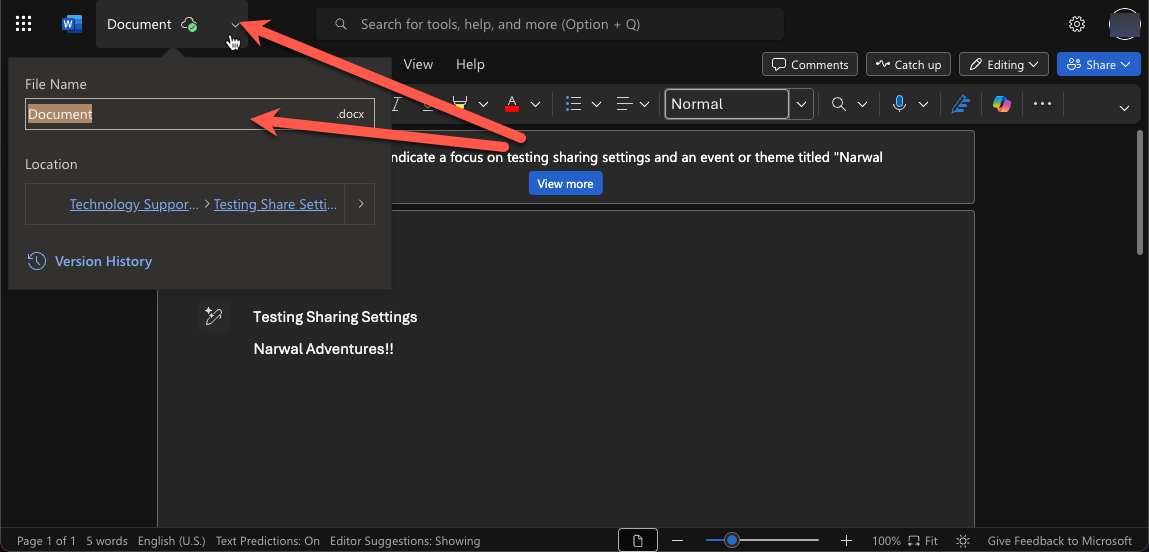
- Look for the file name at the top of the page, which will default to "Document".
- Click the drop-down arrow next to the document's name.
- Type the file's name into the text box and press enter to save the change.
Additional Resources
How to Get Help
Technical assistance is available through the Illinois State University Technology Support Center at:
- Phone: (309) 438-4357
- Email: SupportCenter@IllinoisState.edu
- Submit a Request via Web Form: Get IT Help Form
- Live Chat: IT Help Live Chat
Feedback
To suggest an update to this article, ISU students, faculty, and staff should submit an Update Knowledge/Help Article request and all others should use the Get IT Help form.