Technology
Get Started With Foxit PDF Editor+
Last modified 8/16/2026
Foxit PDF Editor + is an application for creating, editing, organizing, converting, reviewing, signing, protecting, and sharing PDF documents.
This guide introduces the most common workflows in Foxit PDF Editor and provides links to more detailed ISU knowledge base articles when a task requires additional instructions.
Note: The features available to you may vary depending on your Foxit license, version, and installation
Request a Foxit PDF Editor Software License
Fill out the software license request form if you don't already have a license. Once approved, you will receive an email notification that provides installation instructions.Installing Foxit PDF Editor
Before reviewing the information below, you will first need to install and sign in to the Foxit PDF Editor application on your device:
Foxit PDF Editor Cloud
Foxit PDF Editor+ is available as a web browser application at https://pdfonline.foxit.com/.
Getting Familiar with Foxit PDF Editor
When you open Foxit PDF Editor, you'll see a Ribbon interface that organizes tools and commands into tabs based on what you want to do.
The main areas of the interface are:
- Quick Access Toolbar — Provides frequently used commands such as Open, Save, Print, Undo, and Redo.

- Ribbon Tabs and Commands — Contains the primary tools and commands, organized by function.

- Tab Bar — Allows you to work with multiple PDF documents in the same window.

- Navigation Panel — Provides tools for navigating and working with your document, such as page thumbnails, bookmarks, and comments.
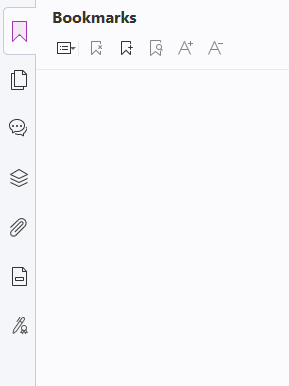
- Document Pane — Displays the PDF you are currently viewing or editing.
- Status Bar — Provides document and viewing information.

Foxit groups many commands by task in the Ribbon, making it possible to locate tools based on what you are trying to accomplish.
Finding Tools and Help
If you know what you want to do but haven't found where to find the feature, use Foxit's Search functionality to search for commands and features.
For additional information, select Help > Help Center to browse or search Foxit's documentation.
Common PDF tasks in Foxit PDF Editor
- Create and Convert PDFs
Foxit PDF Editor can create PDFs from many types of files, including Microsoft Office documents and images. You can also convert existing PDFs into other formats when you need to edit or reuse their content.
Common tasks you can perform:
- Create a PDF from a Word, Excel, or PowerPoint file.
- Create a PDF from an image or other supported file.
- Print a document to PDF.
- Convert a PDF to Word, Excel, PowerPoint, images, and other supported formats.
To create a PDF, select File > Create and choose the appropriate option for your source file.
To convert an existing PDF, open the document and select the appropriate tool under the Convert tab.
Related Resources:
- Edit and Organize PDFs
Foxit allows you to make changes directly to PDF documents and manage the pages within them.
You can edit:
- Text
- Images
- Links
- Headers and footers
- Watermarks
- Backgrounds
You can also organize PDF pages by:
- Inserting pages
- Deleting pages
- Reordering pages
- Rotating pages
- Extracting pages
- Replacing pages
- Splitting PDFs
- Combining PDFs
For more complex layouts or document assembly, Foxit provides additional editing and assembly capabilities.
When making extensive changes, if the original source file is available, editing the source document and creating a new PDF may be preferable to making extensive changes to the original PDF directly.
- Annotate, Fill & Sign PDFs
Foxit provides tools for reviewing documents, completing forms, and signing PDFs.
Annotate PDFs
The Comment tools allow you to add markups such as:
- Highlights
- Underlines
- Strikethroughs
- Sticky notes
- Text boxes
- Callouts
- Shapes
- Freehand drawings
- Stamps
Annotations can be used to provide feedback or mark up a document without directly changing its original content.
Fill Out Forms
If a PDF contains interactive form fields, select a field and enter the requested information. Save the PDF when you have finished.
Foxit also provides tools for creating PDF forms when you need to turn a document into an interactive form.
Sign PDFs
Foxit supports electronic and digital signature workflows. The appropriate signing method depends on the requirements of the document and the applicable workflow.
- Protect and Share PDFs
Foxit provides tools for protecting PDF documents and preparing them for distribution.
Depending on your workflow, you can use features such as:
- Password protection
- Encryption
- Permission settings
- Digital signatures
- Redaction
Redact Sensitive Information
Use Foxit's Redaction tools when information must be permanently removed from a PDF.
Examples include:
- Personally identifiable information
- Financial information
- Confidential information
- Other sensitive content
Before sharing a PDF, review the document to make sure it contains only information that should be distributed and that appropriate protection has been applied.
Do not use a black rectangle or other annotation to hide sensitive information. Use the dedicated redaction tools so the underlying content is removed.
- Review and Compare PDFs
Foxit provides tools for reviewing documents and identifying differences between document versions.
Review PDFs
Use comments and annotations to provide feedback, mark changes, or collaborate on a document.
Compare PDFs
The Compare feature can help identify differences between two versions of a PDF.
This can be useful when reviewing:
- Revised documents
- Policies
- Reports
- Contracts
- Draft and final versions
Additional Information:
Additional Information About Foxit PDF Editor +
How to Get Help
Technical assistance is available through the Illinois State University Technology Support Center at:
- Phone: (309) 438-4357
- Email: SupportCenter@IllinoisState.edu
- Submit a Request via Web Form: Get IT Help Form
- Live Chat: IT Help Live Chat
Feedback
To suggest an update to this article, ISU students, faculty, and staff should submit an Update Knowledge/Help Article request and all others should use the Get IT Help form.