Technology
Create PDF Forms in Foxit PDF Editor+
Last modified 8/16/2026
Interactive Form
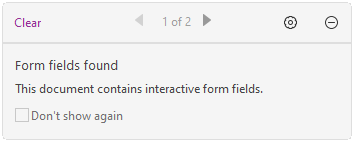
For interactive forms, you will see a message box appear in the top-right corner of the application window. The message box informs you that this document is a fillable form. Select  to collapse the notification message. If you do not want to see the notification message again when reopening this file, check the Don’t show again option in the notification message. Clicking the gear icon
 in the notification message can change the preferences about notification message setting. Please refer to Notification Messages preferences below for more information.
- Notification Message Preferances
Notification messages appear at the top right corner of the document pane when you work with interactive PDF forms, PDF/A files, or PDF files under shared review or email review, etc. You can configure the notification message settings as required:
- Show the message which affects the next step: Specify whether or not to show the procedure-related notification messages which usually contain action buttons for you to move forward to the next step. This option is checked by default. It is recommended to keep the option checked to work on documents during OCR, Shared Review, or Email Review normally.
- Show the notification related message: Specify whether or not to show the notification related messages which inform you that a PDF file contains such elements as interactive form fields, 3D contents, etc.
- Show PDF/A message again: Specify whether or not to show the message when opening a PDF/A document.
Tip
You can also change the notification message settings by clicking the gear icon on the message shown on the document pane. The changes of settings you made in the notification message will be applied accordingly in the Notification Message preferences.
Foxit PDF Editor highlights the form fields in the document by default, which colors the backgrounds of all blanks to be filled in and outlines any required blanks, making it easy to see them at a glance. If you don’t need to highlight the fields:
- Select Form > Tool Setting
- Uncheck Highlight Fields.
AcroForm and XFA (XML Forms Architecture) Form
Foxit PDF Editor now supports both AcroForm and XFA Form. You can fill in XFA forms with the Hand command, in the same way you did with normal fillable forms (this is also known as AcroForm).
Non-interactive Form
The document message box will not appear. This kind of form acts like an ordinary PDF document that has plain text and you will need to use the tools in Fill Forms in Foxit PDF Editor+ to fill in this form.
Additional Information:
Additional Information About Foxit PDF Editor +
How to Get Help
Technical assistance is available through the Illinois State University Technology Support Center at:
- Phone: (309) 438-4357
- Email: SupportCenter@IllinoisState.edu
- Submit a Request via Web Form: Get IT Help Form
- Live Chat: IT Help Live Chat
Feedback
To suggest an update to this article, ISU students, faculty, and staff should submit an Update Knowledge/Help Article request and all others should use the Get IT Help form.