Technology
Setting Up the Time Based One Time Passcode Authentication Method
Last modified 7/23/2026
Time-based one-time passcode (TOTP) is a standard protocol. Azure MFA, which powers Illinois State University's MFA, supports authenticators that support the TOTP protocol. Primary examples include Google Authenticator, Duo Mobile, and password managers such as LastPass and Bitwarden.
Note:
This method provides an additional option for end users who do not have, or do not want to use, a personal phone/smartphone, and do not want a hardware token either.
- Navigate to the ULID Account Management Portal.
- Log in with your ULID and password.
- Upon logging in, click the Change MFA Devices button next to MFA. (See Figure 1).
Figure 1: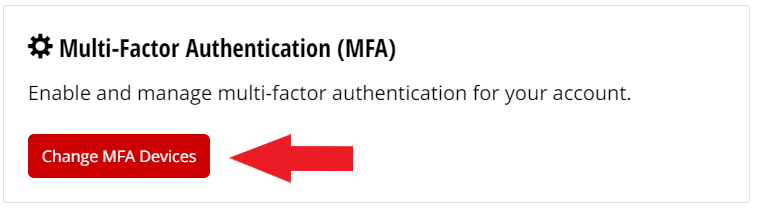
- Press the Manage Devices button located at the bottom. (See Figure 2).
Figure 2: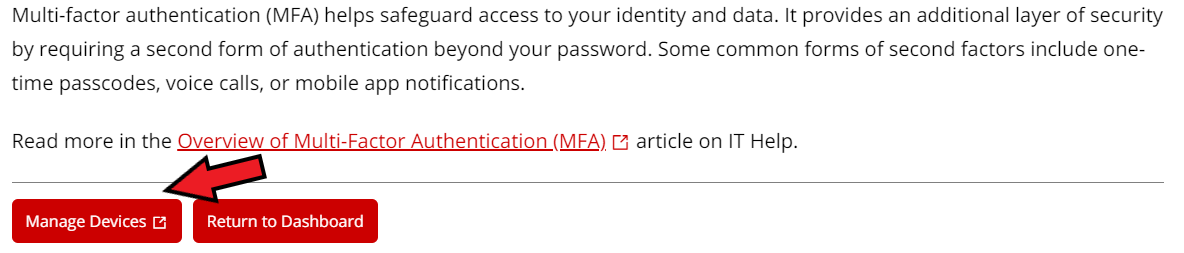
- You may be prompted to log in with your ISU email account or to authenticate your login with your preferred MFA method (Authenticator app, phone call, text, etc.).
- Once you are in the Security Info tab, you should see the Default Sign-in Method section with the Authenticator app - notification method as your main method. To change it to One-Time Password, click Change, then select Authenticator App or Hardware Token - Code from the drop-down menu that appears (See Figures 3 and 4).
Figure 3: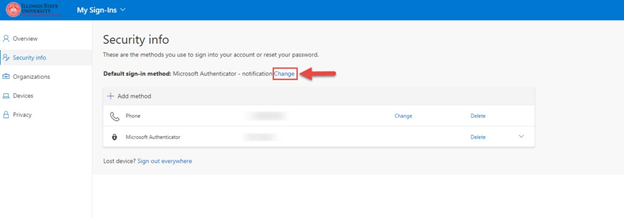
Figure 4: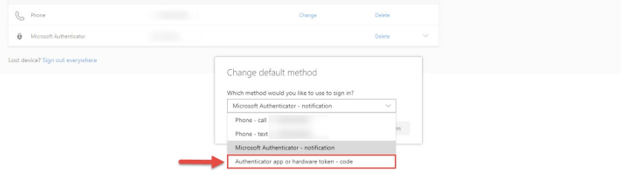
- Click Confirm to save your changes.
- You will see a confirmation message pop up at the top-right corner of your screen. You have successfully changed your authentication method to One-Time Password.
Setting up the One-Time Password Authentication Method using Google Authenticator
- Navigate and log in to MFA Security Info Portal via Central Login.
- For more information about Central Login at ISU, please refer to: Central Login
- Verify with MFA if prompted.
- Click, Add method.
- Select the Authenticator app in the Choose a method drop-down menu.
- Click Add.
- Click, I want to use a different authenticator app.
- Click Next.
Using an authenticator app with a barcode scanner?
- Follow the steps to add an account in the app.
- Scan the barcode image when prompted.
Using an authenticator app without a barcode scanner?
- Click, can't scan the image?
- Copy the secret key.
- Follow the steps to add an account in the app.
- Enter the secret key when prompted.
- Enter the code displayed in the authenticator app.
- Click Next.
Additional Information
How to Get Help
Technical assistance is available through the Illinois State University Technology Support Center at:
- Phone: (309) 438-4357
- Email: SupportCenter@IllinoisState.edu
- Submit a Request via Web Form: Get IT Help Form
- Live Chat: IT Help Live Chat
Feedback
To suggest an update to this article, ISU students, faculty, and staff should submit an Update Knowledge/Help Article request and all others should use the Get IT Help form.