Technology
Activating your ULID Account
Last modified 4/13/2026
Your Illinois State University account must be activated to gain access to My.IllinoisState, Office 365, Canvas, and other ISU sites.
Activate Your Account
To activate your account, do the following:
- Go to the ULID Account Managment portal
- Click Activate ULID Now. (Figure 1)
Figure 1: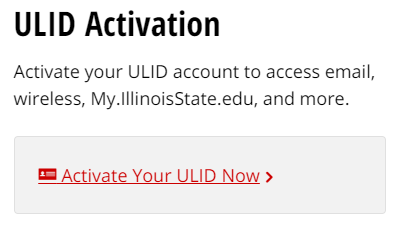
- Enter your University ID number (UID) and your Date of Birth and click Continue. (Figure 2)
Note:
UID numbers (9-digit user identification number) may be found on your Redbird ID card or acceptance letter. DLID (Student Worker ULID) account UID numbers are delivered through the official secure messaging service, SendTo.
- Complete the form and click Continue. (Figure 2)
Figure 2: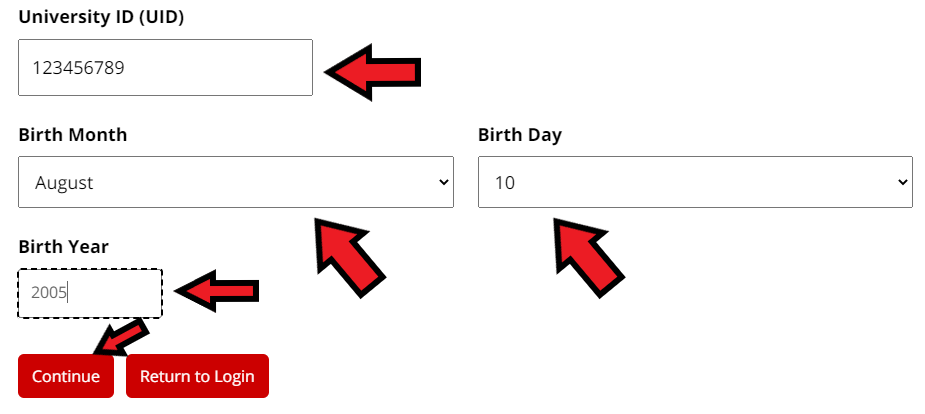
- The next page will display your Current Account Information. In the field labeled Recovery Email Address, enter your non-ISU email address. Your Recovery Email Address is used for account lockouts and forgotten passwords.
- In the field labeled Confirm Recover Email Address, re-enter the same address and click Set Recovery Email Address. (Figure 3):
Figure 3: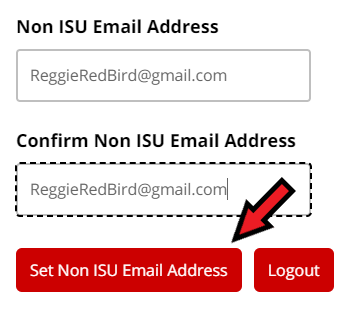
- An email message will be sent to the third party address provided by you in a previous step.
When you receive it, please use the verification code in the email to continue with your account activation in the Verification Code field and then click on Submit Verification Code. (Figure 4 & 5):
Figure 4: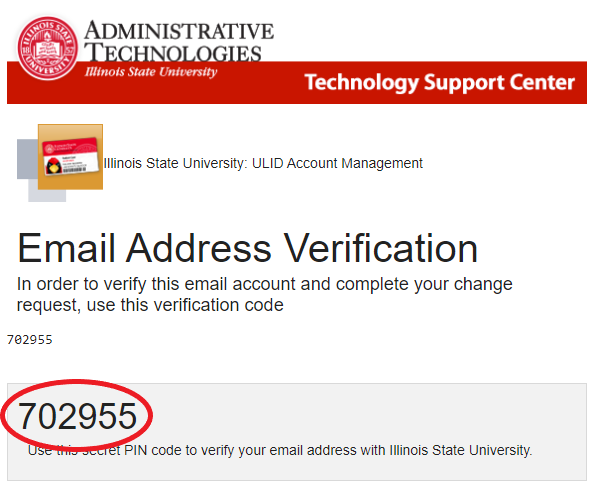
Figure 5: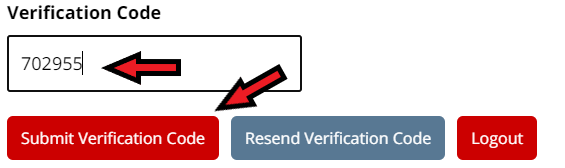
Important
To prevent problems with activation, this process must be completed using the same browser and device (e.g. Do not start the process on a computer and open the email link using another device such as a cell phone)
- If you are a Lab School Student, you can proceed to the next step; otherwise, review the Agreement on the Electronic Signature Acknowledgement Form and do one of the following: (Figure 6)
- To opt in to eConsent, click I Consent, enter your initials, and click Submit Electronic Signature Consent.
- To opt out of eConsent, click I do not consent, enter your initials, and click Submit Electronic Signature Consent
Figure 6: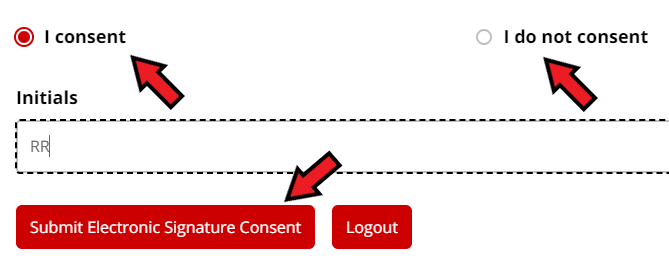
- Check I consent to the Appropriate Use Policy and click Submit Appropriate Use. (Figure 7)
- To review this policy, click the link provided.
Figure 7: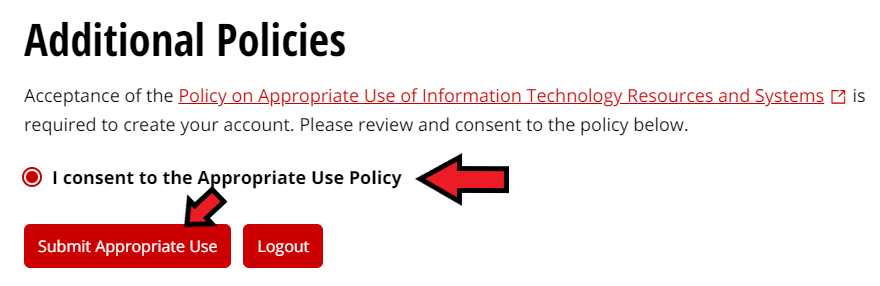
- To review this policy, click the link provided.
- Create your password and click Continue.
- Make sure to follow the requirements as you create your password.
- Make sure to follow the requirements as you create your password.
Breached Password
If the password that you created causes an error, then your password might have been breached. You will need to create a different password and try again. See figure 8 for more information about password requirements.
Figure 8: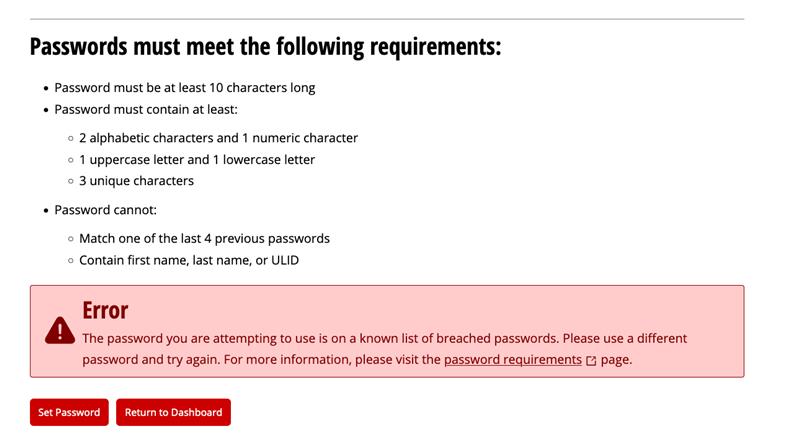
Your account has been successfully activated. Microsoft (office) 365 access may be unavailable for up to 1 hour after account activation. Note: Upon account activation, you may not have full access to your ISU email account yet. This access comes after meeting with your advisor during your enrolment appointment.
Set Up MFA on Your ULID Account
Illinois State University required Multi-Factor Authentication (MFA) as a condition to access many online university resources. Once you have activated your ULID account, you will need to set up MFA on your account.
NOTE: Newly admitted Freshman and Transfer students will not be required to use MFA until they receive access to their ISU email accounts, close to their Preview ISU or Transfer Day dates. However, it is recommended they set up MFA at the time of account activation to avoid having to do that step later.
For more information about MFA at Illinois State University, including instructions detailing how to set up MFA on your ULID account, please refer to:
How to Get Help
Technical assistance is available through the Illinois State University Technology Support Center at:
- Phone: (309) 438-4357
- Email: SupportCenter@IllinoisState.edu
- Submit a Request via Web Form: Get IT Help form
- Live Chat: IT Help Live Chat
Feedback
To suggest an update to this article, ISU students, faculty, and staff should submit an Update Knowledge/Help Article request and all others should use the Get IT Help form.