Technology
Managing Operating System and Application Updates for Endpoint Support customers
Last modified 11/17/2025
Audience: Faculty and staff supported by Endpoint Support - President's Office, Provost's Office, Athletics, VPFP, VPUA, CEG
Source: Endpoint Support team
Why updates are important
Operating systems (Microsoft Windows and MacOS) and applications require continual updates – these updates deliver new features, but they also serve a critical function in keeping your computer running smoothly and the university data on your computer secure. Attempts to take advantage of the vulnerabilities that are resolved with updates can happen very quickly, and thus it is important that updates are installed quickly as well. The University's Patch Management Standard provides further detail on the purpose and scope of managing system updates.
Many updates now require restarts to complete the installation, and it is understood that this can be a disruptive experience. Please see below best practices for applying updates and getting back to work on your computer as soon as possible.
Recommendations for the best experience updating your computer
Endpoint Support manages the updates for your computer using Software Center (Windows), and Jamf Self Service (MacOS and iOS), ensuring that your operating system and applications are updated regularly so that your data is secure and your computer performs as expected. Updates are released as needed through Software Center and Jamf Self Service, and once they are available you will have up to two weeks total to apply them.
- The best experience for applying updates to your computer is to let the automatic process do the work. If you follow this method, you will significantly reduce the number of update notifications you receive.
- Log off your computer completely at the end of your workday and leave your computer powered on and connected to the network (or VPN if at home). Picking a regular day to do this each week is an easy way to stay ahead of updates and prevent having to do a forced restart.
- Pending updates will install automatically overnight.
- As with any update, you might be prompted to restart your computer the following day to complete the installation of some update(s). Doing that restart right away will limit the number of subsequent pop-up notifications you receive.
- Getting back to work quickly
- Most browsers have a feature that re-opens recently open tabs, a convenient way to resume work in your browser. This article includes instructions reopening tabs in common browsers.
- Microsoft Office (Word, Excel, PowerPoint, etc.) that were open when a restart occurred should reopen automatically, but not all types of files will do this.
- You can also install updates from Software Center or Jamf manually, when convenient for you
- This article describes how to install updates through Software Center for Windows devices.
- For MacOS devices, refer to this article for information on installing updates.
- If you have multiple updates to install it is recommended to choose the operating system update(s) (Windows, MacOS, or iOS) first as application updates may rely upon those updates being installed.
- Multiple restarts may be necessary to apply multiple updates at once as some of the updates must go in order - this is especially likely if you have operating system or Microsoft Office updates installing.
Restarts are now required for pending updates
Updates to operating systems and applications are only effective when they are fully installed, and many updates require restarts to complete the process. To protect university data and the performance of your computer, restarts will now be required soon after the initial installation. All University-owned computers are subject to the Patch Management Standard, and any computers that do not restart within the specified times may be disabled to ensure their security. Please see the appropriate section below for which notifications you will see on your computer specifically.
Restart Notifications
- Windows
When an update is installed in Software Center for an application on your Windows computer, you will begin to receive the initial restart notification below. Because this notification is triggered by each update individually, you may receive more than one a day. The initial restart notification may be snoozed for 1, 2, or 4 hours; you may also opt to do the restart to dismiss the notification. NOTE: if you select "Cancel" it will pop up the notification again in 1 hour.
Initial Restart Notification
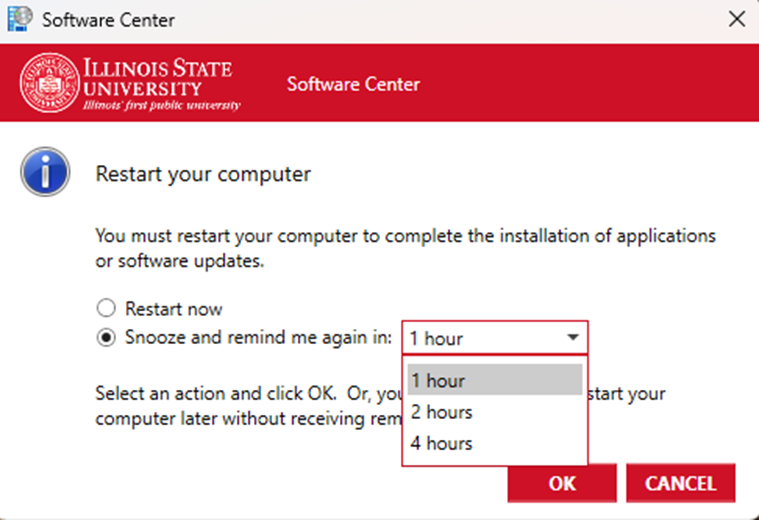
Beginning in November 2025, when you have updates pending that require restart as of Friday afternoon, you will begin to see the Forced Restart notification from Software Center. You will have the opportunity to snooze that notification or go ahead with the restart. This notification will appear every 24 hours until the following Thursday, when the restart will take place automatically at the time listed in the notification.
These notifications look very similar to each other, but only the forced restart notification includes a date and time.
Forced Restart Notification
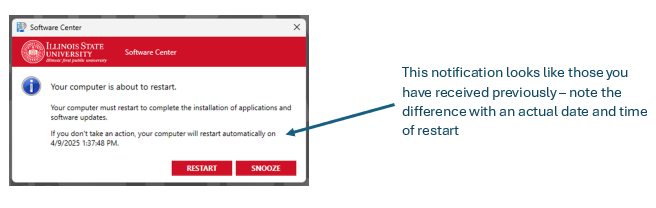
The final pop-up notification will be received on the following Thursday and will give a one hour warning to restart – you will not be able to prevent that restart from occurring at the appointed time and so it is recommended to close your applications and files and perform the manual restart by selecting “restart” from the Software Center pop-up notification prior to that time.
- MacOS and iOS
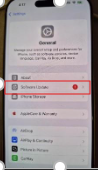
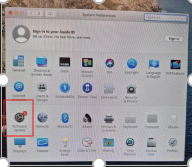
When an MacOS or iOS update is installed on your Apple device, you will begin to receive the initial restart notification below. Because this notification is triggered by each update individually, you may receive more than one a day or over multiple days.
Initial Restart Notification
iOS
MacOS
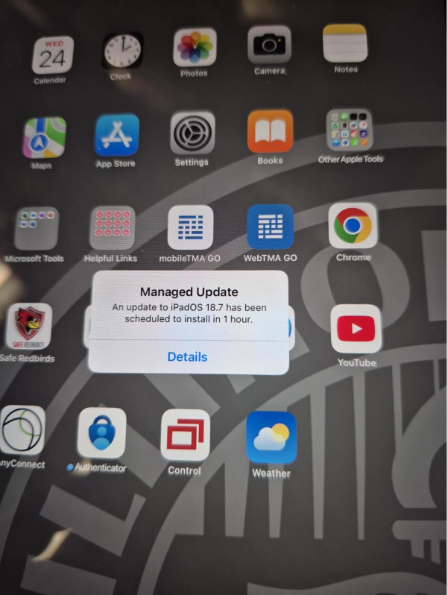
Beginning in November 2025, when you have updates pending that require a restart as of Friday afternoon, you will begin to see the Forced Restart notification displaying in your notification pane. You will have the opportunity to close that notification or click on the notification, which will take you to the software update settings to go ahead with the restart. This notification will appear every 24 hours until the following Thursday, when the restart will take place automatically at the time listed in the notification.
Forced Restart Notification
iOS
MacOS
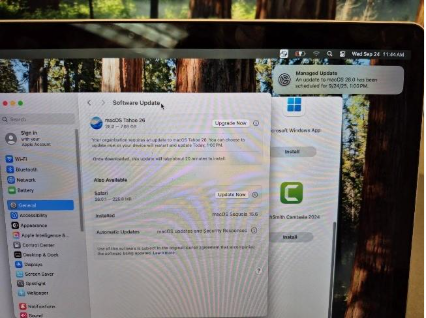
The final pop-up notification will be received on the following Thursday and will give 1 hour, 30 minute, 10 minute, and 5 minute warnings to restart – you will not be able to prevent that restart from occurring at the appointed time and so it is recommended to close your applications and files and perform the manual restart by selecting “restart” from the Software Update section in Settings prior to that time.
How to Get Help
Endpoint Support customers with questions about updating their Windows, Mac, or iOS device should contact the Endpoint Support team by:
- Phone: (309) 438-1818
- Submit a Ticket via the ServiceNow Portal
Feedback
To suggest an update to this article, ISU students, faculty, and staff should submit an Update Knowledge/Help Article request and all others should use the Get IT Help form.