Technology
Canvas Portfolio
Last modified 4/14/2026
Canvas Portfolio is available to all students and faculty.
- Accessing Portfolio
To access Portfolio:
- Log in to Canvas using Central Login.
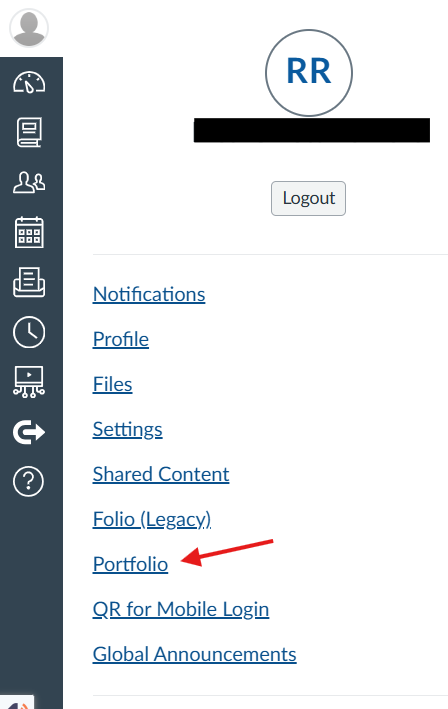
- In the left sidebar, select Account.
- Select Portfolio.
- Types of Portfolios
There are Evaluation and Showcase Portfolios.
Evaluation Portfolios
Evaluation Portfolios can be used to supplement courses currently in progress.
- Only instructors can create them.
- Adding a course to a portfolio automatically adds its enrolled students.
- The instructor can link assignments from these courses or create new ones for the student to complete.
- The instructor can track student progress within the portfolio.
- Some benefits include demonstrating outcomes and encouraging reflection.
Showcase Portfolios
Showcase Portfolios are designed for presentation and professional use.
- Anyone can create them.
- The creator can add assignments from selected ongoing courses or create items.
- Sharing these portfolios can be beneficial for academic submissions, internships, job applications, and professional branding.
Relevant Canvas Infrastructure articles:
How do I create an Evaluation Portfolio as an instructor? - Instructure Community
How do I create a Showcase Portfolio as a student? - Instructure Community
How do I create a Showcase Portfolio as an instructor? - Instructure Community
- Adding Content to a Portfolio
Portfolios can include two types of content: Course Assignments and Evidence Assignments.
Course Assignments
The creator can add Canvas course assignments to a portfolio as long as they meet the following requirements:
- The course must be published.
- The assignment must be published.
- Note: Assignments added from a course automatically expire when the course ends. It may be helpful to export the portfolio before the course end date to prevent items from disappearing.
An added course assignment serves as a link to that assignment in Canvas. Submissions and grading still occur inside the Canvas course, not in the portfolio itself.
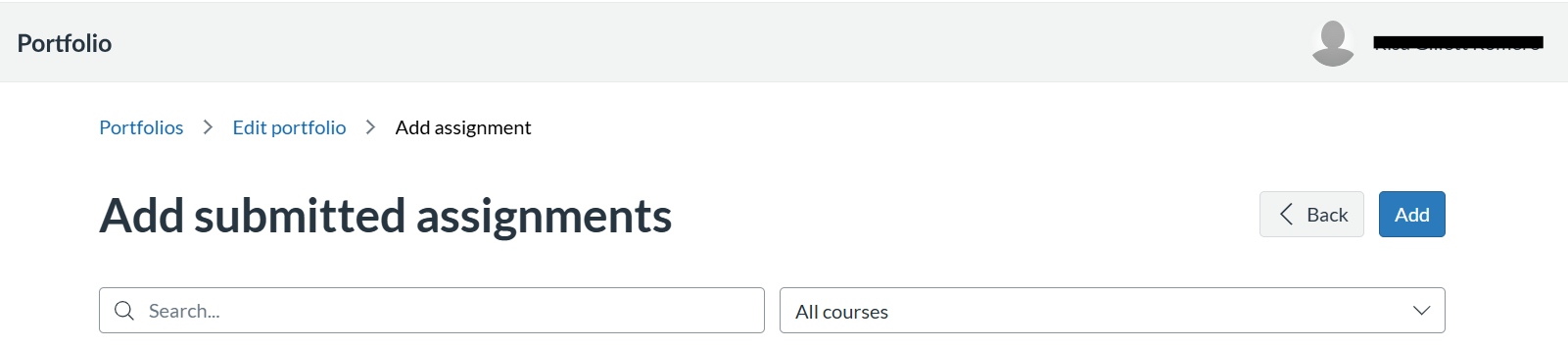
To add this type of assignment, click on Add Evidence, then Add assignment from course, then choose an assignment from one of your courses.
Evidence Assignments
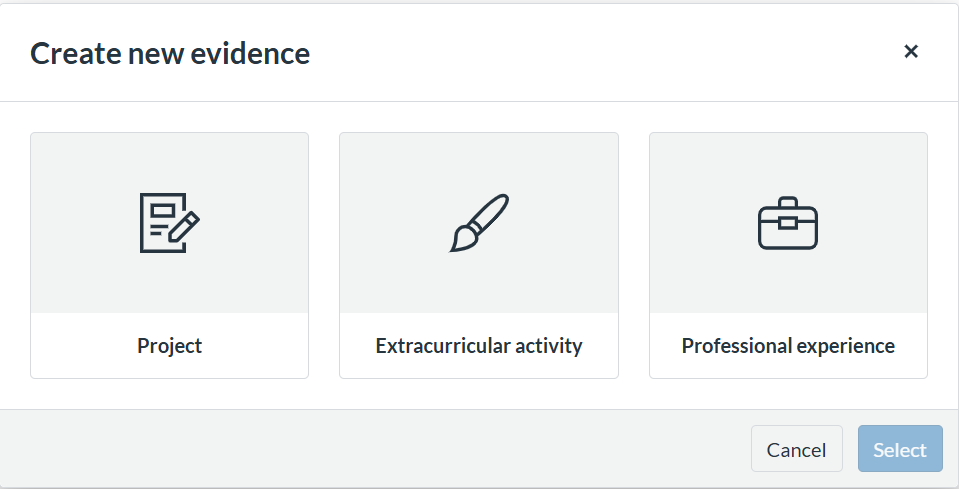
Evidence Assignments allow you to showcase work not tied to a Canvas course. Available types include:
- Project
- Extracurricular Activity
- Professional Experience
To add this type of assignment, click on Add Evidence, then Create new evidence, then choose one of the three categories.
Additional features of Evidence Assignments:
- Add tags and skills to describe what the Evidence demonstrates.
- Instructors can mark Evidence as Complete, Incomplete, or Revision Requested.
- Students can view instructor feedback directly from their portfolio.
Relevant Canvas Infrastructure articles:
How do I add evidence in an Evaluation portfolio as an instructor? - Instructure Community
How do I add evidence to a Portfolio as a student? - Instructure Community
How do I submit a Course Assignment in Evaluation Portfolios as a student? - Instructure Community
- Viewing and Tracking Progress
An Evaluation portfolio allows instructors to track student work in Evidence assignments.
Instructor View
Instructors can view the progress of enrolled students individually or sort overall progress by completion status.
Student View
Students can view comments, completion status, and revision requests on Evidence items. They can track what has been added, what needs review, and what is complete.
Relevant Canvas Infrastructure articles:
How do I add evidence feedback in Evaluation Portfolios? - Instructure Community
How do I view evidence feedback in Portfolios? - Instructure Community
- Exporting and Sharing Your Portfolio
Canvas Portfolio offers options to export and to share a portfolio.
Export
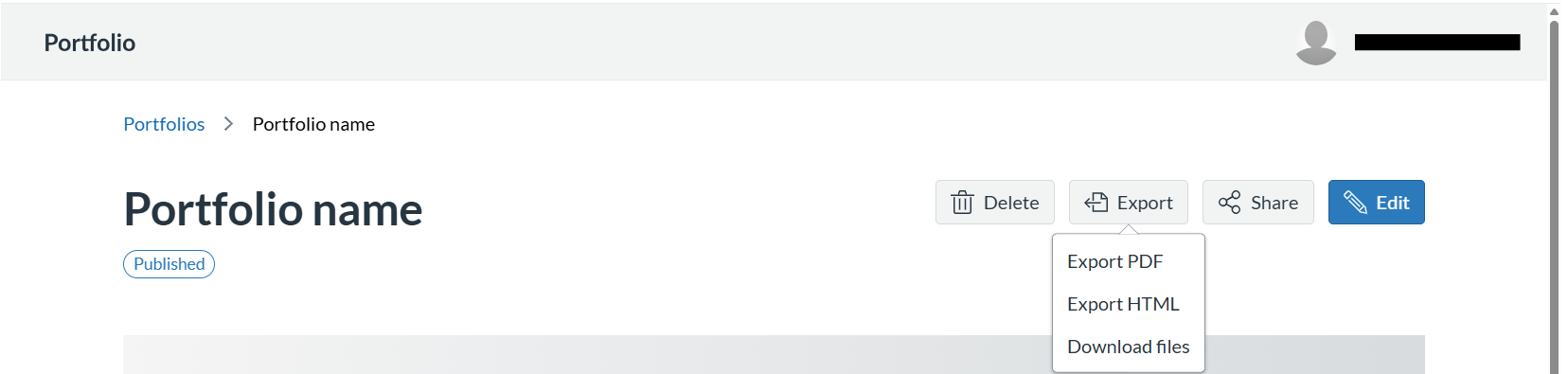
The creator can export a portfolio as a PDF file, HTML file, or choose to download it as multiple files.
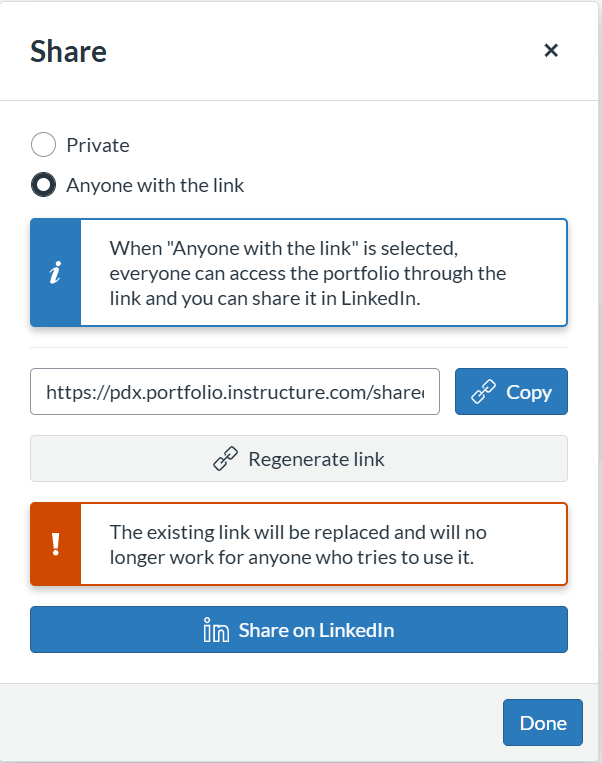
Share
The creator can generate a private or public portfolio link to share. They can link the portfolio directly to LinkedIn to highlight academic achievements or professional experiences
Relevant Canvas Infrastructure articles:
How do I export and share Portfolio content as a student? - Instructure Community
How do I export and share Portfolio content as an instructor? - Instructure Community
How to Get Help
Technical assistance is available through the Illinois State University Technology Support Center at:
- Phone: (309) 438-4357
- Email: SupportCenter@IllinoisState.edu
- Submit a Request via Web Form: Get IT Help Form
- Live Chat: IT Help Live Chat
Feedback
To suggest an update to this article, ISU students, faculty, and staff should submit an Update Knowledge/Help Article request and all others should use the Get IT Help form.