Technology
Overview of the Anaplan Quarterly Projection Report
Last modified 10/26/2026
After the end of each quarter, the Budget Office will notify users when the Quarterly Projection report in Anaplan is available for submissions and provide the deadline for completion.
The Quarterly Projection report includes a separate projection page for each fund type. The expenses and revenues displayed on each page vary based on the fund type selected. Each page is presented at the same organizational level at which the fund is budgeted.
Before You Begin
Log into the Anaplan site to view the Quarterly Projection Report.
- After logging in, your Anaplan homepage will be displayed.
- View a list of models, pages, and apps that are available to you.
- Select the tile under “Pages” that contains the report that you wish to open. For this example, we will open the "Quarterly Projection Report".
- As an Anaplan user, you will have access to the Quarterly Projection Reports page and the Commitments page.
Note
Cells can be copied from Excel and pasted directly into Anaplan.
Video Demonstration
The following video is a walkthrough of the Anaplan Quarterly Projection Report features:
Anaplan Pages:
The following are pages that are available in the Quarterly Projection application.
Quarterly Projections Reports (by fund) Pages 2.1-2.8:
The columns listed below will be displayed for reference on the quarterly projection reporting pages.
Review the descriptions of each column below:
- Column 1 (by default, this column does not have a column heading): This column displays the complete General Ledger (GL) account string, including all chart of accounts segments used to identify the funding source and purpose of the revenue or expense activity.
- Unit : Unit number and corresponding description used to identify the organizational area, program, activity, or other budgetary grouping associated with the account.
- Object Class: Identifies whether a line item represents revenue or expense activity and can be used to filter the worksheet by object class.
- Object Desc: Object number and corresponding description that identifies the type of revenue earned or expense incurred.
- 20XX (Prior Fiscal Year) QTR to Date: Actual revenue or expense activity from the prior fiscal year, accumulated through the end of the selected quarter.
- 20XX (Current Fiscal Year) QTR to Date: Actual revenue or expense activity during the current fiscal year, accumulated through the end of the selected quarter.
- 20XX (Prior Fiscal Year) Total Actuals: Actual revenue or expense activity recorded during the entire prior fiscal year.
- 20XX (Current Fiscal Year) Current Budget: The current authorized budget for the fiscal year, calculated as the opening budget plus any permanent base budget adjustments and temporary budget adjustments processed to date.
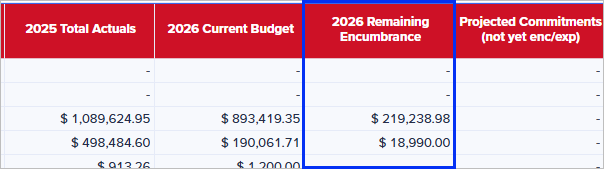
- 20XX (Current Fiscal Year) Remaining Encumbrance: Budget committed to outstanding purchase orders as of the end of the selected quarter. Because requisitions are not included until they are converted to purchase orders, users should consider any open requisitions when completing projections. Encumbrances are displayed based on the transaction date, so retroactive changes may affect prior quarters.
- Projected Commitments (not yet enc/exp): Displays the total commitments entered on page 2.9, Commitments of the Quarterly Projection report. This amount represents anticipated revenue or expense activity not yet reflected in actuals or purchase order encumbrances, such as pending requisitions or other known commitments not yet incurred or received.
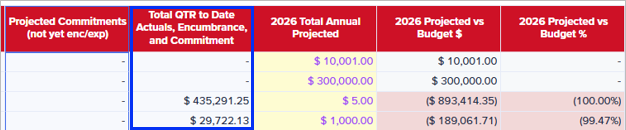
- Total QTR actuals, encumbrances, and commitments: Total of current year quarter to date actuals, encumbrances, and commitments.
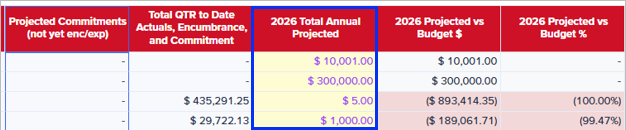
- 20XX (Current Fiscal Year) Total Annual Projected: A user-input field used to record the projected total revenue or expense for the entire current fiscal year for the specified account. Although this amount may equal the value displayed in the "Total QTR to Date Actuals, Encumbrance, and Commitment" column; it must be entered manually by the user. Requiring manual entry ensures that each account is individually reviewed and projected, helping users validate expected year-end results and confirm the amounts that will be included in the final quarterly projection submission.
Once projections have been entered on the applicable pages, users may review the following variance calculations which compare projected amounts to prior year activity and current budget. These calculations appear in the "Quarterly Projection Reports (by fund)" .
- 20XX(Current Fiscal Year) Projected vs Budget $: Displays the dollar difference between the 20XX Current Year Budget and the 20XX Total Annual Projected amount for the selected row. A negative value indicates projections below budget. A positive value indicates projections above budget.
- 20XX Projected vs Budget %: Displays the percentage difference between the 20XX Current Year Budget and 20XX Total Annual Projected amount for the selected row. A negative value indicates projections below budget; a positive value indicates projections above budget.
- 20XX (Prior Fiscal Year) QTR vs Annual % : Displays the percentage of the prior fiscal year’s total annual actuals that had been incurred or received by the end of the selected quarter.
- 20XX (Current Fiscal Year) QTR vs Budget %: Displays the percentage of the 20XX Current Budget that has been incurred or received by the end of the selected quarter.
- Comments: Comments can be added to clarify any totals or variances.
Commitments Page 2.9:
This page is used to record known expenses that are expected to occur during the current fiscal year but have not yet been reflected as actual expenses or encumbrances. Entering these anticipated commitments helps users develop more accurate year-end projections by accounting for planned spending that is not yet visible in the financial system. Commitment amounts entered on this page are automatically aggregated by account and included in the Projected Commitments (not yet enc/exp) column on the Quarterly Projection pages (2.1-2,8).
- The Commitments page gives users the ability to enter known expenses that are not yet encumbered or expensed.
- Commitment amounts are entered at the account level. Totals are aggregated and carried to the applicable quarterly projection page automatically.
- Commitment entries remain on the page from quarter to quarter and do not automatically clear after a submission cycle.
- Users should review and update commitment amounts each quarter to ensure projections remain accurate.
Anaplan Quarterly Projection Report
The Quarterly Projection report helps users assess their financial position throughout the fiscal year and develop informed year-end projections. By combining actual financial activity, current budgets, encumbrances, and user-entered commitments, the report provides the information needed to monitor spending and revenue trends, identify potential variances, and project anticipated fiscal year outcomes. The following sections describe the key features and tools available within the report.
Accessing the Report
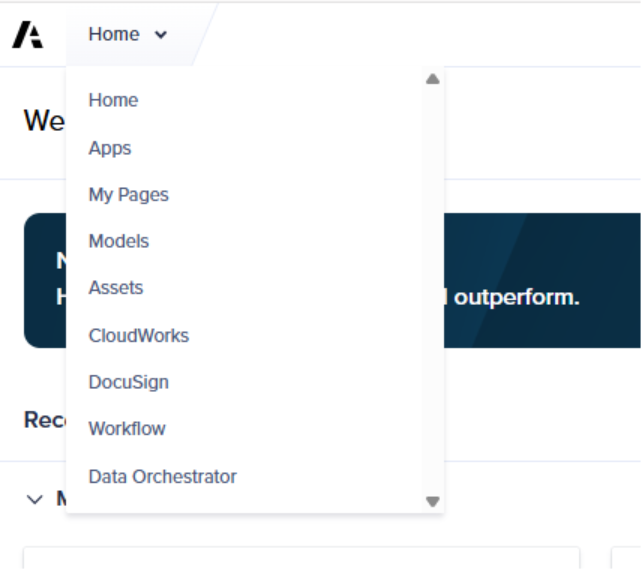
From the Anaplan homepage, select Apps from the "Home" dropdown menu to view all applications available to you.
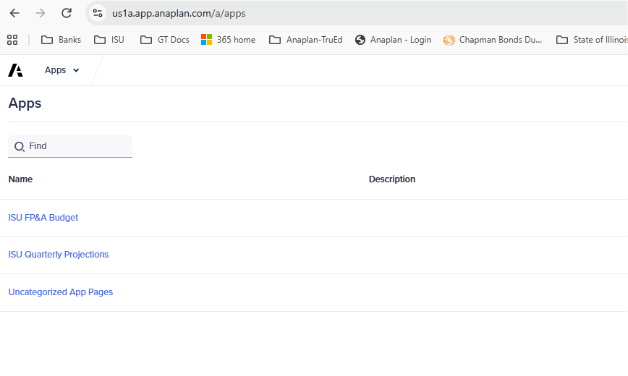
Open ISU Quarterly Projections to access the "Quarterly Projection Reports" and the "Commitments" page.
This will open a page that displays all Apps available to you.
Selecting a Department or Unit
From each Quarterly Projection page (2.1 through 2.8), the report allows users to view information at either the Department level or the Unit level. Use the dropdown menu at the top of the page to select a department to view all accessible units within that department at once or select an individual unit. Only departments and units to which the user has been granted access will appear in the selection list. 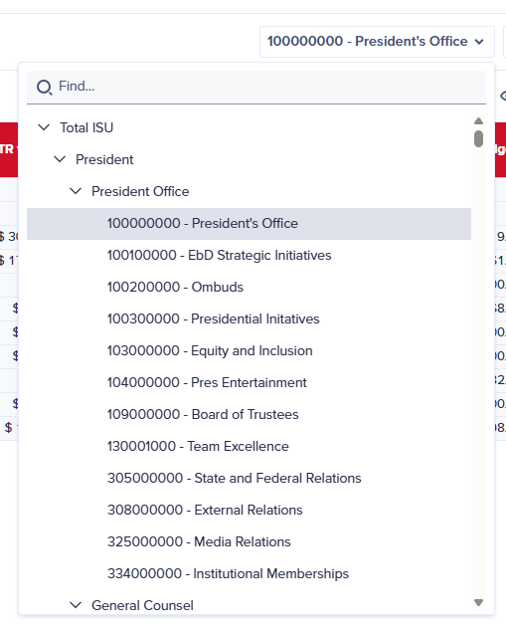
The 9-digit number next to the unit name is the unit number. This number is tied specifically to a unit and that is part of all their accounting. All unit numbers associated with a department will display in the drop down menu.
In the first column in this report, the number of this unit can be seen in the middle of the set of numbers: 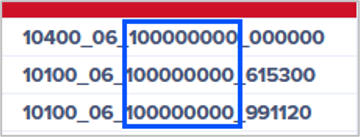
You can pick a higher level to see all budget numbers. Additionally, you can filter the values by one of these units. Click the Filter icon. Then, click the column that you want to filter by (for example, “Umbrella Unit”).
This will open a menu on the right of the screen.

Use the fields in this menu to indicate your filter criteria. For example, all expenses over $50,000 in 2025 QTR to date, all with the object description of “Equipment”, etc.
Object Desc
The Object Desc field contains the 6-digit description code. Additionally, it also contains the written description.
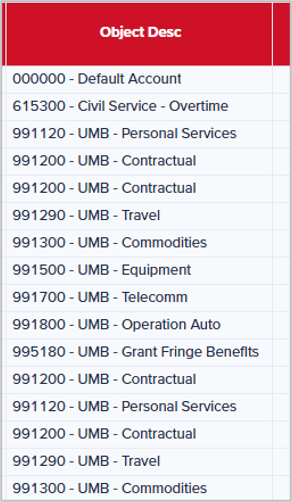
Account Number, Umbrella Unit, and Object Class
The Object Desc column is determined by the three columns preceding Object Desc (Account Number, Umbrella Unit, Object Class). These three columns give an additional breakdown of the Object Desc column: 
QTR to Date
With this quarterly report, view the status of your department’s spending during a certain point during the quarter or year.
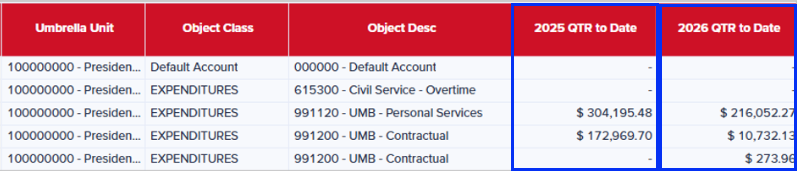
Last Fiscal Year (20xx) QTR to Date
First, view your budget amount at the end of the first quarter of the last fiscal year. In the screen shot above, this is the column labelled “2025 QTR to Date”.
Current Fiscal Year (20xx) QTR to Date
Then, look at end of same quarter of fiscal year to compare the two numbers. So, $304,195.48 vs. $216,052.27. In the same screenshot, this is the column labelled “2026 QTR to Date”.
Compare the two numbers to confirm that you are on track.
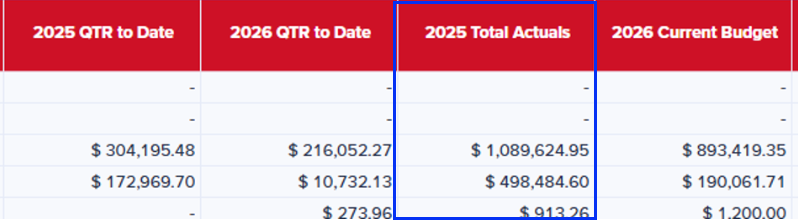
Prior Year (20xx) Total Actuals
This column will display the actual expenses reported for the prior year.
Current Year (20xx) Current Budget
This column will show the current budget for the current year.
Compare this column to 20xx (prior year) Total Actuals. You can determine the answers to questions, such as if the budget this year is much less than what the budget was last year.
Use this column to view what you have for the fiscal year, to try and stay within your budget (by comparing it to the prior year column), and view what’s in your 20xx Current Budget column.
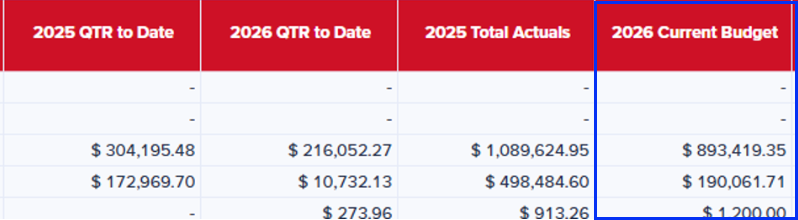
Use these columns – 20xx (prior year) Total Actuals and 20xx (current year) Current Budget – to make good fiscal decisions.
Current Year (20xx) Remaining Encumbrance
This column contains known expenses in the financial system that have not been paid yet.
Example: If there is a remaining personnel encumbrance, this column alerts you to the upcoming expense. Therefore, it is not included in my total spending to date. However, I know this expense will occur during the current fiscal year.
Projected Commitments
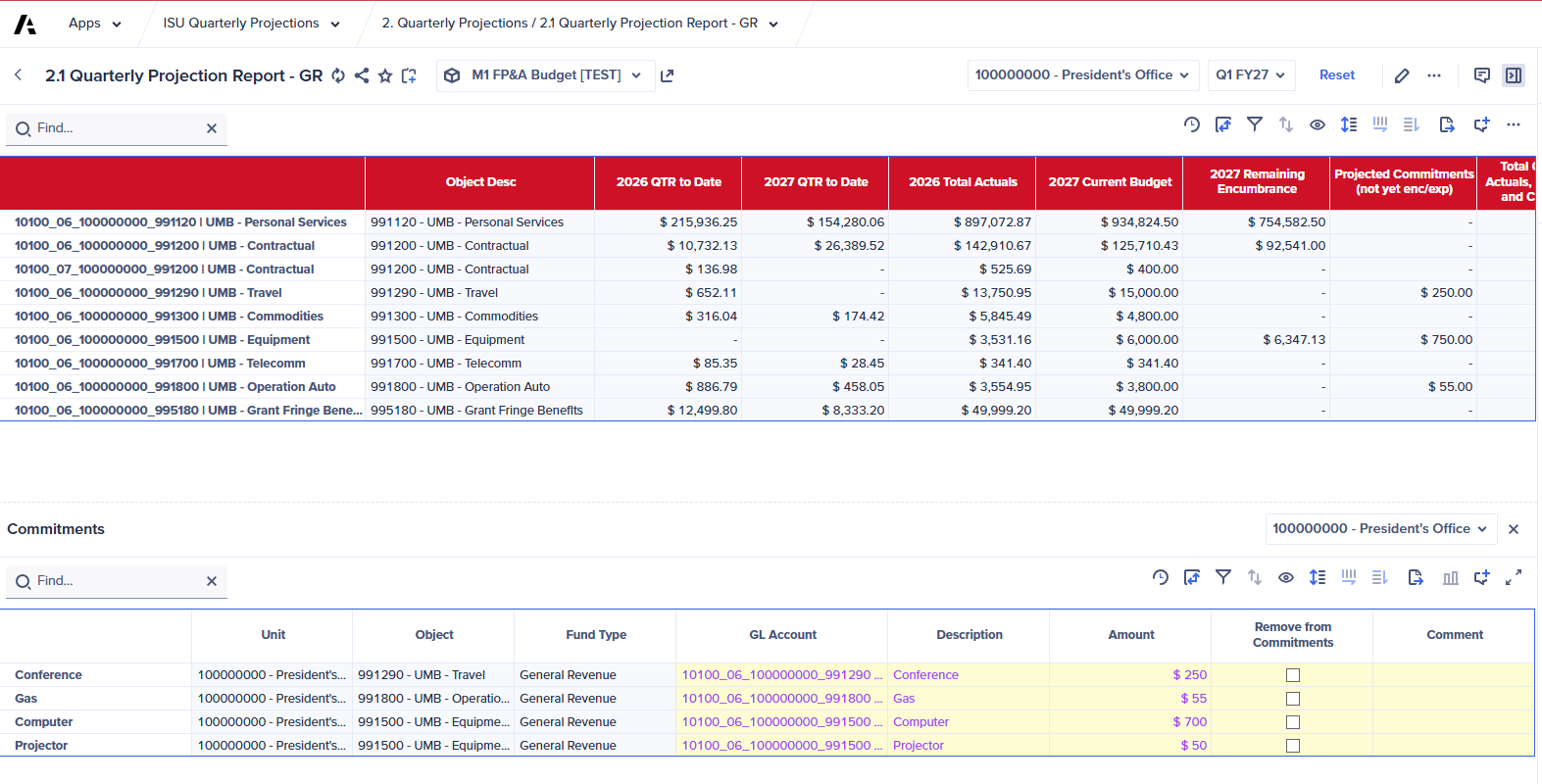
A commitments page is created that provides the ability to keep track of expenses that are not expensed or encumbrances. This page is a place for budget managers to keep track of expenses that haven’t happened yet. They know that this upcoming expense has a hold on part of their budget dollars.
For example: The business office has all the expenses that they’re paying for all year at the end of the first quarter. But the business office knows that in March, there will be an upcoming $250,000 contract. The office needs a place to keep track of that upcoming expense; this will be on the Commitments Page.
There are two ways to access the "Commitments" page.
- One option is to first select the Home dropdown button. In the dropdown menu that appears, click Apps.
- In the "Apps" page that appears, click ISU Quarterly Projections.
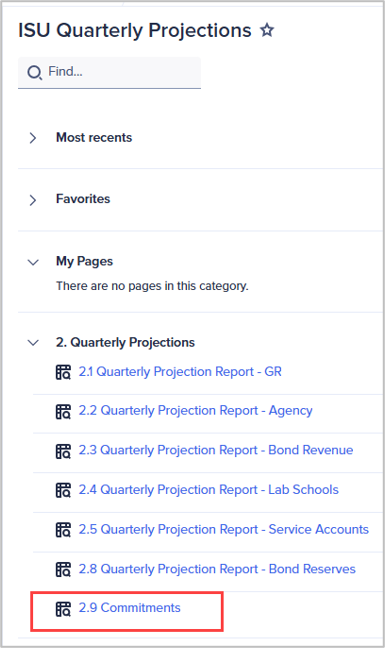
- In the "ISU Quarterly Projections" page, click 2.9 Commitments. This will open the "Commitments" page.
The second way to open the "Commitments" page is detailed below in the "Additional Insights Panel" section.
The totals on the Commitments Page will feed into this “Projected Commitments” column.
Total QTR to Date Actuals, Encumbrance, and Commitment
This is a total of the quarter to date, the encumbrance, and the commitments. This is meant to give a snapshot of what you’ve already spent, plus the encumbrance of what you could be spending (what you haven’t actually paid yet), plus your commitments. This column will display a total of these sums.
This is a helpful reference when you go to make your projection.
Current Year (20xx) Total Annual Projected
This column is yellow, indicating this is a free form field. Use this field to enter projections for the year (where the budget is going to end at the end of the year).
Enter a value into the 2026 Total Annual Projected column. This will change the percentages in these three columns. This will allow you to see how much of your budget you have used so far this year.
2026 Projected vs. Budget %, 2025 Qtr vs. Annual %, and 2026 Qtr vs. Budget %
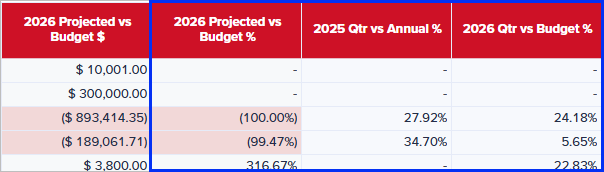
20XX(Current Fiscal Year) Projected vs Budget $: Displays the dollar difference between the 20XX Current Year Budget and the20XX Total Annual Projected amount for the selected row. A negative value indicates projections below budget; a positive value indicates projections above budget.
20XX Projected vs Budget %: Displays the percentage difference between the 20XX Current Year Budget and 20XX Total Annual Projected amount for the selected row. A negative value indicates projections below budget; a positive value indicates projections above budget.
20XX (Prior Fiscal Year) QTR vs Annual %: Displays the percentage of the prior fiscal year’s total annual actuals that had been incurred or received by the end of the selected quarter.
20XX (Current Fiscal Year) QTR vs Budget %: Displays the percentage of the 20XX Current Budget that has been incurred or received by the end of the selected quarter.
Comment
The "Comment" column is an optional freeform field. Use the comment field to enter a project name, an expense category, or to explain the reason for a variance.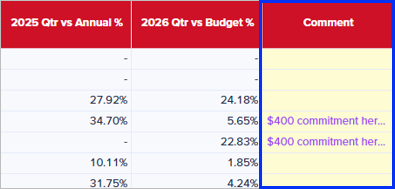
Show History
To view the history of changes made to a cell, right click a cell with a monetary amount. Then, select Show history.
This will display a menu to the right. Choose a time frame. This will display a history of changes that were made in this cell. View who made a change, when, the monetary amount, etc.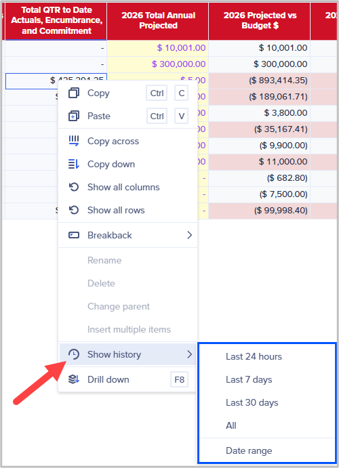
Filters
Click the Filters icon at the top of the screen. This will open the “Filters” window.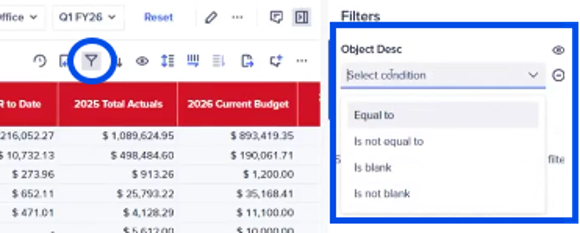
Use the fields in this window to select your filter(s). Multiple units can be selected to use as filters: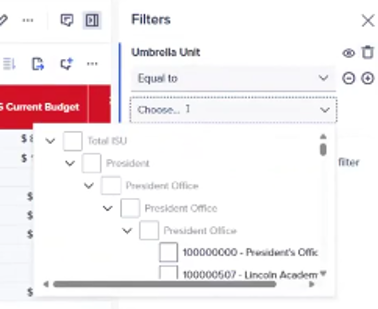
Sort
Click the Sort icon at the top of the screen to sort the values of a column as ascending or descending.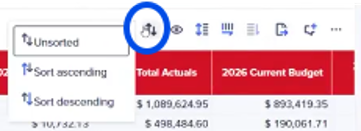
Eye icon
Select the eye icon to indicate what columns you do/do not want to view.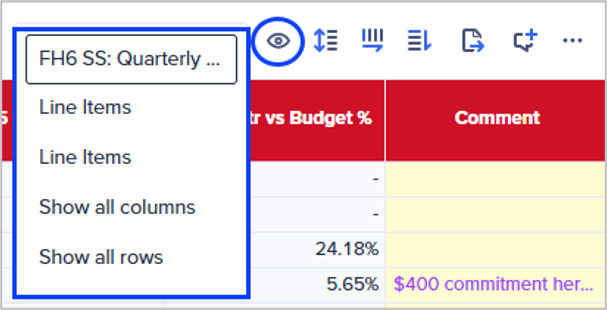
Export
Click the Export icon at the top of the screen.
This will open the Export View window: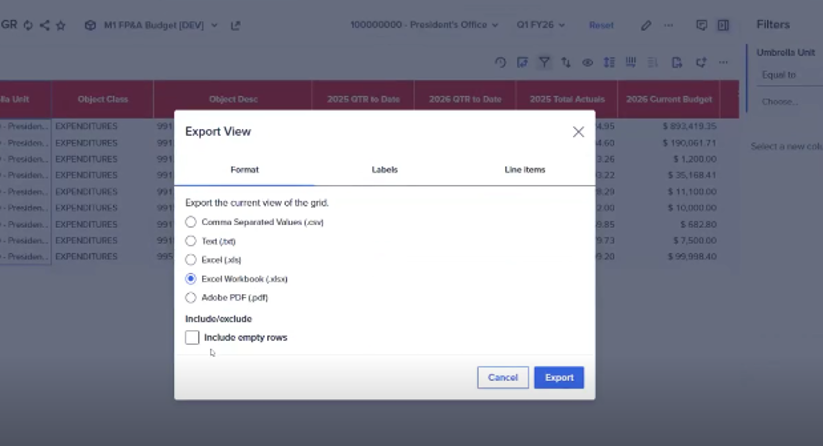
Use the tabs and fields in this window to export your results into the format of your choice.
Comment on grid icon
Select the Comment on grid icon to enter comments in the panel that opens out on the right.
Use the “@” symbol to tag someone in a comment. This will send the person a message via email.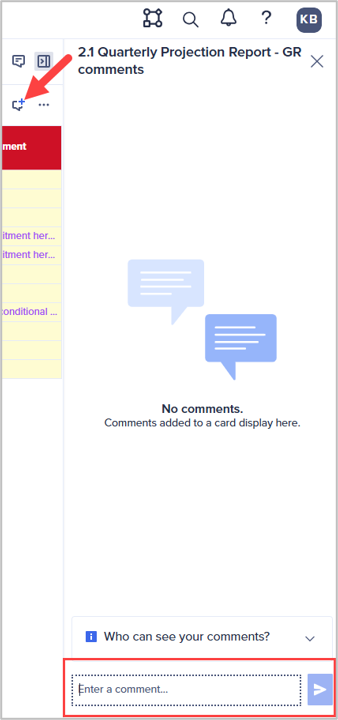
Additional Insights panel
An Additional insights panel will display on the right side of the screen when a cell is selected. This panel can be opened or closed at any time by using the Additional insights icon. This panel provides additional information on the selected cell and can also link you to other pages via the buttons in the panel.
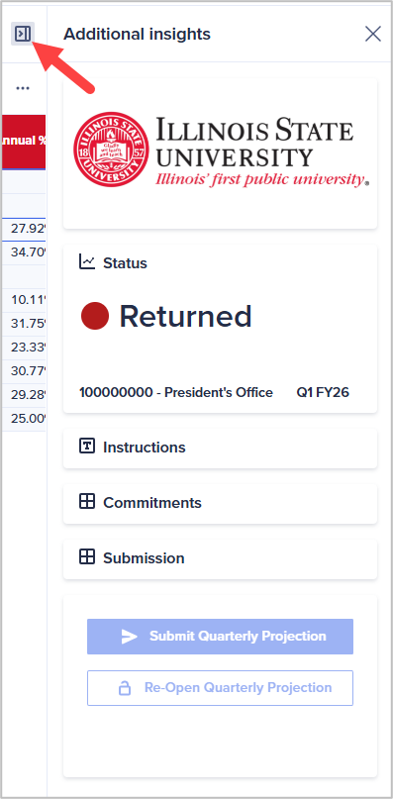
For example, click the Commitments button in this panel.
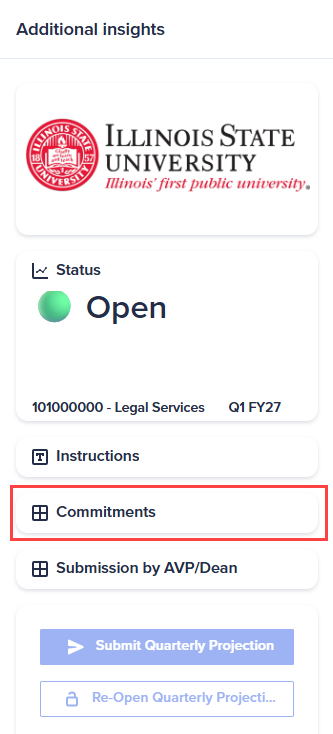
This will open the Commitments page at the bottom of the screen.
A Commitments page is created to provide the ability to keep track of expenses that are not expensed or encumbrances. This page is a place for budget managers to keep track of expenses that haven’t happened yet. This is to give awareness that an upcoming expense has a hold on part of their budget dollars.
This will allow you to see if you have anything on the page. You can then edit this page by adding or deleting the fields.
Commitments Page
The items on this page will be reflected in the total column on the report page (our main page).

Example: If you put $100 in a commitment, then you will see that there is an upcoming $100 expense on the report page.
Yellow fields are freeform fields.
The Commitments page can also be opened from the homepage.
Select Home in the upper left of the screen. Scroll down and select the ISU Quarterly Projections tile.
In the menu that appears, select 2.9 Commitments. This will open the "Commitments" page. This is the same table that appears at the bottom of the “Quarterly Report” when the “Commitments” button is selected.
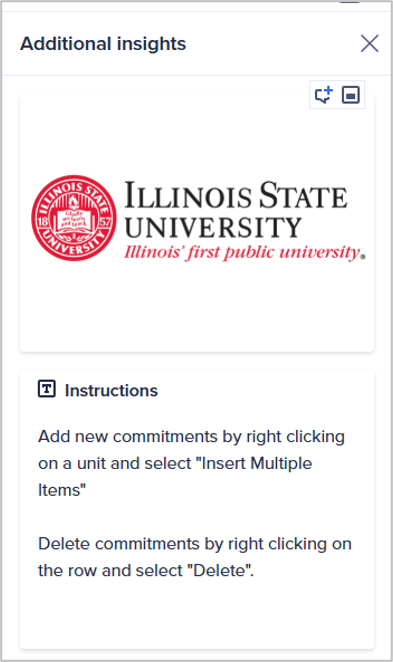
View instructions for this page on the right:
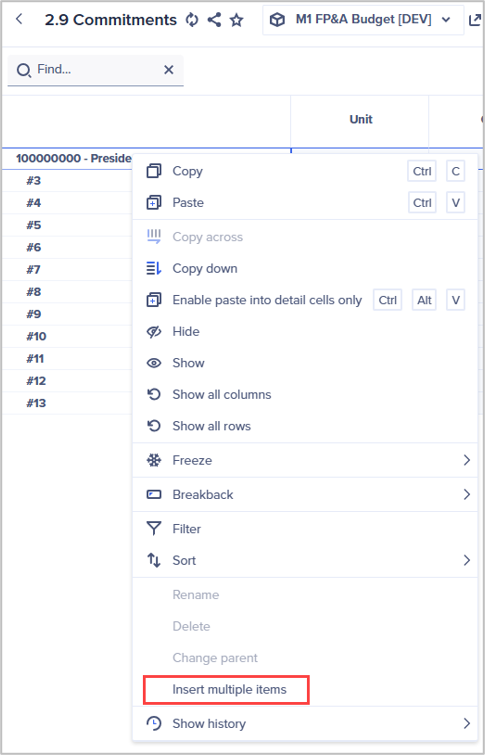
As instructed, right click the name of the commitment in the far-left column.
In the menu that appears, click Insert multiple items.
Select this link even if only one item will be inserted.
This will open the “Insert multiple items” window.
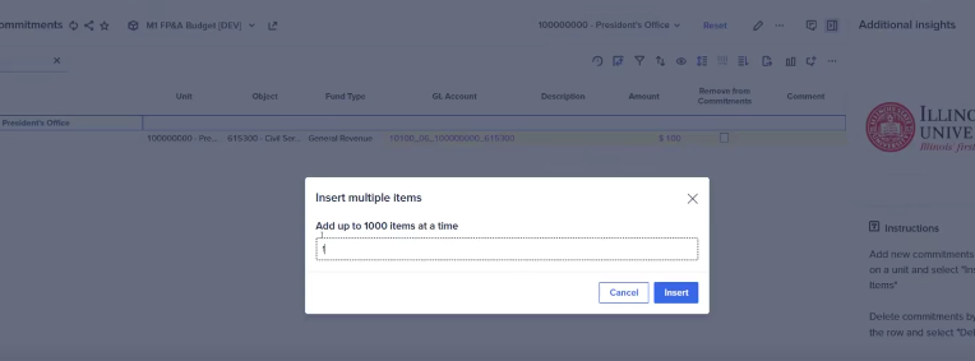
Enter the number of lines that you need for each commitment. For example, enter ten lines for ten commitments. This will display ten lines in the Commitments page.
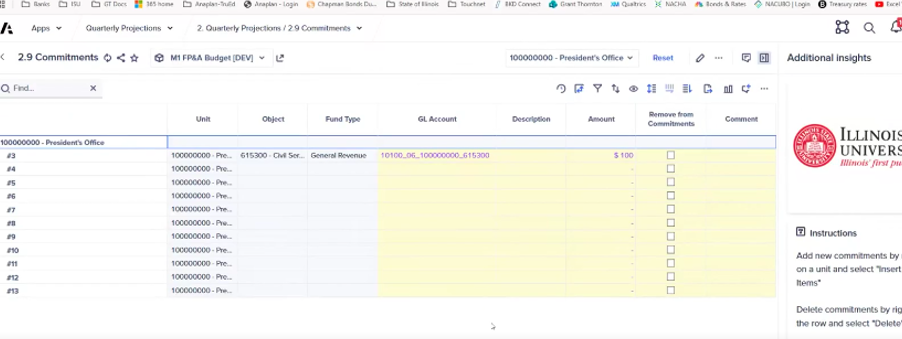
Add each additional upcoming commitment into each row.
This is an ongoing page and does not clear out. Therefore, if there are items here at the end of the first quarter and the second quarter is about to begin, go back and remove what is no longer needed because it has been paid.
Click the checkbox in the “Remove from Commitments” column when the commitment is no longer needed.
The commitment can also be deleted. Navigate to the leftmost column of the row. Right click the cell, then click Delete in the pop-up window that appears.
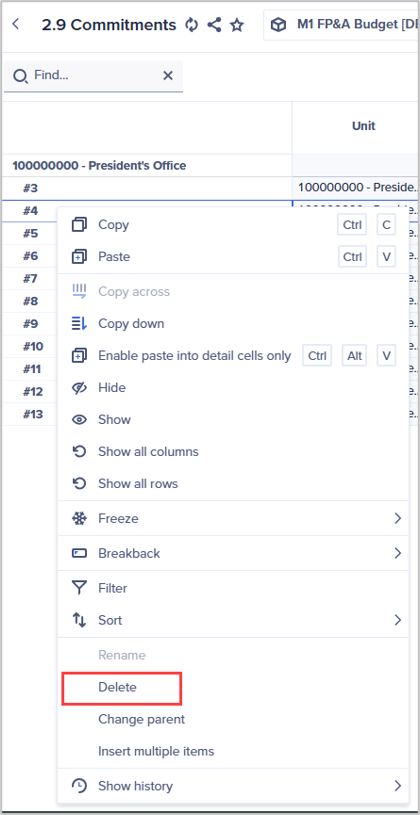
You can confirm that the commitment has successfully been removed after checking that checkbox by navigating back to the main report page.
Submitting the Quarterly Report
Once all expenses have been entered and the report has been finalized, this report can now be submitted.
Open the main report page. In the “Additional Insights” panel, click the Submission button.
At the bottom of the report is a checkbox in the Submit column. Click this checkbox.
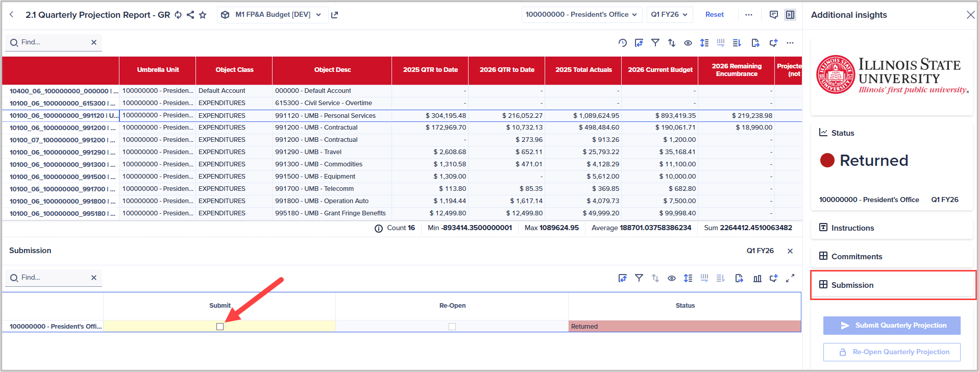
This will change the “Status” column to next to the “Submit” column.
On the right side of the screen, click the Submit Quarterly Projection button to lock in your submission.
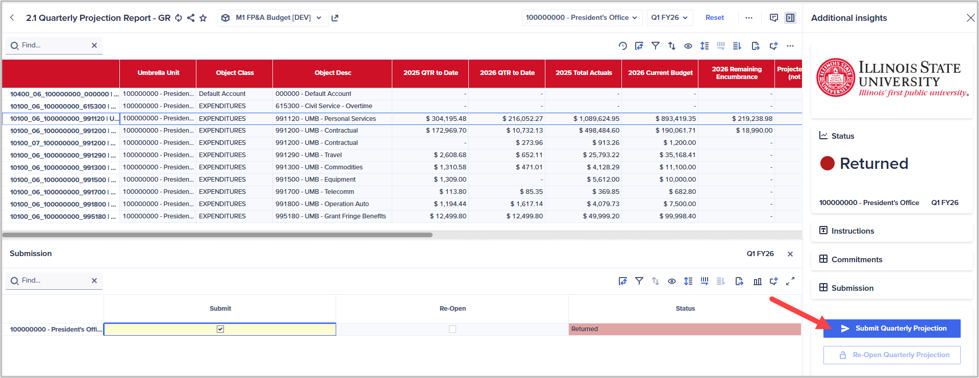
This will gray out the “Submit” checkbox and the “Status” column will now contain the term, “Submitted”.

Re-Opening a Submitted Projection
If updates are needed before the Budget Office finalizes the projection:
- Confirm the projection status is Submitted.
- Run Re-Open Quarterly Projection.
- The status will return to In Progress, allowing updates to be made.
- Update the projection and resubmit when complete.
How to Get Help
If you require assistance, please email isuanaplanteam@ilstu.edu with your questions or concerns.
Feedback
To suggest an update to this article, ISU students, faculty, and staff should submit an Update Knowledge/Help Article request and all others should use the Get IT Help form.