Technology
Create PDF files from Microsoft Office Applications
Last modified 7/31/2026
Microsoft Word, Excel, and PowerPoint include built-in functionality to save or export files as PDF documents. The following methods can be used to create PDF files in Microsoft Word, Excel, and Powerpoint.
Export a Microsoft Office File as a PDF
- Method 1: Export (Recommended)
- Open the document, workbook, or presentation you would like to convert.
- Select File.
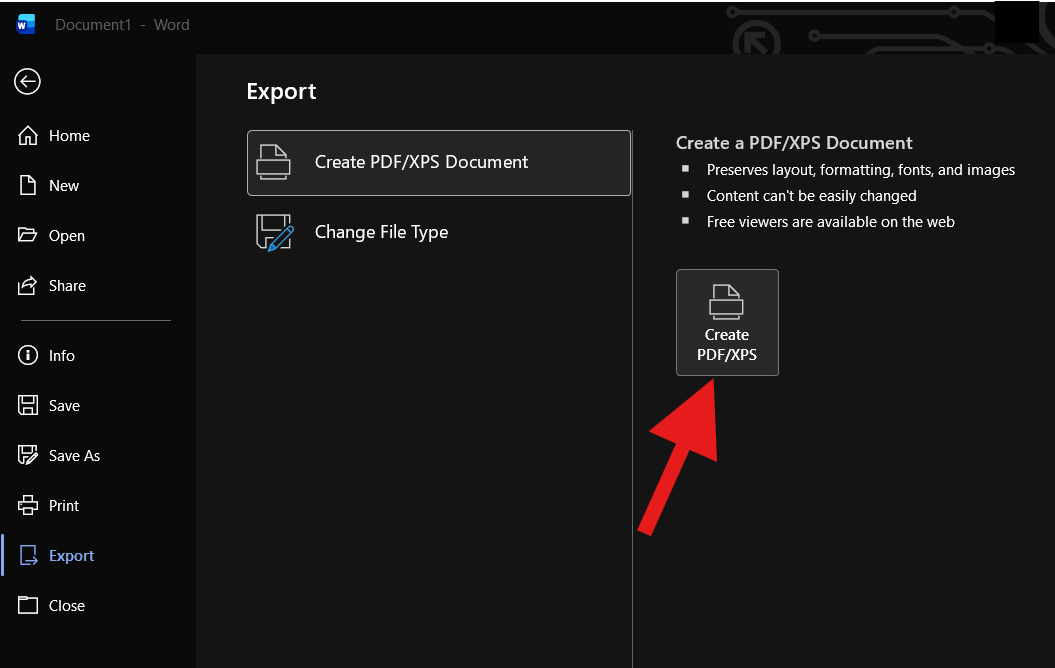
- Select Export.
- Select Create PDF/XPS Document.
- Select Create PDF/XPS.
- Choose the location where you would like to save the PDF.
- Enter a file name if needed and select Publish.
- Method 2: Save As
- Open the document, workbook, or presentation you would like to convert.
- Select File.
- Select Save As.
- Choose the location where you want to save the file.
- In the Save as type (or File Format) drop-down menu, select PDF.
- Select Save.
Additional Information
- The menu layout may vary slightly depending on your version of Microsoft Office application or operating system.
- Adobe at ISU
How to Get Help
Technical assistance is available through the Illinois State University Technology Support Center at:
- Phone: (309) 438-4357
- Email: SupportCenter@IllinoisState.edu
- Submit a Request via Web Form: Get IT Help Form
- Live Chat: IT Help Live Chat
Feedback
To suggest an update to this article, ISU students, faculty, and staff should submit an Update Knowledge/Help Article request and all others should use the Get IT Help form.