Technology
Setting Up Multi-Factor Authentication using Passkey
A passkey is a secure, passwordless sign-in method that lets you sign in with your device's fingerprint, face recognition, PIN, or security key instead of a traditional password. Passkeys provide a faster sign-in experience and offer stronger protection against phishing attacks.
Before setting up a passkey, you must have Multi-Factor Authentication (MFA) enabled on your Illinois State University account. If MFA has not been enabled, follow the instructions in Enabling Multi-Factor Authentication before continuing
Add a Passkey
1. Sign in to your Microsoft Security Information page with your ISU account.
2. Select Add sign-in method.
3. Select Passkey in Microsoft Authenticator or Passkey. If you want to store your passkey in the Microsoft Authenticator app on your mobile device, select Passkey in Microsoft Authenticator. If you want to store your passkey on your device, in a password manager, or on a security key, select Passkey.
4. Follow the instructions below for your selected passkey type.
- Passkey in Microsoft Authenticator
Use this option if you want to store your passkey in the Microsoft Authenticator app on your mobile device. Microsoft recommends the Authenticator-based passkey experience because it combines MFA, passwordless sign-in, and passkey management in a single app.
Before You Begin
- The Microsoft Authenticator app must be installed on your mobile device.
- Your ISU account must be added to Microsoft Authenticator. If you have not already set up Microsoft Authenticator, follow the instructions in Setting Up Multi-Factor Authentication Using the Mobile App before continuing.
Create the Passkey
1. Select Passkey in Microsoft Authenticator.
2. Open the Microsoft Authenticator app.
3. Click on your ISU account.
4. Select Create a Passkey.
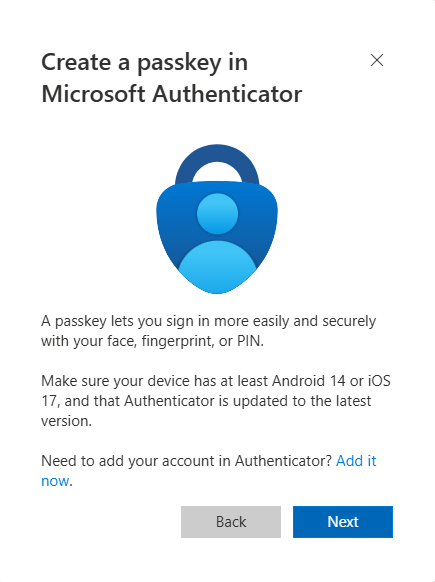
5. A pop-up will open confirming that you have the Microsoft Authenticator app installed. Click Next.
6. A pop-up will open telling you to open the Authenticator app and to select your ISU account. Leave this pop-up open until we have finished creating the passkey in the Authenticator app.
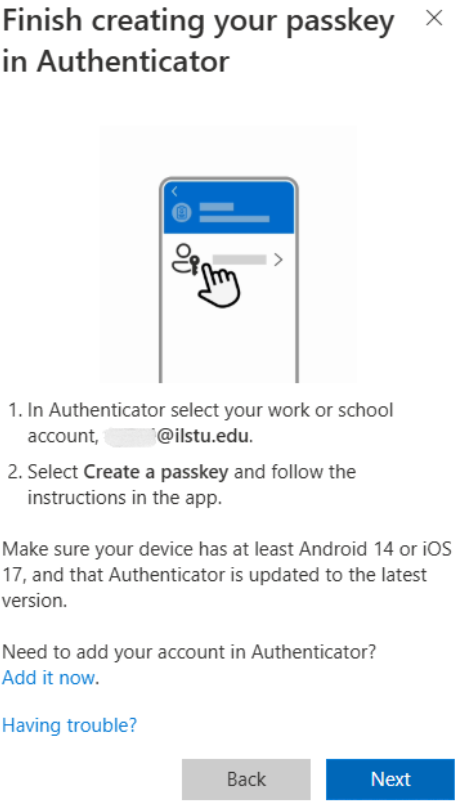
7. Follow the instructions in the app based on your type of phone:
- Android Devices
- When prompted, open your phone's Settings and go to Passwords & Accounts.
- Enable Microsoft Authenticator as a passkey provider.
- Return to Microsoft Authenticator. There will be a confirmation that Microsoft Authenticator is now a passkey provider. Click Continue.
- Authenticate using your fingerprint, face recognition, or device PIN. There will be a confirmation that the passkey was created. Click Done.
- iPhone and iPad Devices
- When prompted, select Settings.
- Open the Settings app on your device.
- Navigate to:
- Settings > General > Autofill & Passwords (iOS 18), or
- Settings > Passwords > Password Options (iOS 17).
- Ensure AutoFill Passwords and Passkeys are enabled.
- Confirm that Microsoft Authenticator is selected as a passkey provider.
- Return to Microsoft Authenticator and select Done.
- Use Face ID, Touch ID, or your device PIN to create the passkey.
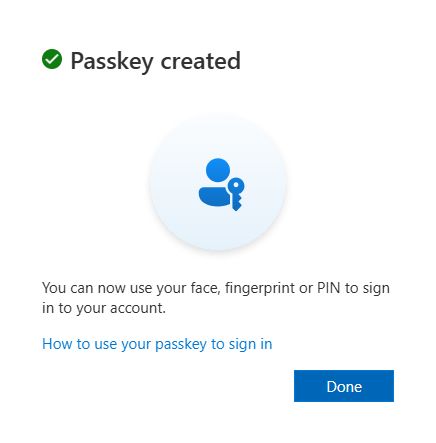
8. Return to the pop-up from step 6, and click Done. You will receive a verification window confirming that your passkey has been created and that it has been added to your sign-in methods.
Using Your Passkey
When signing in to an ISU resource using Central Login, select the passkey option and verify your identity using your device's fingerprint, face recognition, or PIN. Make sure Microsoft Authenticator remains installed and configured as a passkey provider on your device.
Additional Resources
- Passkey
Use this option if you want to store your passkey on your device, in a password manager, or on a security key. Depending on your device and browser, the passkey may be stored in Windows Hello, Apple iCloud Keychain, Google Password Manager, Microsoft Password Manager, or a FIDO2 security key.
Create the Passkey
- Select Passkey.
- Choose where you want to save the passkey when prompted.
- Select one of the available options, such as:
- This Windows device (Windows Hello)
- Password Manager
- iPhone, iPad, or Android device
- Security Key
- Follow the on-screen prompts.
- Verify your identity using your device's fingerprint, facial recognition, or PIN.
- When the process is complete, a confirmation message will appear indicating that the passkey has been added to your account.
Using Your Passkey
When signing in to an ISU resource using Central Login, select the passkey option and complete verification using the authentication method configured on the device where the passkey is stored. This may be your fingerprint, face recognition, device PIN, or security key.
Additional Resources
Multiple MFA verification methods recommended
It is recommended that you set up at least two MFA methods so you have a backup if one fails. Please see Adding Additional Verification Methods for Multi-Factor Authentication for instructions on setting up additional method(s). To change your default method, see Change the Default Method for Authenticating with MFA.
Videos
View the following videos to learn more about MFA:
How to Get Help
For questions about MFA, account access issues, MFA resets, or other technical assistance, contact the Technology Support Center at:
- Phone: (309) 438-4357
- Email: SupportCenter@IllinoisState.edu
- Submit a Request via Web Form: Get IT Help Form
- Live Chat: IT Help Live Chat
For in-person support, visit TechZone on the 1st floor of the Bone Student Center.
- Visit their website to see their opening hours, as they vary throughout the semester: TechZone.