Technology
Software Center for Windows
Last modified 4/17/2026
Faculty and Staff can use the Software Center on their Illinois State University Microsoft Windows computers to perform the following tasks:
- Browse for and install certain software for free.
- View their software request history.
- Manually install updates to the Windows operating system and software.
- Check the installation status of software updates and uninstall certain software.
Note:
Software available for each computer may vary. Faculty and Staff with questions regarding the available software should contact their local IT support team.
- Getting to Software Center
To access Software Center, do the following:
- Click Start → All → Software Center.
1a. Alternatively, you can type 'Software Center' into the Windows Search bar, located in the lower left-hand corner next to the Windows Start Menu.
A window like the one below will pop-up (Figure 1):
Figure 1: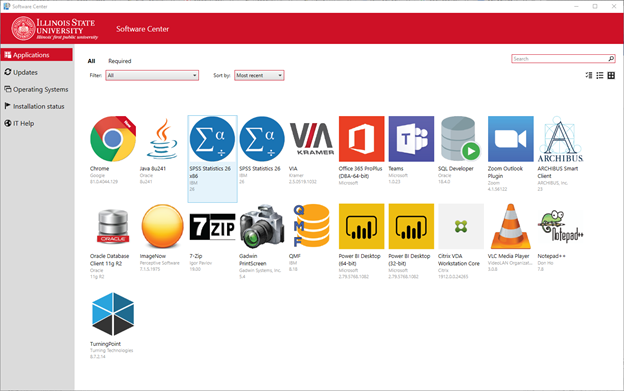
- Downloading Software
To download software from Software Center, do the following:
- Click Applications in the left menu to see the list of free software that can be downloaded.
- Click the application you wish to download.
- Click Install in the application details page.
Your download will begin.
- View Pending Updates and Manually Install
You may view updates that are pending installation or reboot for your device in Software Center. Many updates to Windows and/or applications require a reboot to fully install - such applications will be listed as "requires restart" in Software Center when a reboot is required to complete the update. To check on updates for your device, do the following:
- Click Updates in the left menu to see the list of updates (if any) that are pending installation or reboot.
- To manually install, click the update you wish to apply.
- Click Install.
- Note: if multiple updates are available, it is recommended to install Windows operating system updates first as any application updates may be dependent upon the Windows updates being installed.
- Multiple reboots are sometimes required to complete the update(s).
- My Software or Update Did Not Download
You may select the Installation Status tab to see the progress of your downloads. If an application does not install correctly, you will have the option to download it again. To do so, do the following:
- Click the Installation Status tab.
- Click the application you wish to download in order to select it.
- Click Reinstall.
Your download will begin. If there are any issues with the installation, contact your local IT team for assistance.
- Uninstalling Software
You may uninstall software you downloaded from the Software Center. To do so, do the following:
- Click the Installation Status tab.
- Click the application you wish to uninstall.
- Click Uninstall.
The application will begin to uninstall. Some applications may not have the uninstall option available. If this is experienced and the application is no longer needed, contact your local IT support team for further assistance.
If you have a Mac, see the instructions for the Self Service for MacOS, which is the equivalent of Windows' Software Center.
How to Get Help
Technical assistance is available through the Illinois State University Technology Support Center at:
- Phone: (309) 438-4357
- Email: SupportCenter@IllinoisState.edu
- Submit a Request via Web Form: Get IT Help Form
- Live Chat: IT Help Live Chat
Feedback
To suggest an update to this article, ISU students, faculty, and staff should submit an Update Knowledge/Help Article request and all others should use the Get IT Help form.