Technology
Complete your Mandatory Compliance Trainings
Last modified 5/1/2026
DCFS Progress Warning
Heads up! Some users have reported issues with the DCFS training; if you exit the annual DCFS training before finishing, your progress may not be saved. To avoid repeating sections, we suggest setting aside enough time to complete the training in one go. We estimate the training will take roughly 45-60 minutes, depending on your pace.
Below are instructions for Completing Mandatory Compliance Training at Illinois State University
- The employee will receive an email notifying them of the training with an expected completion date. When ready to begin training, click the Click to Access Training link (Figure 1)
Figure 1: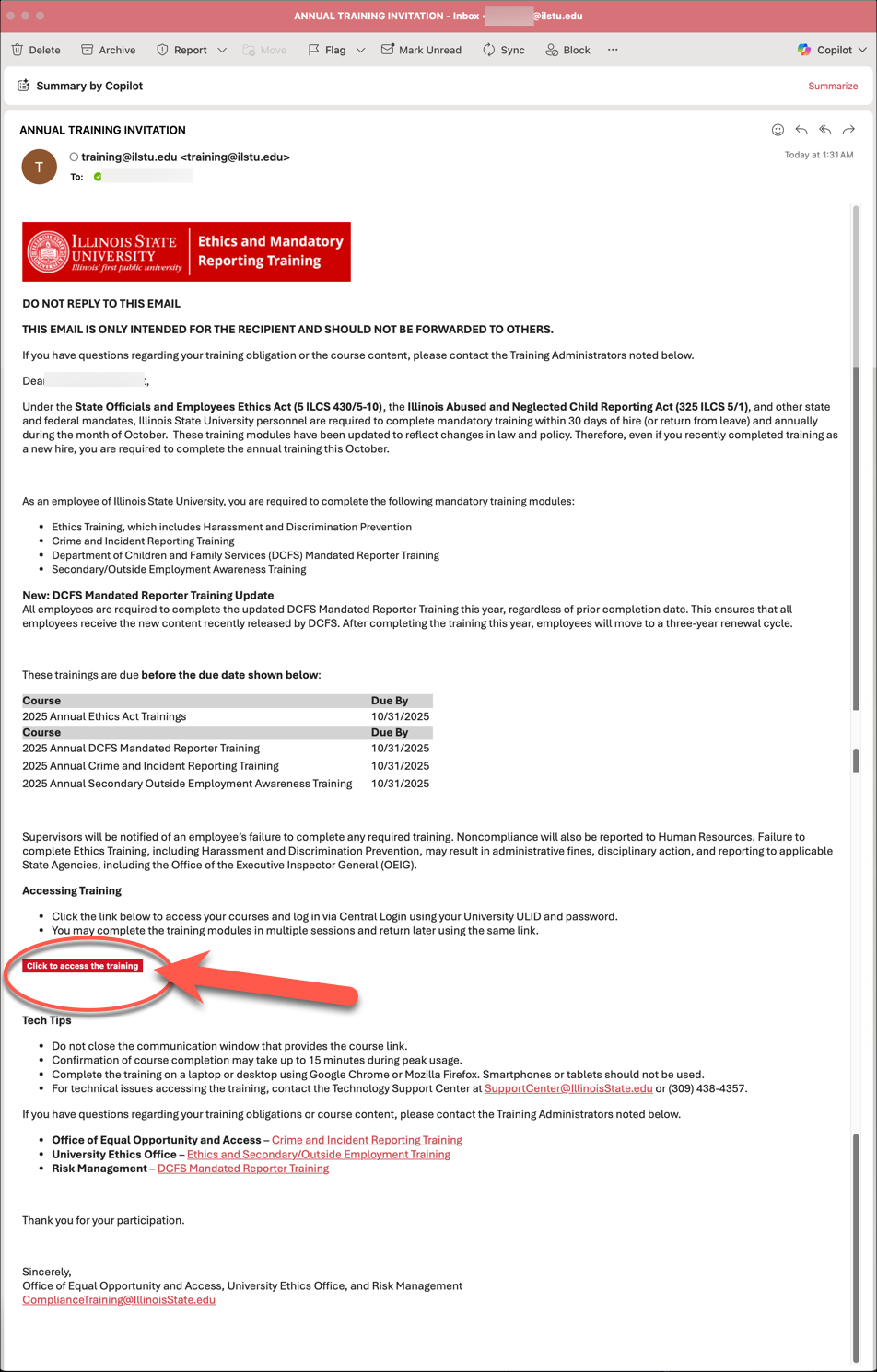
- After clicking the link to access training, log in to the Mandatory Training portal via Central Login.
- For more information about Central Login at ISU, please refer to: Central Login
- Note: Due to large course(s) files, it may take 2-3 mins for all course(s) to load on your screen
- Once logged in, you should be taken to the landing page to access your trainings. Click the desired training you are needing to take (Figure 2)
Figure 2: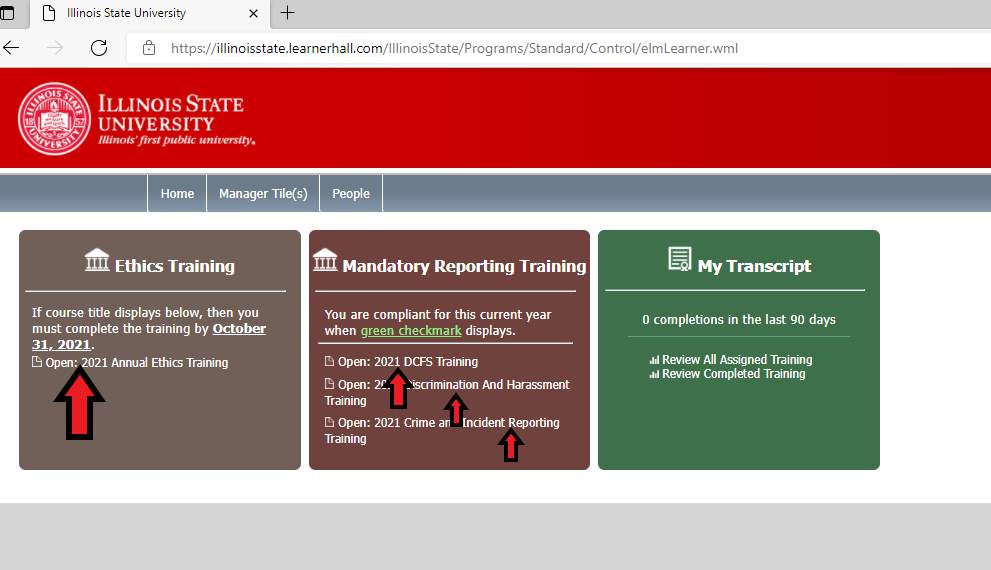
- Once the desired training is clicked, the page to access training will open (Figure 3). Click the Launch button to begin your training.
Figure 3: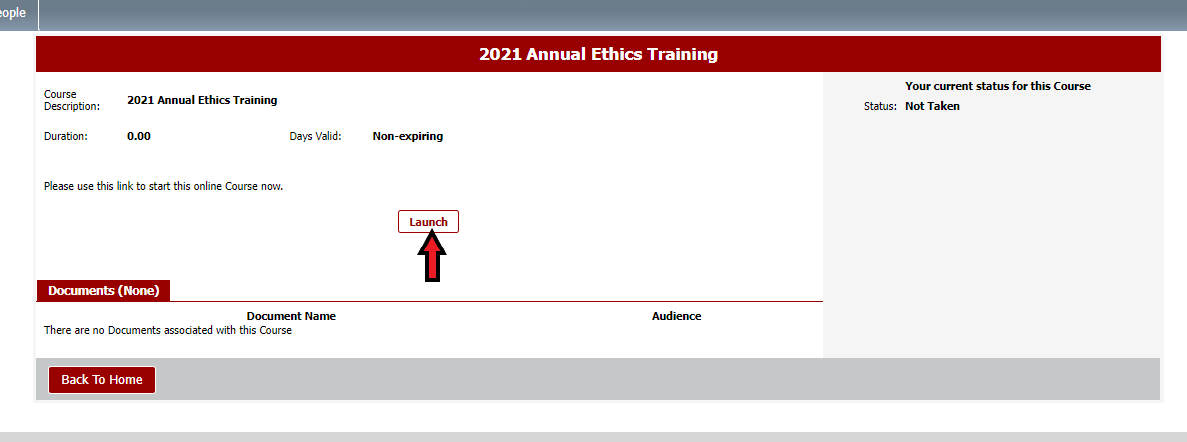
A Communication Window will open with an option to ‘Launch the Course.’ DO NOT close the Communication Window. Click the button to Launch the Course (Figure 4).
Important!
DO NOT close the Communication Window. Doing so may prevent you from completing the course requiring you to begin again.
Figure 4: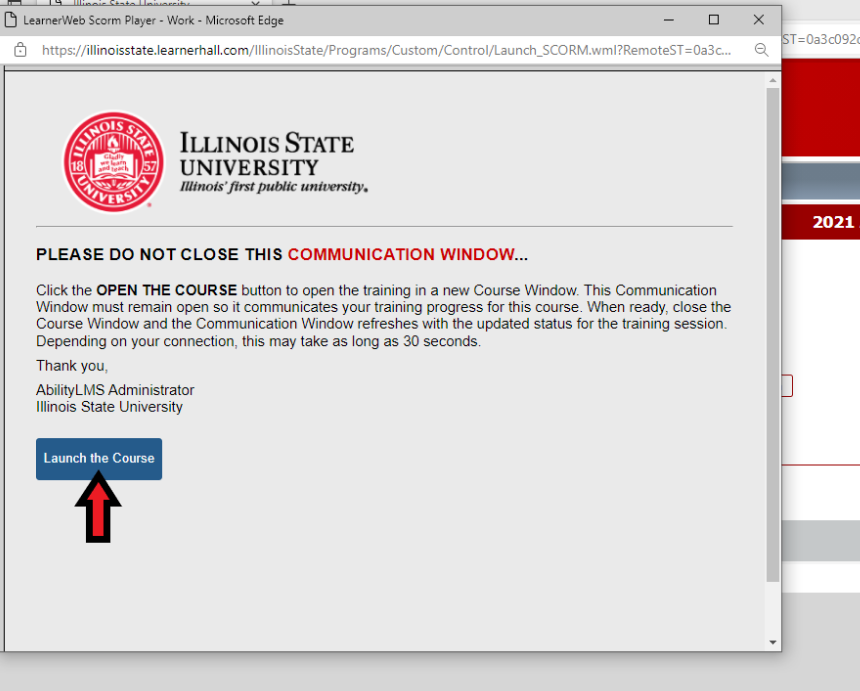
- The course window will load. Keep the Communication Window open in the background (above). Click on the > to begin your training. (Figure 5)
Figure 5: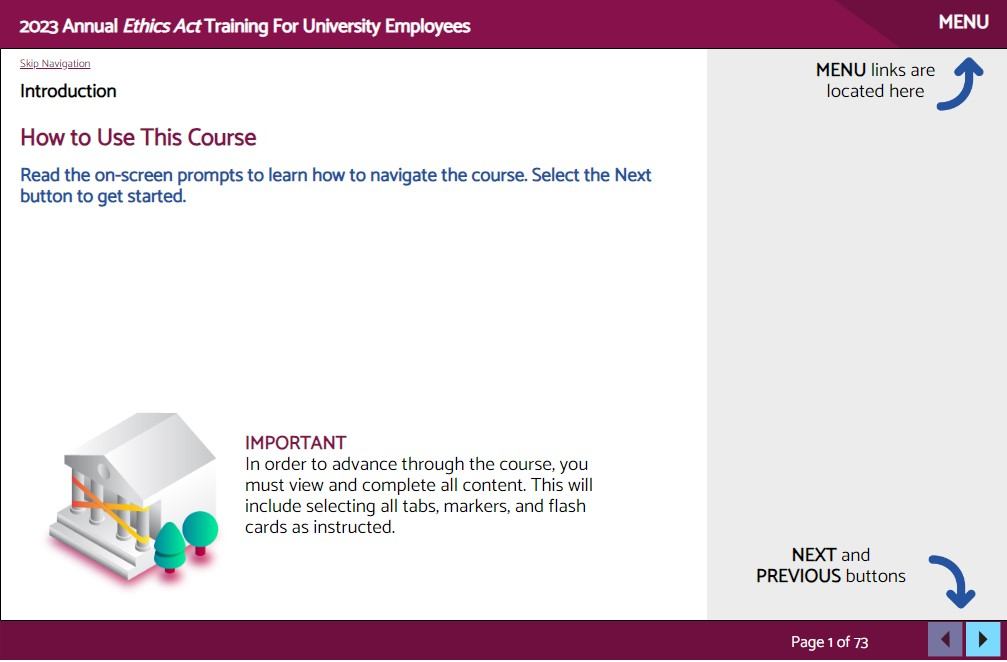
- Once you reach the last slide of your training, you will need to click the I Certify button and the arrow button located on the bottom right to complete the training (Figure 6). If for some reason, clicking I certify does not respond, take a screen capture/picture/screenshot of this page for verification of your completion, as your status may need to be adjusted manually (see section below entitled How to Get Help).
Figure 6: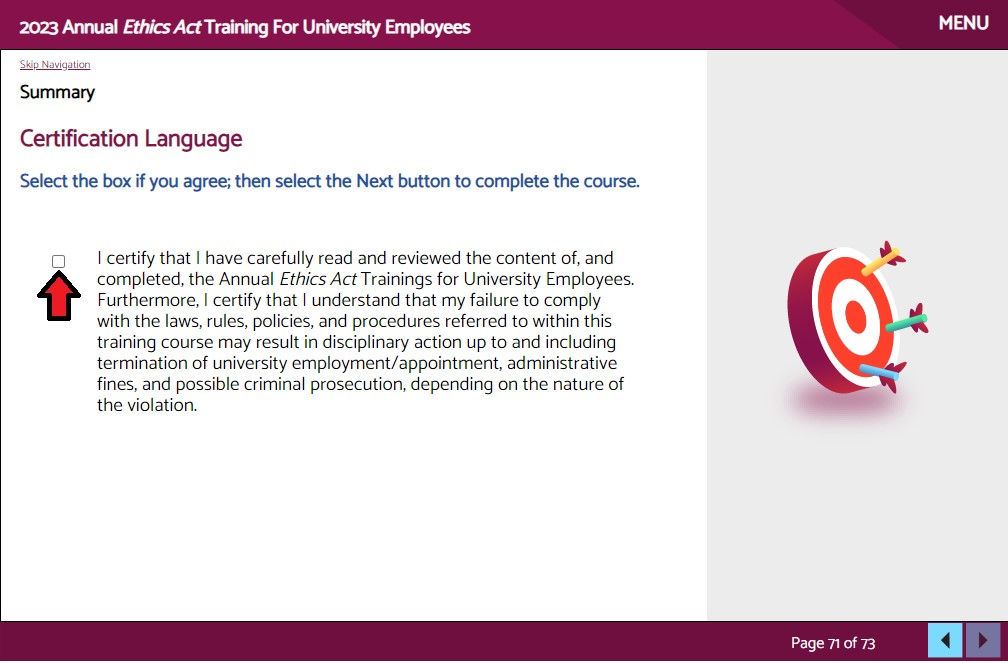
After clicking the I certify button, you will be directed to exit the course and follow on-screen prompts. Exit out of the window normally and a pop up will appear asking if you want to leave the site. Click the Leave button to begin closing out of the course.
Important!
It is important that you close out windows in the correct order, following the prompts, for your training to be registered properly.
Figure 7: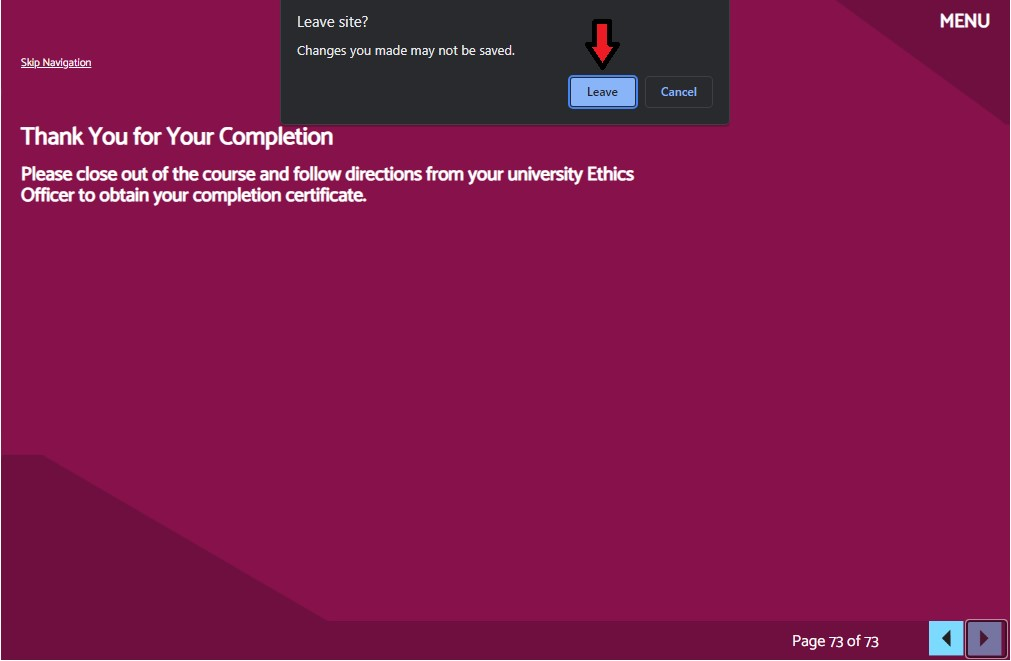
- After exiting the course, you will receive a message stating that Training session has ended for this course. Click the option to Close the Window (Figure 8)
Figure 8: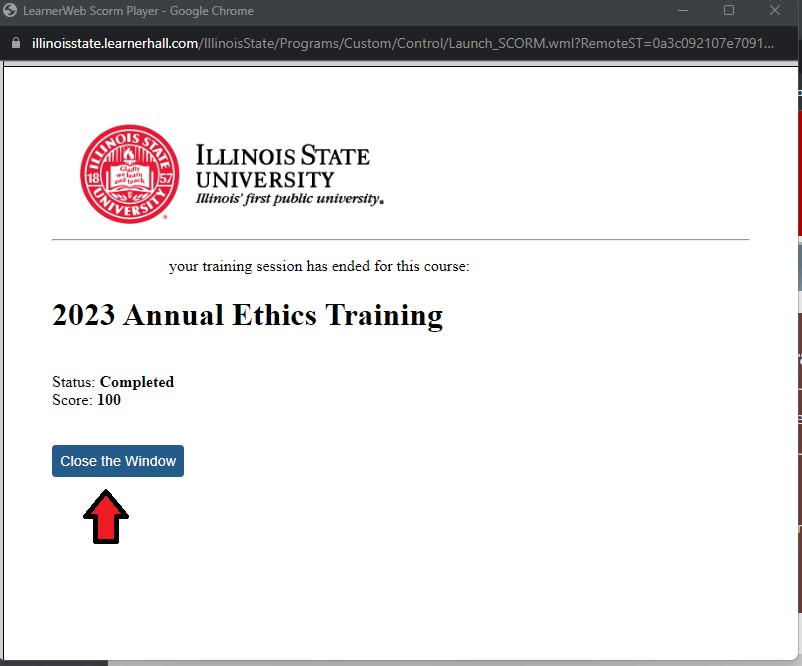
- You now have the option to print your certificate if desired. Click on CLICK HERE to print a certificate (Figure 9):
Figure 9: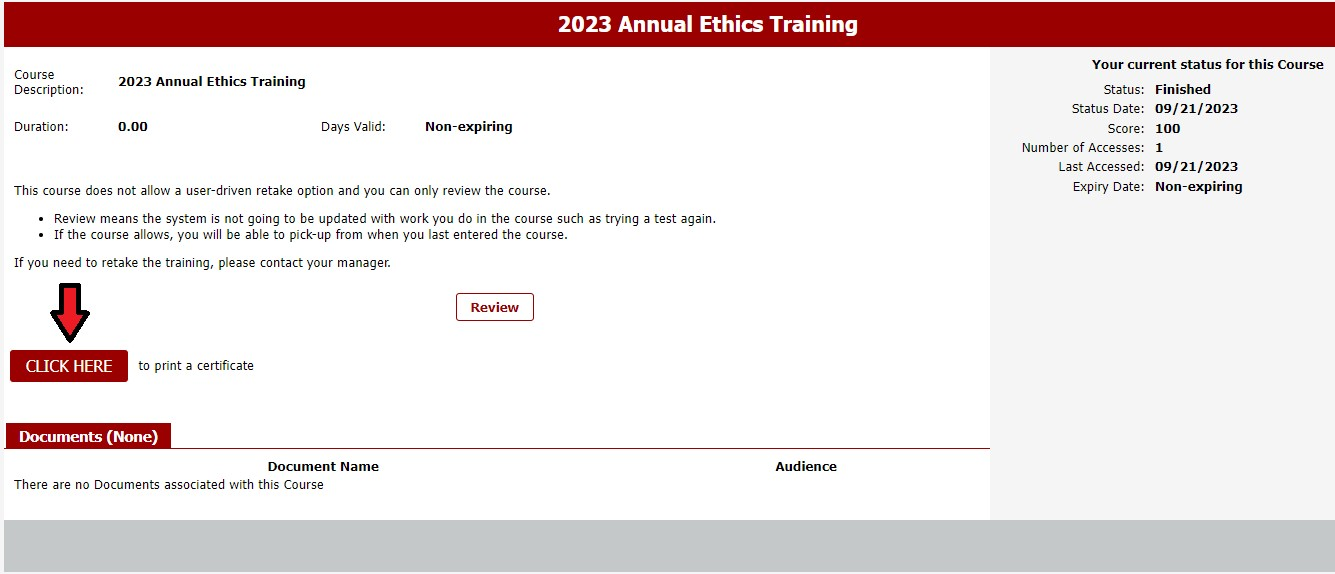
Your training is now complete. Please use the same instructions above for accessing your other training courses (i.e., DCFS, Discrimination and Harassment, Crime and Incident Reporting etc). If at any point you are experiencing technical troubles, often an alternate browser can resolve the issue (Chrome or Firefox are recommended). Trainings can be picked up where you last left off (returning to your last slide number). Some cases were reported where the I Certify button was not working for some users. If this button does not work in multiple browsers, take a picture/screenshot of the page and submit a ticket to the Technology Support Center stating your completion of the training and the need for your status to be updated to reflect that completion.
How to Get Help
Technical Issues
Technical assistance is available through the Illinois State University Technology Support Center at:
- Phone: (309) 438-4357
- Email: SupportCenter@IllinoisState.edu
- Submit a Request via Web Form: Get IT Help Form
- Live Chat: IT Help Live Chat
Non-Technical Issues
For further information about the mandatory training, or questions/issues with course content you may contact the appropriate office below:
Ethics Training:
- Ethics Office:
- Email: Ethics@Ilstu.edu
- Phone: (309) 438-2339
- Ethics Office:
DCFS Training:
- University Risk Management:
- Email: RiskManagement@IllinoisState.edu
- Phone: (309) 438-1916
- University Risk Management:
Crime and Incident Reporter Training:
- Office of Equal Opportunity and Access:
- Email: EqualOpportunity@IllinoisState.edu
- Phone: (309) 438-3383
- Office of Equal Opportunity and Access:
Feedback
To suggest an update to this article, ISU students, faculty, and staff should submit an Update Knowledge/Help Article request and all others should use the Get IT Help form.