Technology
Touch Up My Appearance
Last modified 8/19/2025
As a user of Zoom Pro, you have access to a multitude of features that are not included in the Zoom Basic license. Below is an overview of the “Touch Up My Appearance” feature that is included with your Zoom Pro license.
Overview
The Touch Up My Appearance option retouches your video display with a soft focus. This can help smooth out the skin tone on your face, to present a more polished looking appearance when you display your video to others.
- Prerequisites
- Zoom Desktop Client for Mac or Windows version 4.0.x or later
- Zoom Mobile App for iOS version 4.0.x or late
- Desktop Client
How to use " Touch Up My Appearance"
- Access the Settings in your Zoom application. There are two ways you can get here:
- In your Zoom client, login with your ISU email and password; you’ll be directed to the ISU’s Zoom website where you will be asked to open the application. You can select an option to have your computer’s browser automatically open the app after sign in. Once you have signed in, click Settings, then click Video.
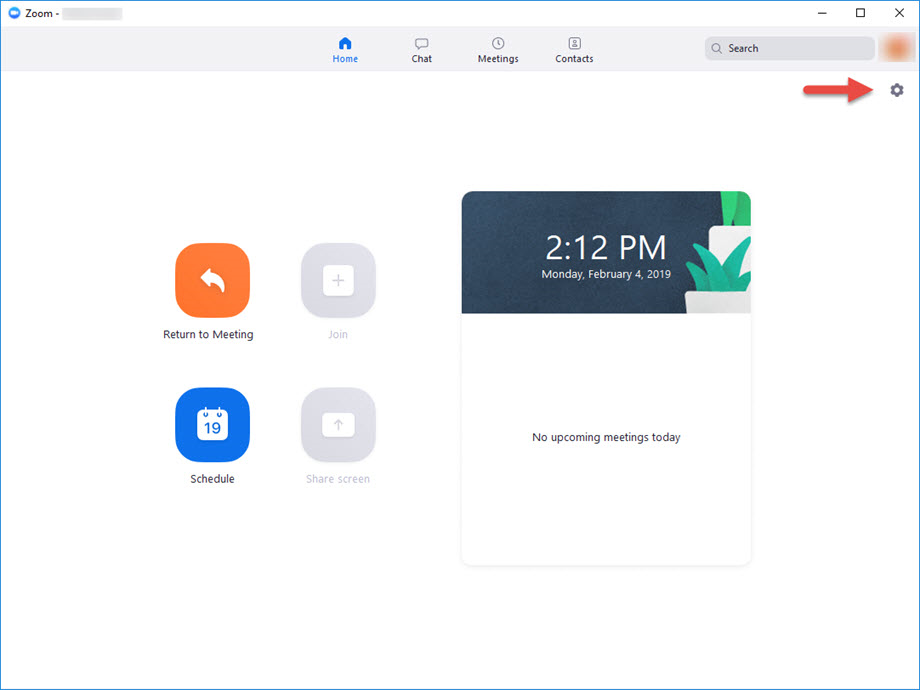
- On the home screen, click the gear icon; you will be directed to your settings page. From there, select Video.
- Alternatively, you can start or join a meeting, then click the arrow next to the video icon and choose Video Settings.
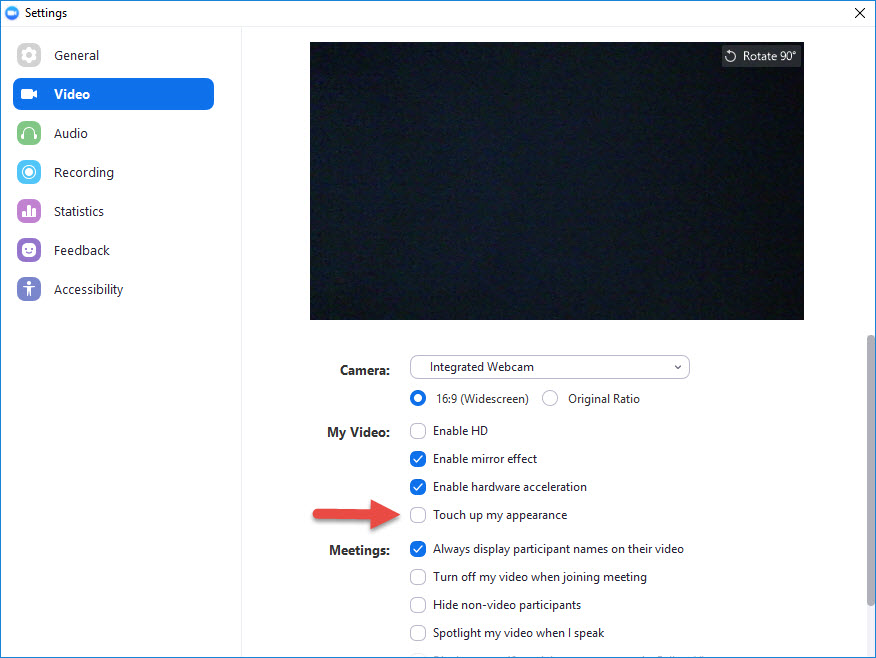
- In the Video Settings dialog, click Touch Up My Appearance
- Check this option to display your video with the touch up.
- Zoom remembers your preference and uses it the next time you start or join a meeting on your computer.
- iOS Mobile App
How to Use "Touch Up My Appearance"
- Access the settings in your Zoom Mobile App by selecting your profile picture in the upper left
- Select Settings
- Select Videos & Effects
- Select Touch up my appearance
- Toggle it on in the lower right
- Use the slider at the bottom of the video preview to decide how touched up you want to be
- Select the X in the upper right corner when completed.
- Zoom remembers your preference and uses it the next time you start or join a meeting in your app.
How to Get Help
Technical assistance is available through the Illinois State University Technology Support Center at:
- Phone: (309) 438-4357
- Email: SupportCenter@IllinoisState.edu
- Submit a Request via Web Form: Help.IllinoisState.edu/get-it-help
- Live Chat: Help.IllinoisState.edu/get-it-help
Feedback
To suggest an update to this article, ISU students, faculty, and staff should submit an Update Knowledge/Help Article request and all others should use the Get IT Help form.