Technology
Registering For an Exam Using RegisterBlast
Last modified 4/27/2026
You can register for any Illinois State University exam through your Canvas course page. You can also register for any ISU or non-ISU exam that the Testing Center provides by accessing the following link: RegisterBlast Exam Sign Up. Note: If you are an ISU student, you will login in with your normal ULID and password.
Do Not Use Safari When Launching RegisterBlast From Canvas
RegisterBlast will not launch from Canvas when using the Safari browser. Please choose a different web browser if you are using RegisterBlast within Canvas.
- Registering for an ISU course exam in RegisterBlast using Canvas
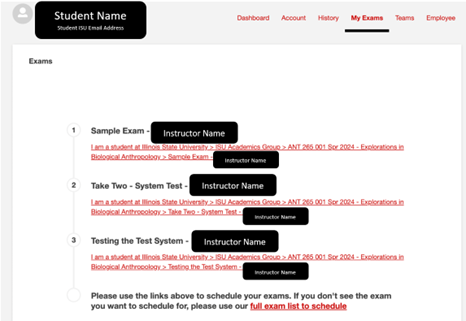
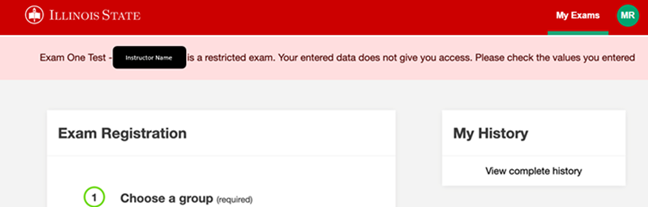
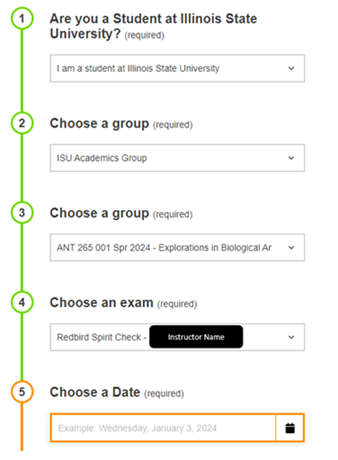
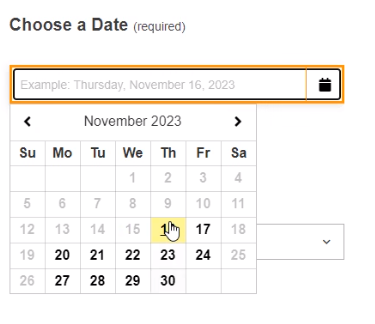
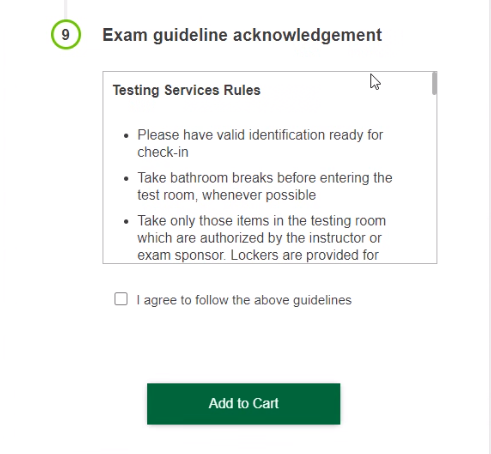
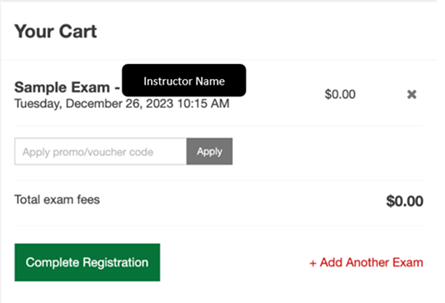
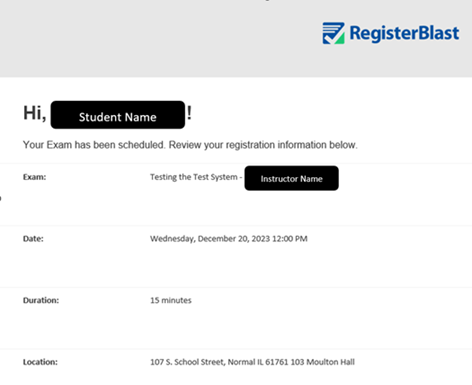
To register for an ISU course related exam using RegisterBlast, please follow along with the instructions below.
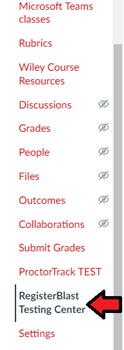
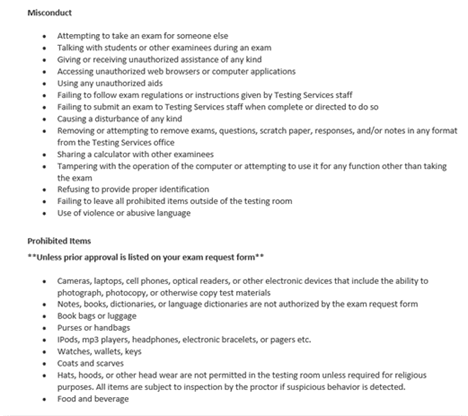
1. Navigate to the course where you need to register for an exam and choose RegisterBlast in the Navigation side menu.



- Registering for a CLEP or non ISU exam
If you are needing to register for a non ISU exam, you can do this through RegisterBlast. You will follow the same steps as you would for registering for an ISU course exam, but in the Choose a group section you will want to make sure you choose which exam group you are needing to take (CLEP, ALEKS, or External). In the Choose an exam section, you will see multiple options depending on the group you chose, make sure to choose the correct exam. Figure 1.
Figure 1

CLEP Exam Charges
All students will be charged a $25 fee for CLEP exams. The following statement will appear on your payment method of choice.
How to Get Help
For updates on exam submissions or RegisterBlast help, you can contact Testing Services at TestingServices@IllinoisState.edu or by phone at (309) 438-2100.
Technical assistance is available through the Illinois State University Technology Support Center at:
- Phone: (309) 438-4357
- Email: SupportCenter@IllinoisState.edu
- Submit a Request via Web Form: Get IT Help Form
- Live Chat: IT Help Live Chat
Related Articles
Feedback
To suggest an update to this article, ISU students, faculty, and staff should submit an Update Knowledge/Help Article request and all others should use the Get IT Help form.