Technology
Registering a Device in the Device Registration Portal
Last modified 8/26/2026
If your device can't connect to isunet, you can register it at the Device Registration Portal and connect it to isunet-StartHere or the wired residence hall network.
- Before You Start
- Which devices should be registered?
Register devices that do not support the secure isunet network, such as:
- Smart TVs
- Roku
- Chromecast
- Fire TV devices
- Gaming consoles
Do not register:
- Laptops
- Phones
- Tablets
These devices should connect directly to isunet.
- Registration requirements
- Device registration only works while you are on campus.
- You can register up to 10 devices.
- Registered devices are removed each May and must be re-registered each school year.
- Register and Connect Your Device
Step 1
Go to the Device Registration Portal and enter your ULID and Password in the “ULID Login” box, and then click the Log In button (Figure 1).
Figure 1: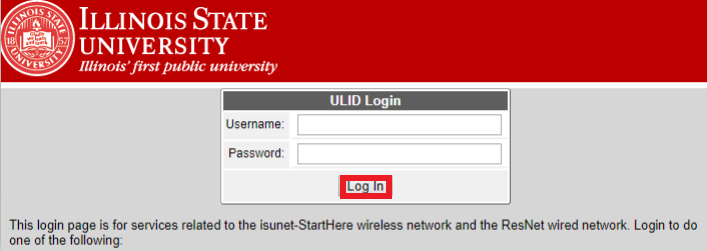
Your ULID is the first part of your ISU email, consisting of your first and last name and perhaps a number.
Step 2
Once logged in, select Create Device (Figure 2) and enter the requested information, including the device's MAC address (Figure 3).
Figure 2: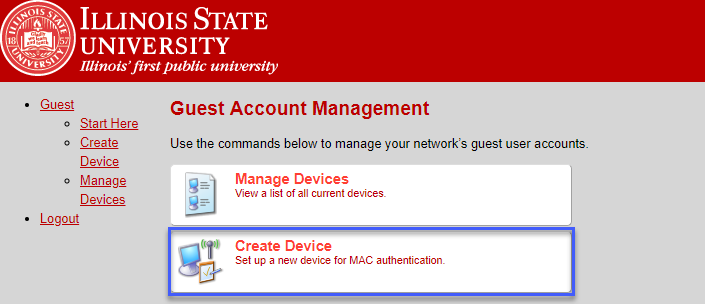
Figure 3: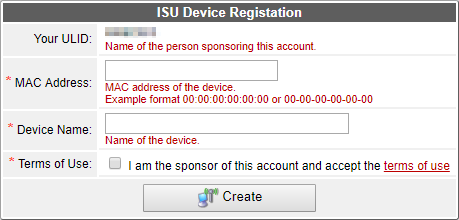
Step 3
Choose how you want to connect:
- Wireless: Connect the device to isunet-StartHere
- Wired: Connect the device to the Ethernet port in your room
If you need an Ethernet cable, you can purchase one from TechZone in the Bone Student Center.
Note: Wired connections are typically best for gaming because they provide lower latency and better multiplayer performance.
- MAC address help
The MAC address is a unique identifier for your device.
- Enter it exactly as shown.
- If multiple MAC addresses are listed, use the WLAN MAC address for wireless devices.
- Incorrect MAC addresses are the most common registration issue.
For device-specific instructions, see Finding the MAC Address for Common Devices.
- Common Questions and Troubleshooting
- My device won't connect after registration
- Unplug the device from power.
- Wait 15 minutes.
- Plug it back in.
- Try connecting again.
This resolves many connection issues.
- Casting between devices isn't working
When using devices such as Chromecast, enter your ULID using the same capitalization on all devices. Different capitalization can prevent devices from communicating.
- After registration, I cannot use my device's associated app
Devices and cell phone applications that require the device to be on the same network may not work. This may result in some devices (Smart TVs in particular) not functioning as intended, even when registered through the Device Registration portal.
When possible, use a physical remote to control your device rather than an app.
- What is MAC Address Randomization?
Many Smart TVs and streaming devices have MAC Address Randomization enabled by default.
If your device still will not connect after registration, turn off any setting named:
- MAC Address Randomization
- Randomized MAC
- Private MAC Address
ISU registration requires a permanent MAC address.
- Can I use Canvas or Microsoft 365 on registered devices?
No. Devices connected through isunet-StartHere may not have access to Canvas, Microsoft 365, and other ISU resources.
Use isunet on laptops, phones, and tablets.
- Are wireless printers supported?
No. Wireless printers are not supported on ISU networks.
- I'm faculty or staff. Can I register a device?
Faculty and staff cannot use the student Device Registration Portal.
Contact the Technology Support Center with:
- Your name
- Building and room number
- Device type
These requests will be escalated to the Networking department for further processing.
How to Get Help
For technical assistance, contact the Technology Support Center at:
- Phone: (309) 438-4357
- Email: SupportCenter@IllinoisState.edu
- Submit a Request via Web Form: Get IT Help Form
- Live Chat: IT Help Live Chat
For in-person support, visit TechZone on the 1st floor of the Bone Student Center.
- Visit their website to see their opening hours, as they vary throughout the semester: TechZone.
Feedback
To suggest an update to this article, ISU students, faculty, and staff should submit an Update Knowledge/Help Article request and all others should use the Get IT Help form.