Technology
Rearranging and Changing Your Primary Monitor in Windows 11
Last modified 4/24/2026
Rearrange Monitors
When you have multiple monitors sometimes you may want to adjust where Windows thinks the monitor is, to where it physically is to the other monitor.
Right click the desktop and select Display settings. Here you can move the monitor boxes to wherever you want the to be. Be sure to click Apply at the end.
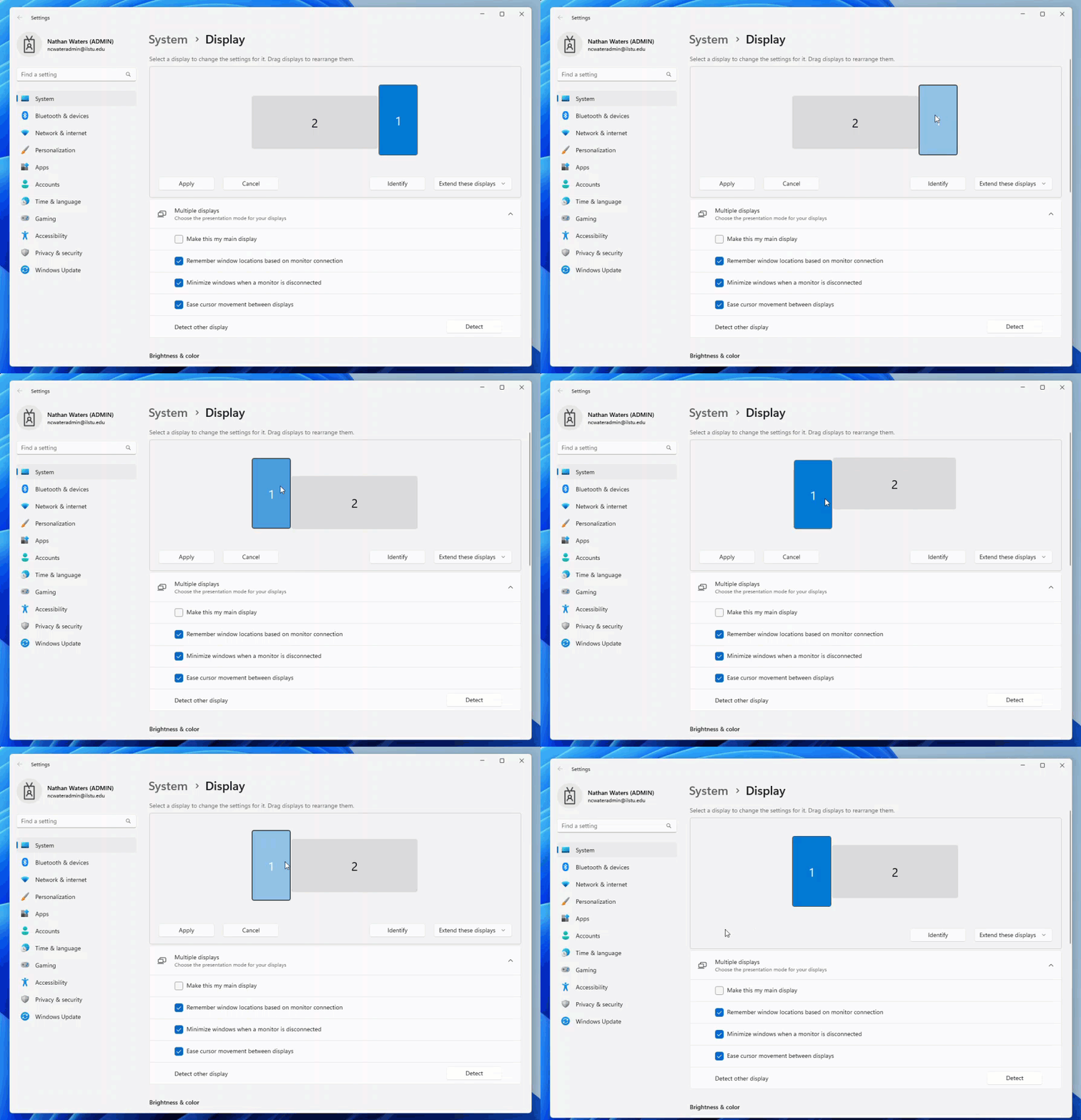
*Note: If you are unsure which monitor is which, you can click the Identify button and a number will display on each monitor
Change Main Monitor
Your main monitor is the one that has all of your desktop icons on it, and a most times, apps will open on that monitor by default.
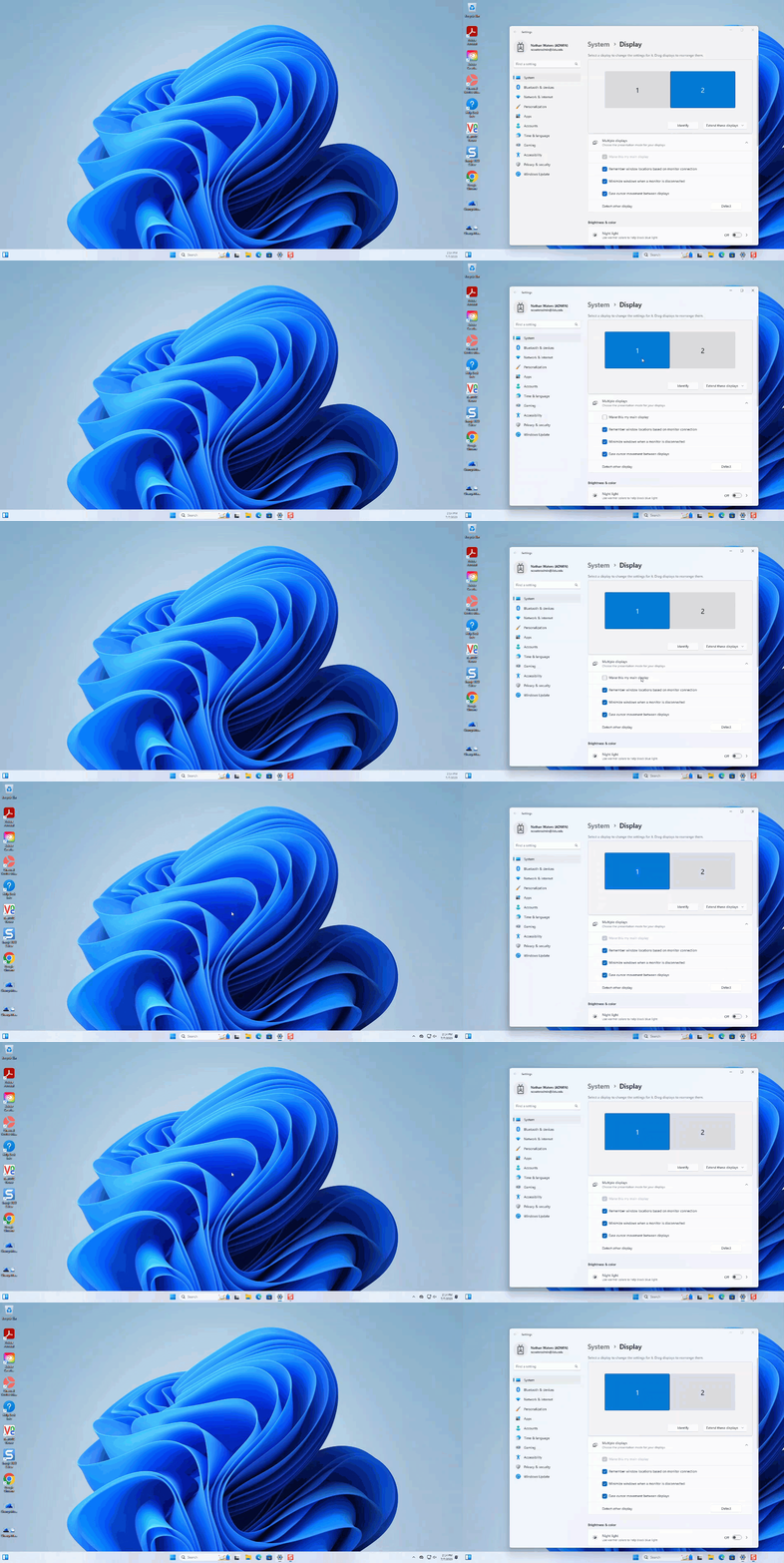
To change this, navigate to the Display settings and check the box for the monitor box you wish to be your main monitor. Then click the checkbox next to Make this my main display
How to Get Help
Technical assistance is available through the Illinois State University Technology Support Center at:
- Phone: (309) 438-4357
- Email: SupportCenter@IllinoisState.edu
- Submit a Request via Web Form: Get IT Help Form
- Live Chat: IT Help Live Chat
Feedback
To suggest an update to this article, ISU students, faculty, and staff should submit an Update Knowledge/Help Article request and all others should use the Get IT Help form.