Technology
How to Change a Default Application in Windows 11
Last modified 8/27/2026
Windows 11 uses default applications to determine which programs open specific file types and links.
If you install a new application or prefer to use a different program, you can update your default applicatio nsettings in Windows 11. This guide will walk you through changing the default application associated with a file type or link so that Windows opens content using your preferred program.
- Change a Default Application
To change the default application for a file type:
- Open the Start Menu.
- Select Settings.

- Select Apps on the left-side navigation.
- Select Default Apps.
- Search for the file type or application you want to change.
- Choose the application you want Windows to use as the default.
- Select Set Default or confirm the change when prompted.
- Change Defaults by File Type
You can also change default applications by selecting a specific file type.
To change a default application by file type:
- Open Settings.
- Select Apps.
- Select Default Apps.
- Scroll to Choose defaults by file type.
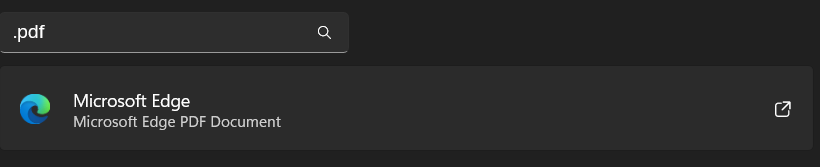
- Find the file extension you want to update (in the above example, I searched for .pdf and it shows what currently is used for .pdf files).
- Select the current default application.
- Choose the new application you want to use.
- Change Defaults by Application
Windows 11 also allows you to view which file types are associated with a specific application.
To update an application's default file types:
- Open Settings.
- Select Apps.
- Select Default apps.
- Search for the application.

- Select the application from the results.
- Choose which file types or link types should open with that application.
How to Get Help
Technical assistance is available through the Illinois State University Technology Support Center at:
- Phone: (309) 438-4357
- Email: SupportCenter@IllinoisState.edu
- Submit a Request via Web Form: Get IT Help Form
- Live Chat: IT Help Live Chat
Feedback
To suggest an update to this article, ISU students, faculty, and staff should submit an Update Knowledge/Help Article request and all others should use the Get IT Help form.