Technology
Saving Files Locally in Simio using Azure Virtual Desktop (AVD)
Last modified 4/17/2026
Simio is software for the design, analysis, improvement, and execution of complex operational processes. Simio is available in the Azure Virtual Desktop environment to certain faculty, staff, and students; other users will not be able to see or access the application. If you believe you should have access to Simio, please submit a ticket detailing why you need access.
- Login to Azure Virtual Desktop (AVD) at https://virtualapps.ilstu.edu/ using your ISU email and password
- Choose Simio from the list
- Ensure that [File Transfer] is checked on the [Access local resources] section when you launch Simio from AVD.
- Once you've loaded into Simio via AVD and have a file you'd like to save to your local device, click [File] in the top left corner.
- Select [Save As] from the drop down menu. A [file explorer window] will appear.
- Scroll down to and select [Remote Desktop Virtual Drive on RDWebClient] (Figure 1)
Figure 1: (selecting the Remote Desktop Virtual Drive on RDWebClient)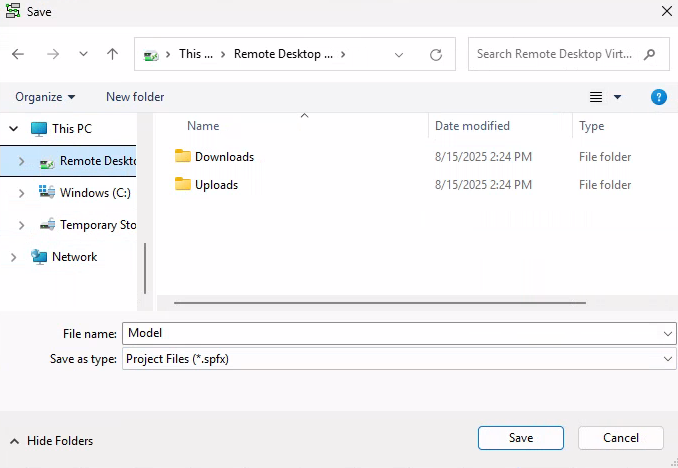
- Save your file to [Downloads]
- You may be asked to [Confirm] your download in the top right. Press [Confirm]. (Figure 2)
Figure 2: (Confirming your download)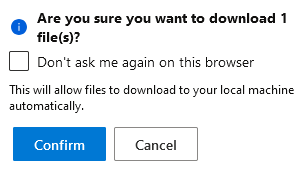
- You may be asked to [Confirm] your download in the top right. Press [Confirm]. (Figure 2)
- This will [open a window in your browser] to either save or open the file you just saved. Select your preferred option and then press [OK]. (Figure 3)
Figure 3: (Saving from your Browser Window)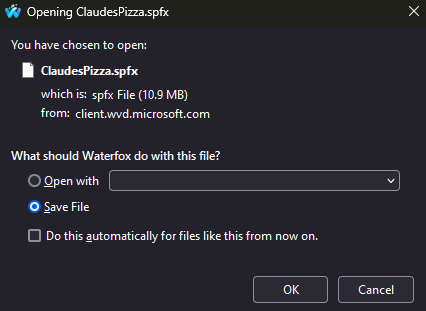
- If you selected [Open with], the file should open in that program momentarily. You can then save it to your location of choice using the program as normal.
- If you selected [Save File], another [File Explorer Window] will open on your local desktop. Choose a location to save your file and press [Save].
- Congrats, you've successfully saved your Simio file to your local device!
How to Get Help
Technical assistance is available through the Illinois State University Technology Support Center at:
- Phone: (309) 438-4357
- Email: SupportCenter@IllinoisState.edu
- Submit a Request via Web Form: Get IT Help Form
- Live Chat: IT Help Live Chat
Feedback
To suggest an update to this article, ISU students, faculty, and staff should submit an Update Knowledge/Help Article request and all others should use the Get IT Help form.