Technology
Veoci Log In & Room Access
Last modified 4/21/2026
Log in to Veoci using a web browser.
- Log into Veoci by in one of two ways:
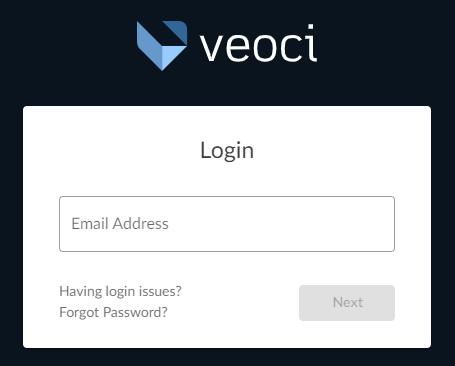
- Visit the Veoci Home Login page
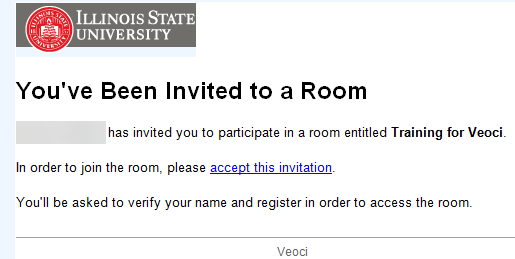
b. Click the accept this invitation link via the You've Been Invited to a Room email
2. Enter your ilstu.edu email address and click the Next button.
3. Click the Illinois State Central Login button.
4. The ISU Central Login page will be displayed. Type your ISU Email and password.
5. Click the Log In button.
6. After logging in, you will either be brought directly to the room you were invited to or the Active Rooms homepage; this depends on whether you logged in via email link or website.
Note: If brought to the home screen, click the room link to join that room.
How to Get Help
Technical assistance is available through the Illinois State University Technology Support Center at:
- Phone: (309) 438-4357
- Email: SupportCenter@IllinoisState.edu
- Submit a Request via Web Form: Get IT Help Form
- Live Chat: IT Help Live Chat
Feedback
To suggest an update to this article, ISU students, faculty, and staff should submit an Update Knowledge/Help Article request and all others should use the Get IT Help form.