Technology
Microsoft Teams Meetings Overview
Last modified 11/3/2026
Microsoft Teams Meetings lets you meet online with other people using audio, video, chat, and screen sharing. You can use Teams Meetings for classes, meetings, presentations, training, and other group activities.
Teams meetings includes tools that help you communicate and share information during a meeting.
Access Microsoft Teams
- Web Browser
- Go to Microsoft 365.
- Sign in with your Illinois State University account.
- Select Apps in the upper-left corner.
- Find Teams in the list of available apps. You can also enter Teams in the search field.
- Select Teams to open the web application.
- Desktop Application
Use the Teams desktop application if it is installed on your computer.
- Open the Start menu on Windows or Apps on Mac.
- Search for Microsoft Teams.
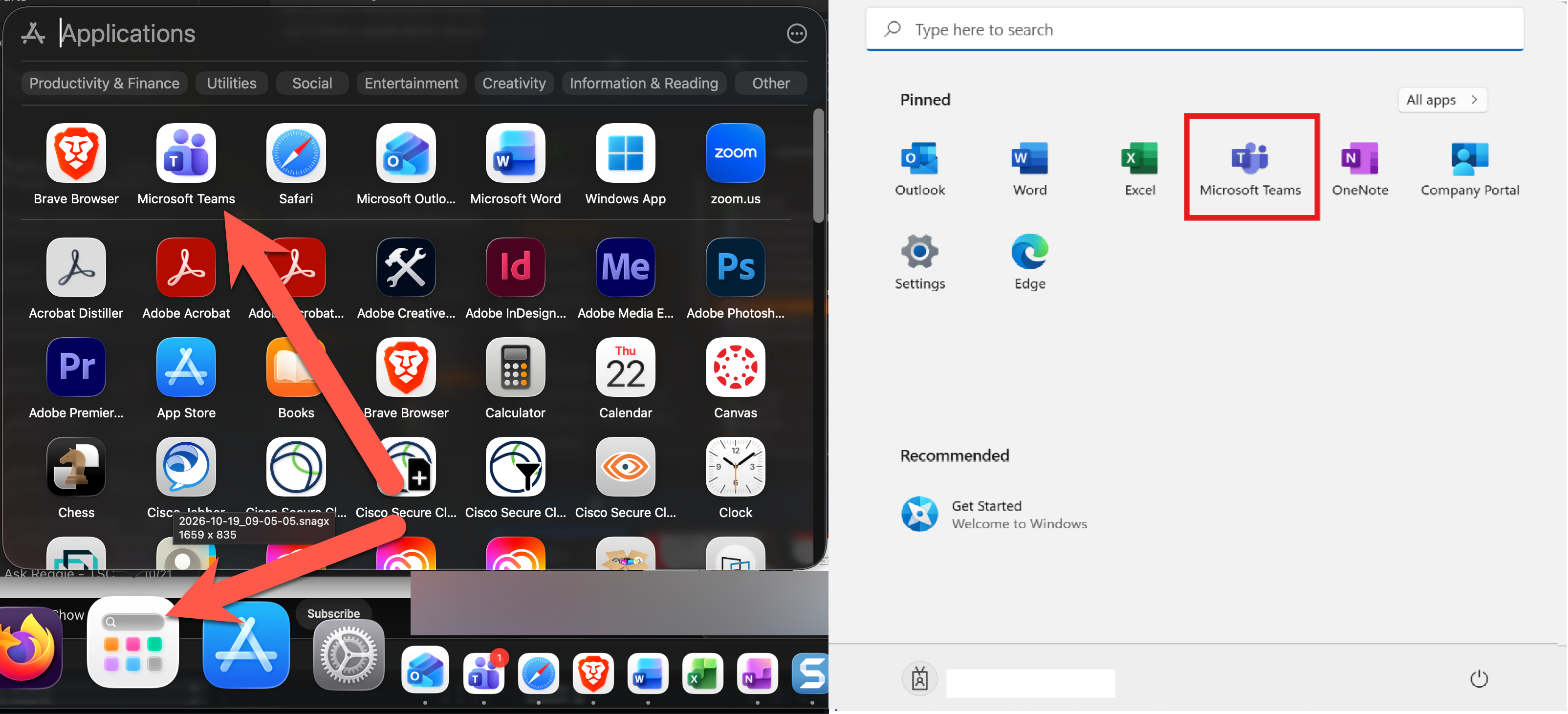
- Select Microsoft Teams to open the application.
- If prompted, sign in with your Illinois State University account.
The layout and available features can vary between the web and the desktop application versions.
Join a Microsoft Teams Meeting
You can join a Teams meeting from a meeting invitation, your Teams calendar, or a meeting link.
To join a meeting from Teams:
- Open Microsoft Teams.
- Select Calendar.
- Find the meeting.
- Select the meeting.
- Alternatively, you can select "Meet Now." and select "Start Meeting."
- Select Join.
- Check your audio and video settings.
- Select Join now.
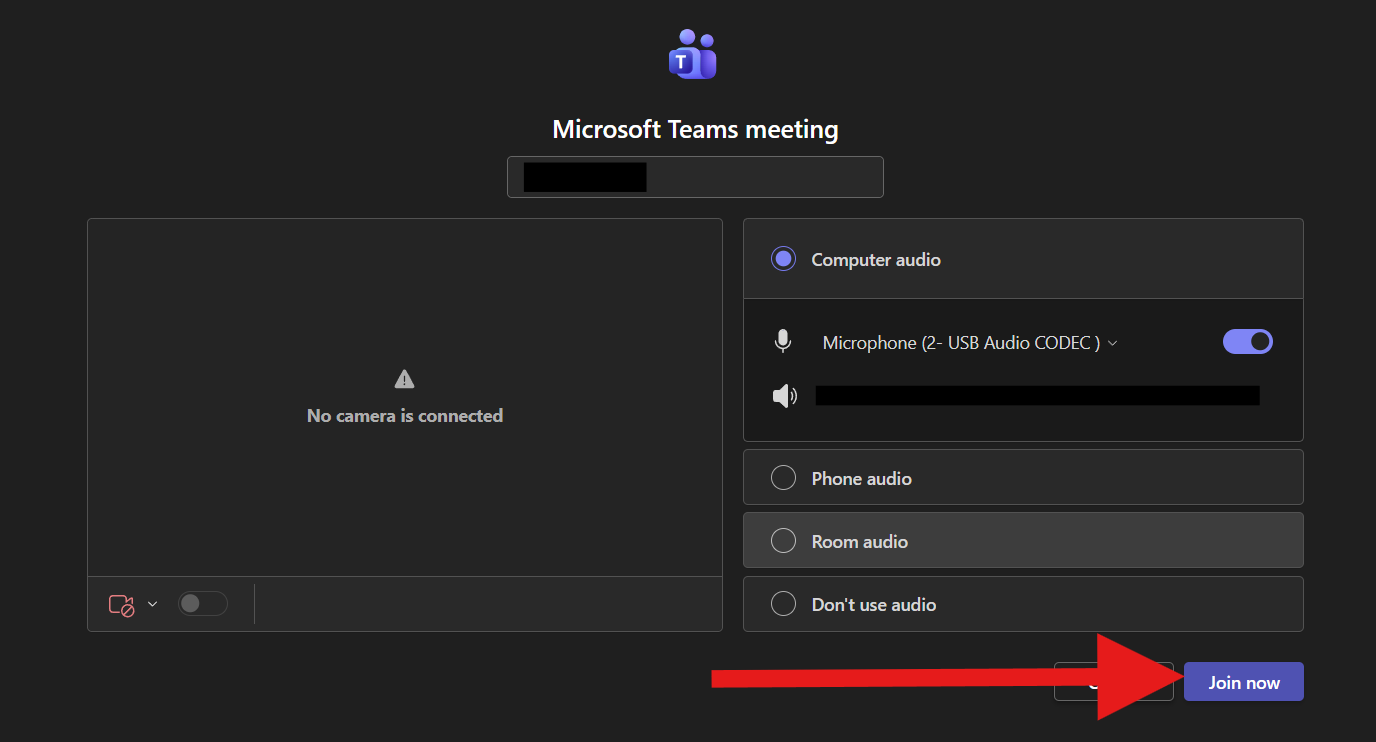
If you have a meeting link, select the link to open the meeting. Follow the instructions on the screen to join.
Important
The location of some controls can vary based on your Teams version, settings, or platform.
Using Meeting Controls
- Turn your microphone on or off
Use your microphone to speak during a meeting.
- Select Mic to turn your microphone on or off.
- Check the microphone icon to confirm its status.

Mute your microphone when you are not speaking. This can reduce background noise.
- Turn your camera on or off
Use your camera to show your video to other meeting participants.
- Select Camera to turn your camera on or off.
- Check the camera icon to confirm its status.

- Open the meeting chat
Use the meeting chat to send messages to other participants.
- Select Chat in the meeting controls
- Enter your message and Send the message.
The location of chat control can vary. If you cannot find it, open the More menu.

- View meeting participants
Use the participant list to see who has joined the meeting.
- Select People in the meeting controls.
- Review the participant list.
- Select the option to close the list, if needed.

- Raise your hand
Raise your hand when you want to speak without interrupting another person.
- Select Raise hand if the control is available.
- Wait for the meeting organizer or speaker to call on you.
- Select Lower hand when you finish.

- Find Controls in the More Menu
The More menu contains meeting actions that do not appear on the main toolbar.
To find a control:
- Select More or More actions in the meeting controls.
- Review the available options.
- Select the action that you need.
The menu can include options such as recording ,reactions, background effects, and other meeting tools. The available options depend on the meeting and your permissions.
If you cannot find a control on the main toolbar, check this menu.

- Share Content During a Meeting
You can share your screen, a window, or supported presentation content with meeting participants.
Before you share content, close any windows that contain private information. Check that you have selected the correct screen or window.
To share content:
- Select Share in the meeting controls.
- Review the available sharing options.
- Select the screen, window, or presentation that you want to share.
- Follow the on-screen instructions to start sharing.
- When you finish, select Stop sharing.
Depending on your Teams version, it can include previews of screens and windows, tabs for different sharing options, and an additional confirmation step before you share content.
Check What You Share
Share only the content that meeting participants need to see.
- Close personal or confidential files before you share your screen.
- Select a specific window when you do not need to share your entire screen.
- Check the selected content before you confirm sharing.
- Stop sharing when you finish your presentation.

- Leave a Meeting
When you finish a meeting, you can leave it without ending it for other participants.
To leave a meeting:
- Find the Leave button in the upper-right corner in the meeting controls.
- Select Leave or End Meeting.
- Wait for Teams to close the meeting window or return you to Teams.
If you are the meeting organizer, leaving a meeting does not always end it for the other participants.

Additional Resources
How to Get Help
Technical assistance is available through the Illinois State University Technology Support Center at:
- Phone: (309) 438-4357
- Email: SupportCenter@IllinoisState.edu
- Submit a Request via Web Form: Get IT Help Form
- Live Chat: IT Help Live Chat
Feedback
To suggest an update to this article, ISU students, faculty, and staff should submit an Update Knowledge/Help Article request and all others should use the Get IT Help form.