Technology
Export and Import Content in Canvas
Last modified 12/6/2024
Instructors can import and export both assessments and content using Canvas. The process requires several steps, but once successfully exported, this data can then be imported into Canvas for future courses.
Exporting and Importing Content
- Export Content
To export content from your Canvas course, follow the instructions below:
- Go to Settings in the Canvas site where you'd like to export the assessment
- Select Export Course Content.
- Click the radio button for Quiz Export [1]. Choose the Quizzes you want to export [2]. Click the Create Export button [3]. Note: When you create an export, Canvas will generate an export archive [4] where you can download prior export files.
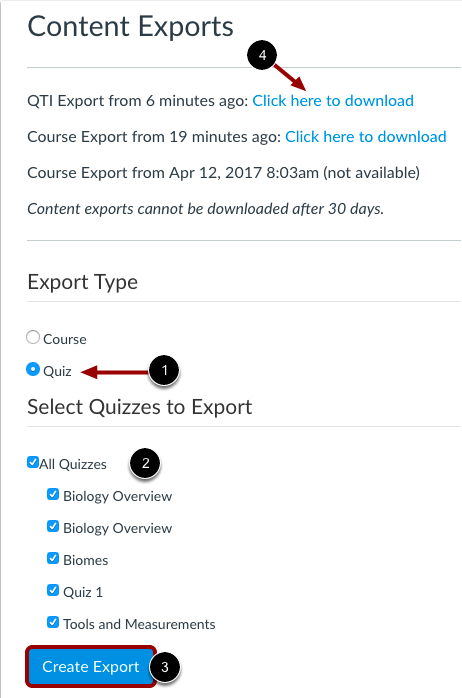
- When the export is complete, click the New Export link.

Note: Content exports expire after 30 days and can no longer be downloaded.
Note
If you need to export content from Classic Quizzes, you can export quiz content as a QTI ZIP file. Classic quizzes are exported as QTI 1.2 files.
Notes:
- An exported quiz with questions linked to a question bank will not include an export of the question bank. The QTI file will only include questions from the question bank that have been added to the quiz. If you want to import the classic quiz into another course along with question banks, you may prefer to export your Canvas course and select quizzes and question banks in the course import.
- You can use the QTI zip file to import quiz content between Canvas courses. If you unzip the QTI file, the files are in XML format.
- Import Content
To import content into your Canvas course, follow the steps below:
- Go to Settings in the Canvas site where you'd like to upload the assessment.
- Select Import Course Content.
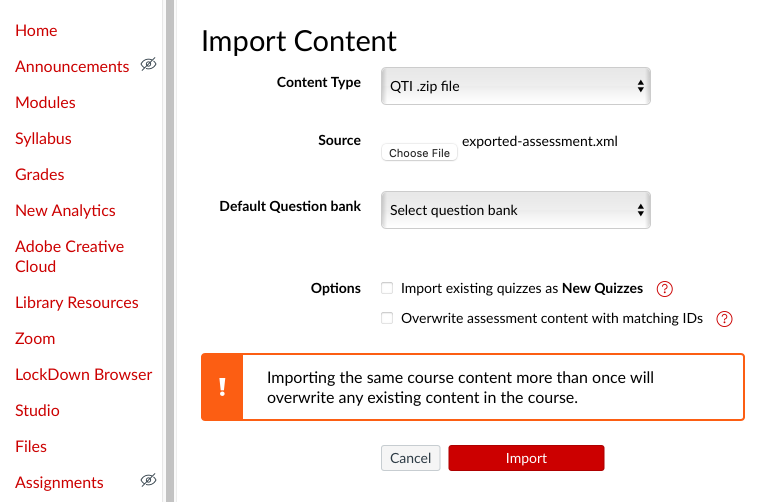
- In the Content-Type field, select QTI .zip file
- In the Source field, upload the appropriate exported .zip file.
- You can then choose to import using Classic Quizzes or New Quizzes:
- If you want to import into a Classic Quizzes question bank, use the Default Question Bank field.
- If you want to import using New Quizzes, check the Import existing quizzes as New Quizzes box. If you select this, you cannot use Question Banks.
- Click Import.
- When the import is completed, you can look for your imported assessment in Quizzes, Question Banks (for Classic Quizzes), or Item Banks (for New Quizzes). You can then check your assessment for import errors and edit as needed.
Selecting Specific Course Content if Mass Importing
- After clicking Import, wait until a gray Select Course Content box appears under Current Jobs.
- Click the red Select Content button.
- Place check marks next to the items you want to import–this can be each of the quizzes you'd like to pull over and any question banks.
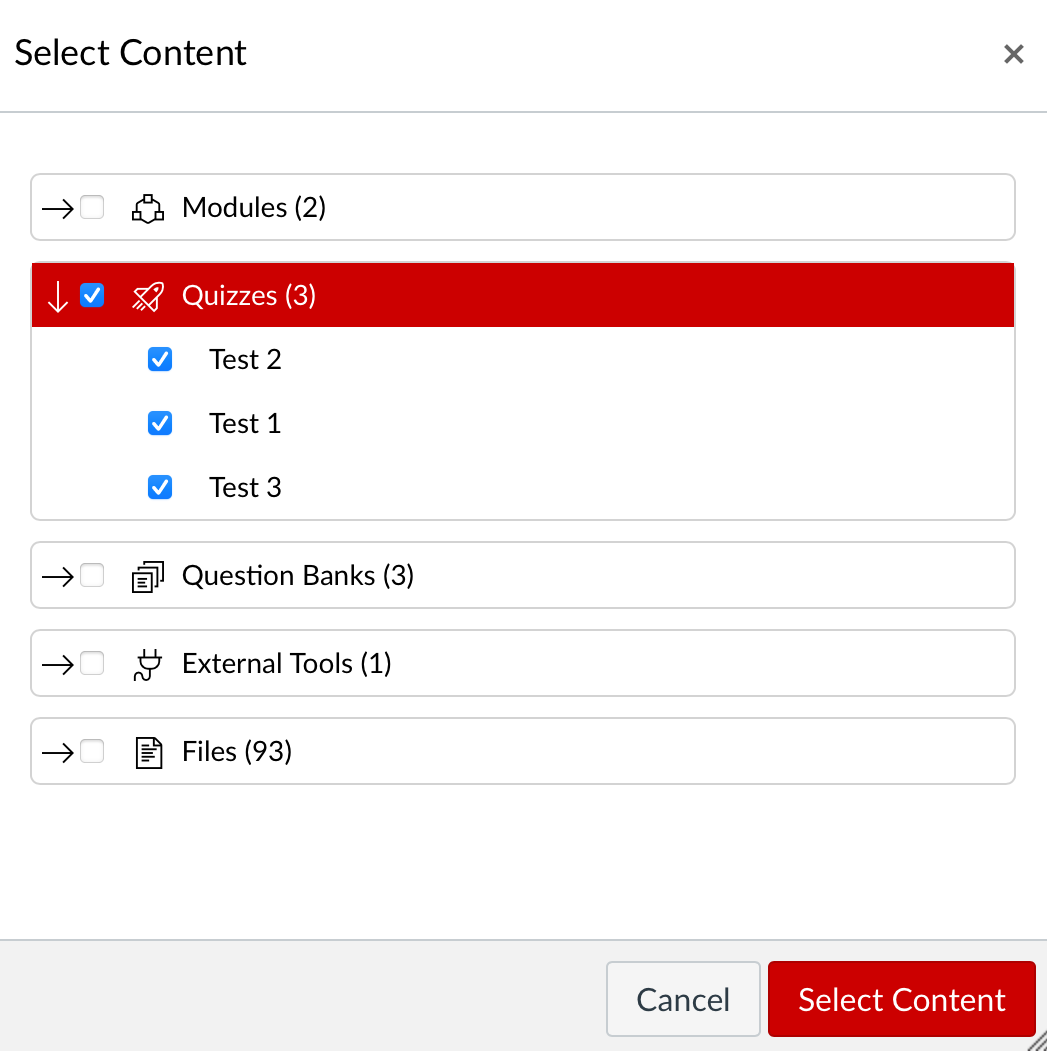
Note: You can check the box next to Quizzes or select the arrow to upload only specific quizzes within that category
- Click Select Content
- The gray Waiting for Selection box should now be green or yellow and say Completed.
Note: If the box says Completed and is green, Canvas ran into no issues while uploading your materials.
- If the box says Completed and is yellow, Canvas ran into issues while uploading your material.
- Click the red Issues to the right of the Completed box to see what problems occurred. Often, the issue is that Canvas couldn't pull over the correct answer (particularly for multiple-choice questions) or had other general formatting issues).
- Go to Quizzes to confirm that your Tests were imported correctly
- If you do not see your Quizzes there, check your Question Bank by selecting the three dots in the right corner (next to the red +Quiz button), and then click on Manage Question Banks
The errors you may experience with the import process include the following:
- Correct answers not transferring over
- HTML code within questions and answers
- Questions that are file uploads will transfer the information but will need to be reset to File Uploads.
- Naming conventions may be changed.
Troubleshooting if your import fails
- Try a different import method in Canvas.
- If the QTI .zip file import fails, change the Content-Type field to Common Cartridge 1.x Package and try importing again.
- Try with a different browser or on another device.
How to Get Help
Technical assistance is available through the Illinois State University Technology Support Center at:
- Phone: (309) 438-4357
- Email: SupportCenter@IllinoisState.edu
- Submit a Request via Web Form: Help.IllinoisState.edu/get-it-help
- Live Chat: Help.IllinoisState.edu/get-it-help
Feedback
To suggest an update to this article, ISU students, faculty, and staff should submit an Update Knowledge/Help Article request and all others should use the Get IT Help form.