Technology
Making Phone Calls with Cisco Jabber
Last modified 4/15/2026
You can make phone calls with Cisco Jabber regardless of whether the contact also uses Cisco Jabber or not. You can do so using either a Cisco IP phone or a softphone (i.e. a virtual phone rather than a physical desk phone).
Before You Begin
If you use Cisco Jabber in conjunction with a Cisco IP phone, and you make a call using the soft phone (i.e., virtual Cisco phone on your computer), the call will be placed using your physical phone. If you use a softphone, you must also have a headset with a microphone.
Make a Phone Call
To make a phone call with Cisco Jabber, do the following:
- Launch Cisco Jabber and log in.
- Do one of the following:
- Right-click on the contact you want to call and select Call. If the contact has more than one phone number, you must select the phone number you want to dial.
- Hover over the contact you want to call and click the Call icon (This icon looks like a phone). If the contact has more than one phone number, you must select the phone number you want to dial.
- Enter a name or ULID in the search box at the top of the Cisco Jabber window. Then right-click on the contact and select Call or click the Call icon.
- Select the Calls Icon on the left hand side, open the Dialpad, then enter the number you'd like to call:
- If you are calling a university number, you may enter the number in the format 8-####
- If you are calling an off-campus phone number, you must first dial 7 to get off campus, then dial 1 plus the 10-digit phone number you are calling:
- (7-1-###-###-####)
- When the call begins, you will see an Active Call window appear on your screen.
- If you are using Cisco Jabber in conjunction with a Cisco IP phone, the call will be placed through your phone.
- If you are using Cisco Jabber with a softphone, you must have a headset with a microphone or the person you are calling will be unable to hear you.
- To end the call, either hang up using your Cisco IP phone or close the Active Call window.
Transferring Calls
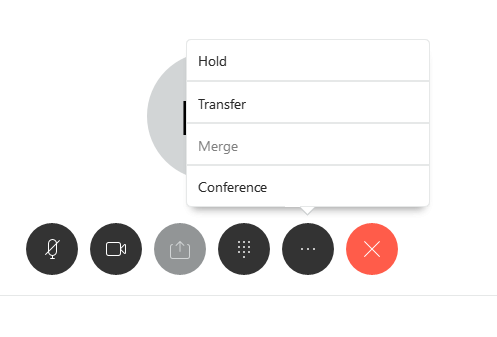
- Click More . . . in the Call Control Strip.
- The Call Control Strip appears once an active call is in progress.
- Select Transfer to place the current call on hold.
- Type the name of the person or the phone number you want to transfer the call to in the search box.
- Select the person or number in the search list.
- Click Transfer to complete the transfer.
- Click the Disconnect button after the third party answers.
How to Get Help
Technical assistance is available through the Illinois State University Technology Support Center at:
- Phone: (309) 438-4357
- Email: SupportCenter@IllinoisState.edu
- Submit a Request via Web Form: Get IT Help Form
- Live Chat: IT Help Live Chat
Feedback
To suggest an update to this article, ISU students, faculty, and staff should submit an Update Knowledge/Help Article request and all others should use the Get IT Help form.