Technology
Qualtrics for Course Evaluations
As of Fall 2025, the Center for Integrated Professional Development (CIPD) will limit its Opscan services to direct instructional activities only, such as exams processing. As a result, Opscan will no longer be available for course evaluation processing
To support departments and schools in continuing to collect meaningful course evaluation data, CIPD has developed a comprehensive Qualtrics-based solution. This approach is designed to ensure continuity, reduce administrative burden, and maintain data integrity.
We recommend that each department or school use a single Qualtrics survey per semester, with course-specific information either embedded in the survey link (via metadata). This strategy is designed to minimize the complexity of managing multiple surveys and helps to ensure consistency in data collection.
To assist with this transition, CIPD has created:
- Step-by-step guides for setting up and distributing surveys in Qualtrics;
- Survey templates aligned with best practices in course evaluation; and,
- Training and consultation services for departments seeking support in survey design or implementation.
We are committed to helping make this transition as smooth and effective as possible. As you proceed through this guide, please feel free to reach out with any conceptual questions to ProDev@IllinoisState.edu. Please note: access or technical issues related to Qualtrics should be directed to the Technology Support Center.
Baseline Recommendations for Using Digital Course Evaluations
- Treat digital course evaluations the same way you would treat analog course evaluations: give students a designated time during class to complete the evaluation, rather than sending out the link and asking them to do it out of class time, as your response rates may be lower based on our experience if you do that.
- Provide students the easiest method to select the correct course, instructor, and section when beginning the survey. There is no way to match individual responses if this information is filled out incorrectly.
- Continue to withhold course evaluation responses from instructors until after grades have been submitted and finalized; lead staff or another designated person in the unit should manage all data and then distribute that data to instructors.
- Maintain anonymity of evaluations to the extent that is possible, combining the data from smaller sections and avoiding the collection of personally identifiable data from surveys. If open-ended prompts are created, be sure to minimize the collection of personally identifiable data.
- Have multiple access points to the survey: consider having a link in Canvas and a QR code posted in the classroom the day of the evaluation, for example.
Getting Started & Guide Overview
This guide provides step-by-step instructions for using Microsoft Excel to create unique survey links for a single Qualtrics survey – one that your department or school has agreed upon for use for course evaluations across multiple courses. These links will automatically include course-specific information (such as course code, section number, and instructor name) using embedded metadata. This allows student responses to be accurately attributed to the correct course and instructor, without the need to create and manage multiple separate surveys.
Using this technique, you can:
- Distribute a single Qualtrics survey to many sections;
- Automatically track which course/section a response belongs to; and,
- Avoid having to create and manage multiple separate surveys.
The process is guided by several key steps, which are outlined briefly in the table below and explained in greater detail – with examples – in the step-by-step guides that follow.
Step-By-Step Guide
- Six Key Steps Overview
Steps | Tool | Description |
1. Create Survey | Qualtrics | Create the base survey that you will use for gathering course evaluation data |
2. Set Up Excel Spreadsheet | Excel | Prepare an Excel spreadsheet with course data, including columns for course_code, section, instructor, and URL |
3. Create Personalized Links | Excel | Use formula with ENCODEURL to ensure web-safe output and create unique links for each course |
4. Add Your Spreadsheet to Qualtrics | Qualtrics | Connect your Excel spreadsheet to Qualtrics by using the Embedded Data fields in Survey Flow |
5. Distribute Links | Email/Word | Use mail merge, QR codes, or LMS posts to share the unique links with courses, instructors, and students |
- Understanding Qualtrics Survey Links
Before we begin, it’s important to understand how Qualtrics survey links differ and how these links can be customized to include embedded data. Here are the basics:
A standard Qualtrics survey link looks like this: https://illinoisstate.qualtrics.com/jfe/form/SV_abc123xyz
Every survey you create using Qualtrics will begin with https://illinoisstate.qualtrics.com, followed by /jfe/form/ and will be followed by a random string of numbers and letters. This seemingly random string of numbers and letters is what will direct someone to a specific survey.
You can edit this URL to embed even more data and ensure that specific responses are associated with the right course and instructor. To pass embedded data into the survey – which adds course-specific information to the link – we include relevant information at the end of the base URL. It then looks like this: https://illinoisstate.qualtrics.com/jfe/form/SV_abc123xyz?course_code=ENG101§ion_number=001&instructor_name=Smith
Notice that each piece of course-specific data is represented with what Qualtrics calls a key-value pair. The key is the category of information, and the value is the specific detail. Each key-value pair in the URL is separated by &. For example, based on the URL above, the following are key-value pairs you'll see at the end the URL above:
course_code=ENG101section_number=001instructor_name=Smith
Each of these key-value pairs helps to organize the data you will receive from the survey into course code, section number, and instructor. These key-value codes will be used to ensure that the course evaluation data are associated with the correct instructor for the correct course and section.
- Step 1: Create a Qualtrics Survey and Get the Base URL
Before you can generate personalized links, you’ll need a Qualtrics survey to link to. You can start with a blank survey — it just needs to exist so you can retrieve the base URL to use in step #3. You will need to go in at a later time to add your survey items to this blank survey.
- Go to: https://illinoisstate.qualtrics.com
- Log in with your Illinois State University credentials
- Click “Create new project” > Survey > Get Started From Scratch
- Give your survey a name (e.g., “Fall 2025 Course Feedback”) and click Create Project
- After it loads, go to the Distributions tab > Web > click “Anonymous Link”
- Copy the link — it will look something like:
https://illinoisstate.qualtrics.com/jfe/form/SV_abc123xyz
This is your base URL, and you will use it in the Excel sheet (Step 2).
The following video is a demonstration of these directions:
- Step 2: Set Up Your Excel Spreadsheet
Open Microsoft Excel and create a new worksheet that will be used to organize the course-specific data you plan to embed in your Qualtrics survey links. This sheet will serve as the foundation for generating your personalized links – and therefore should include the relevant key-value pair data.
Create columns for each key-value pair you want to use to organize your data, using an underscore instead of a space.
Important Note: When naming your columns, using underscore instead of spaces is important for compatibility with Qualtrics, which does not recognize spaces in embedded data field names.
We recommend that you use the following headers:
course_codesection_numberinstructor_first_nameinstructor_last_name
Once your headings are added, populate the spreadsheet with appropriate course information in each column. Each row should represent a unique course section, and the data should align with corresponding key-value headers. For example:
Column A | Column B | Column C | Column D | Column E | Column F |
course_code | section_number | instructor_first_name | instructor_last_name | base_url | survey_url |
ENG101 | 001 | A | Smith |
| |
ENG101 | 002 | B | Smith |
| |
ENG201 | 001 | R | Johnson |
| |
ENG202 | 001 | S | Johnson |
| |
ENG301 | 001 | D | Taylor |
| |
ENG302 | 001 | E | Taylor |
|
If you'd like to use other columns to categorize data (i.e., instructor_ID_number, instructor_name, etc), you'll need to adjust the formula used in step #3 to incorporate those headers.
Note: The base_url column will be the same in every row — it's simply a placeholder for the beginning of your Qualtrics link before personalized information is added. You don’t need to type it repeatedly: just type or paste the base URL into the first cell of the column, then select and copy it down into all rows at once. This will ensure that the formula we use in step #3 works correctly across all entries.
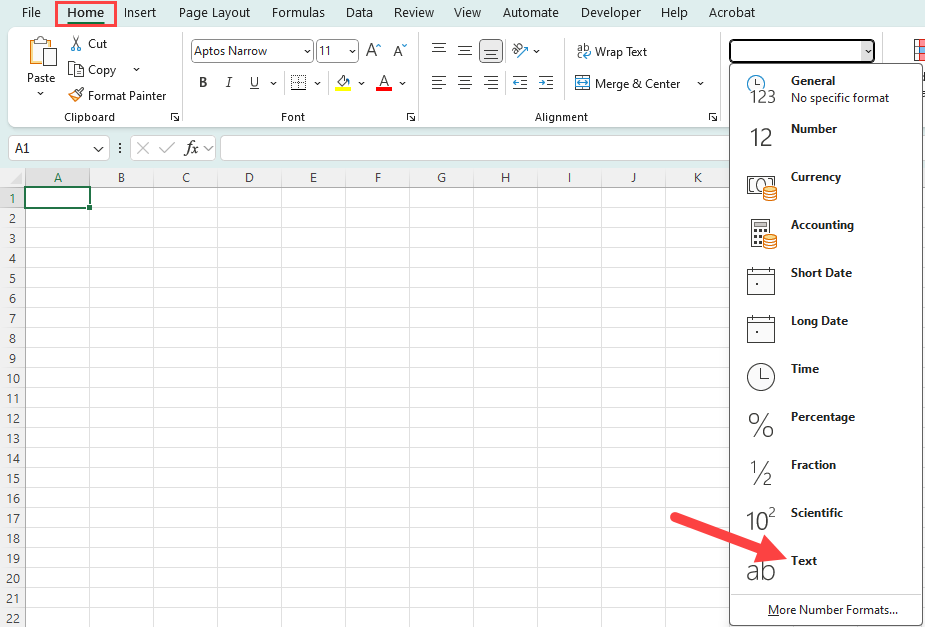
Note: If Excel automatically updates the formatting of entries in a cell (for example, removing the zeroes at the beginning of a section number – 001 becomes 1), click the "Home" tab. Then, click the dropdown menu that displays the term, "General" and select "Text".
The following video is a demonstration of these directions:
- Step 3: Create Personalized Links
In a new column (e.g., column F), label the header survey_url (see example in Step 2). Then, copy and paste this formula in the first row under that column (cell F2):
=E2&"?"&"course_code="&A2&"§ion_number="&B2&"&instructor_first_name="&C2&"&instructor_last_name="&D2&""
Important Note: This above code must be entered without any spaces.
The code in each column is required to match the code in the above formula. For example, Column C is labelled as "instructor_first_name" and in the above code, "instructor_first_name" is used as well.
This formula combines the base Qualtrics link from column E with your course information.
Important Note: URLs cannot contain certain special characters, including spaces. If you need or want to include the instructor’s full name, you must use an underscore like “Reggie_Redbird” or make a separate column for the first name, and add it into the embed data formula. If there are multiple instructors with the same surname, you can also add their first initial with an underscore, i.e. Smith_A and Smith_B, so that you’re later able to run reports by instructor. Alternatively, you may determine it necessary to assign a numeric code to instructors at this stage to assist in the process of anonymizing information during the data sharing stage.
Then drag the fill handle down to apply the formula to all rows. Now column F will contain full, unique URLs for each course section. For example:
The following video is a demonstration of these directions:
- Step 4: Embed Course Specific Data into Qualtrics
Return to Qualtrics and open your survey.
Before your personalized link can work correctly, you’ll need to complete one setup step in Qualtrics. This only needs to be done once for the survey.
- Navigate back to the survey you created in Step 1.
- Go to Survey Flow by selecting from the left side navigation.
- Click + Add a New Element Here > Embedded Data
- In the "Create New Field or Choose From Dropdown..." box, enter in each of the fields you want added to the URL based on the Excel spreadsheet (the column headers you added in Step 3). You will need to select Add a New Field to add each element. You do not need to enter anything where it says "Set a Value Now."
course_codesection_numberinstructor_first_nameinstructor_last_name
- If you chose to create different column headings, such as just using last name or assigning a numeric code, please enter these alternate column headings.
- Click the Move link to move this block to the top of the Survey Flow.
- Click Apply at the bottom right of the page.
If you create a copy of this survey, these steps do not need to be repeated. The survey flow will be copied along with the rest of the survey.
Once this is complete, Qualtrics will automatically store those values with each response. This ensures that all data collected are accurately attributed to the correct course and instructor. In other words, each time a student completes the survey, their response will be tagged with the relevant course-specific information and stored in Qualtrics. This allows for efficient data retrieval and analysis without requiring students to manually enter those details. It is important to note that this occurs only when respondents use the personalized URL created in step #3.
The following video is a demonstration of these directions:
- Step 5: Distribute Links
When you are ready to distribute your survey, you can now:
- Share the links in Canvas
- Turn them into QR codes
- Paste the full links from Column F into emails
- Create a mail merge to send personalized messages to instructors or students. For more information on how to create a mail merge, see this article: https://help.illinoisstate.edu/technology/support-topics/email/mail-merge#accordion-auto-01
- NOTE: Email, utilizing either direct messages or mail merge, should only be used for groups of 1500 students or less
There are two main options for distributing the links:
Option 1: Send links to instructors
- Provide each instructor with the personalized survey link(s) for their sections from Column F in your spreadsheet.
- Prompt them to share the link(s) with their students through email, Canvas, and/or in class.
To automate the process of getting links to instructors:
- Add a new column to your spreadsheet with each instructor’s email address.
- Use a mail merge in Word or Outlook to send each instructor their link(s).
Option 2: Send links directly to students
This method requires that you have the student roster for each section.
- Copy the sheet you have created in Excel. In this new sheet, enter your unit’s student roster, listed again by course, instructor, and section, and use a look-up function to find the right URL based on the course information.
- Use mail merge in Word or Outlook to send each student their personalized survey link.
- Each time someone clicks their unique link, Qualtrics will capture the course_code, section_number, instructor_first_name, and instructor_last_name (and any other information you are tracking via the additional data you embedded in step #4) you included.
The following video is a demonstration of these directions:
- Step 6: View Survey Responses
Data & Analysis Tab
After the survey has been sent, respondents will submit responses to the survey. Use the Data & Analysis tab to view the responses to your survey.
After opening the tab, all responses received can be seen here. Qualtrics contains a feature to filter results so that you see student responses for a certain department, professor, or class.
The Data & Analysis tab contains extra subtabs at the top of the screen. These tabs can be used for additional data analysis:

Filter Survey Results
You may find that you want to view or export results limited to a certain department, instructor, or class. Follow these directions to filter your results:
- Open your survey.
- Select the Data & Analysis tab at the top of the screen.
- This will open your Data Table. This table contains all responses to your survey that have been received. A limited number of questions are displayed in this table.
- (Optional) If you would like to see the responses for a certain question that is currently not displayed in the table, hover over the columns and click the “+” (plus) button that appears.
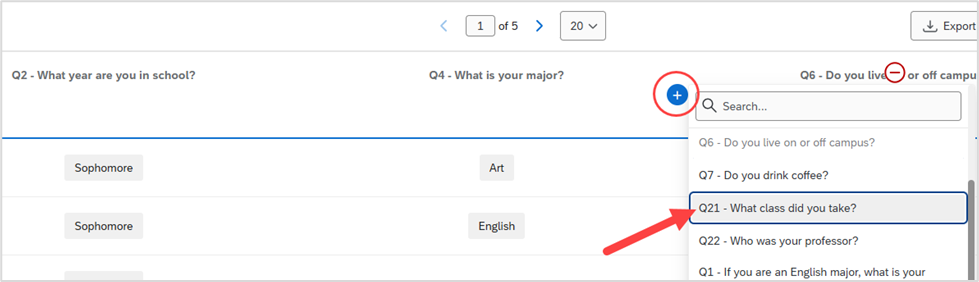
In the menu that displays, select the question whose responses you wish to see. - To filter your results so that only responses for a certain question are displayed, first select Add Filter at the upper left above the table,
- This will display a Select Choice dropdown menu below. Click Select Choice and select the question or embedded data for which you would like to filter the received responses.
For example, if you had asked the question, “What class did you take?” and wish to only view responses for English 100, first select the question, “What class did you take?”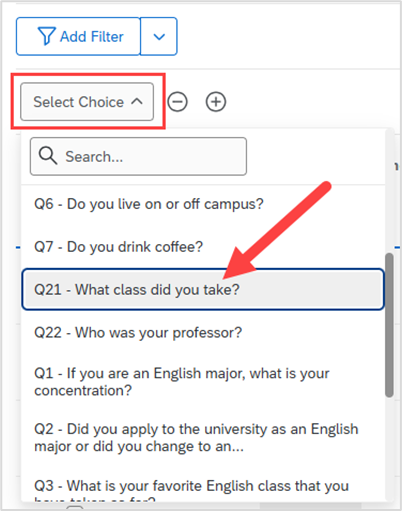
If you had created and used embedded data in the Survey Flow area (such as in Step 4: Embed Course Specific Data into Qualtrics) and you would like to filter by (for example) course code (course_code), first click the Select Choice button ("1" in the figure below). Next, select Embedded Data ("2" in the figure below), then select the embedded data (ex: course_code. "3" in the figure below).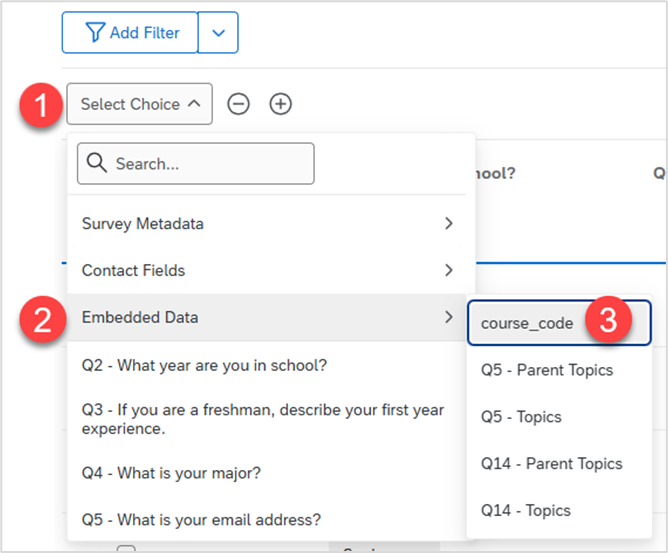
Once your filter has been selected, Qualtrics will filter the responses in the table so that only the responses that apply to the filter will be displayed. - If you are filtering by a question (ex: “What class did you take?”), another down arrow will appear. Click this arrow and select the qualifier (ex: is, is not, equal to, etc.). For this example, select “Is”.
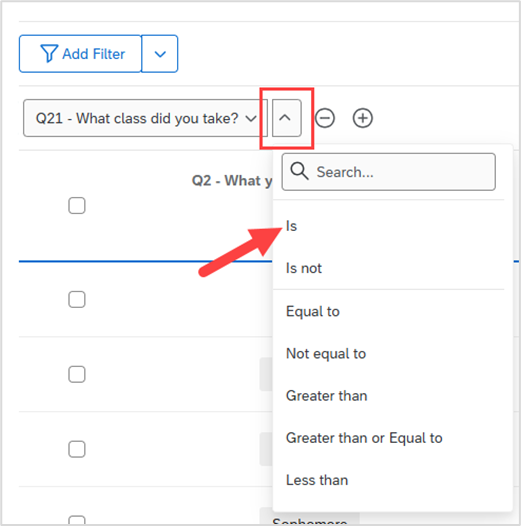
- Another down arrow will display. Click this arrow and select the answer choice that you would like to filter.
For example, if you selected “What class did you take”, “is”, and you wish to filter to view students in “English 100,” select English 100.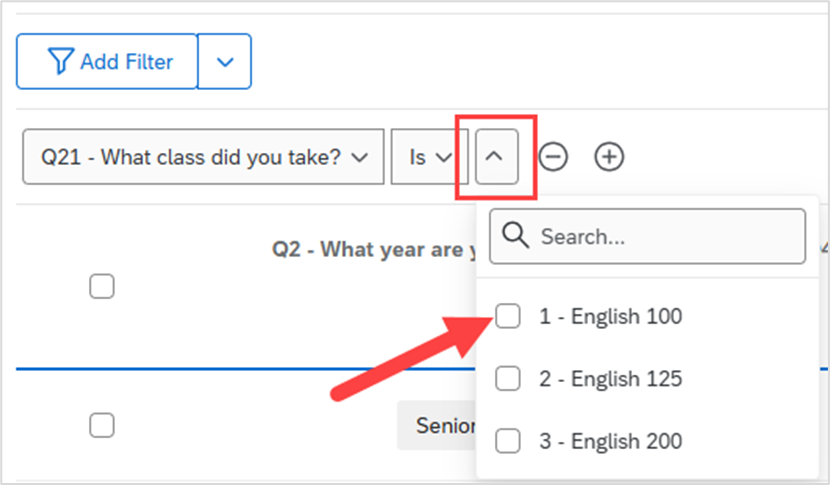
After selecting your filter, you can further filter your results. For example, if you selected “What class did you take?”/is/English 100, you can further filter the responses to only show results for English 100 students who had Reggie Redbird. - First, click the “+” button next to the newly created filter.

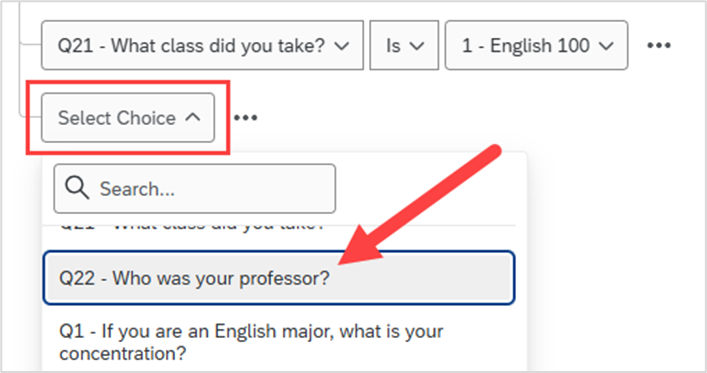
- The Add Filter window will appear. In this window, click the Select Choice dropdown menu under “What class did you take?”.
- Select the question, “Who is your professor?”
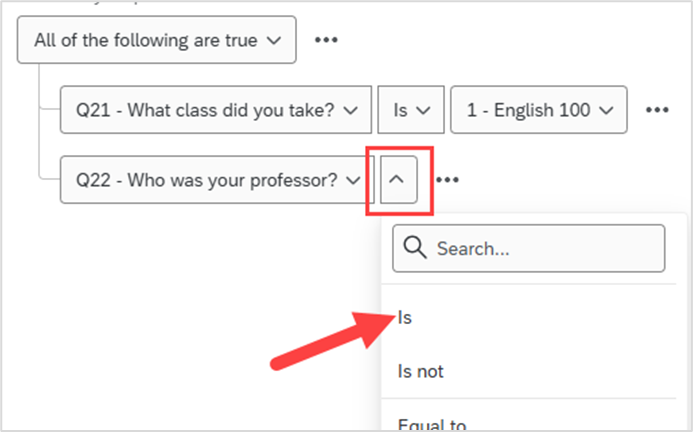
- Click the dropdown arrow next to the question. Select the qualifier (ex: is, is not, equal to, etc.). For this example, select “is”.
- Click the next dropdown arrow that appears. Select “Reggie Redbird”.
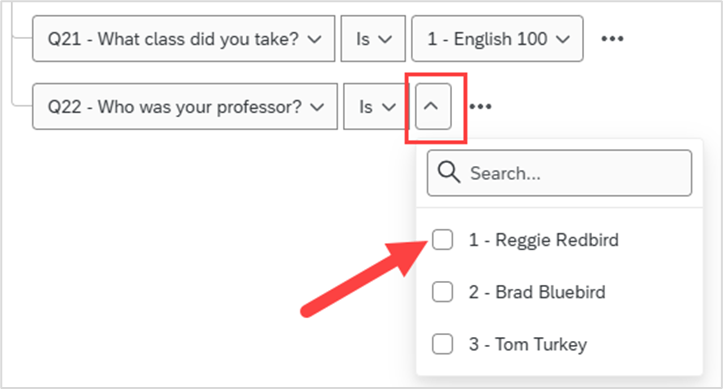
- Click the Apply and Save Filter button. This will close the window and display only responses submitted by students who took English 100 with Reggie Redbird as their professor in the table.
- Continue these steps until you have all filters set in place so that you are only viewing the responses you wish to see.
For more information on filtering Qualtrics, select the following link: Filtering Responses
Export Qualtrics Data
After receiving responses, you can export your data to store onto your computer, a secure site, or send the data to someone who is interested in viewing the responses.
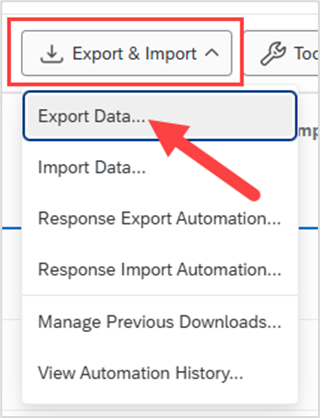
- To export your results, click the Export & Import button at the upper right above the table.
- Select Export Data.
- The Download a data table window will display. Select the tab of the format you would like to export your data (ex: Excel, CSV, SPSS, etc.).
In this window is the Download all fields checkbox, which is selected by default. This checkbox will download all responses to every question.
If you deselect this checkbox, this will only export the answers to the questions that are currently displayed in the table.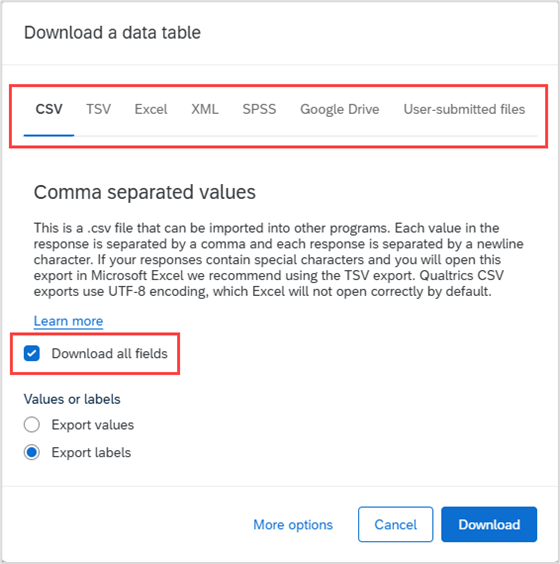
- Click the Download button. This will download your data.
Results Tab
The Results tab can be used to create graphs that visually represent your collected data. This tab takes all the data in the Data & Analysis tab and generates graphs based on the data you have received.
After selecting a graph on this tab, use the menu options on the right side of the screen to change the graph type (bar, pie, etc.), colors of the graph, and labels, among other options.
After creating the graph, export the graph by selecting the Share Report button on the right side of the screen and selecting the format you would like to export your graph(s) (ex: PDF, Word, PowerPoint, etc.).
Conclusion
At this point, your survey is fully set up and ready to use.
As long as the personalized survey links are distributed (using Option 1 or Option 2) at the appropriate time, no additional steps are required.
As with any method, using personalized Qualtrics survey links has both advantages and potential challenges to consider.
Advantage
The primary advantage is that students will submit their evaluation for the correct course, without worrying about selecting any options or typing in a code. This makes your data export easier.
Challenge
The main challenge is that instructors with more than one section could get their links confused between sections, but since the data is encoded directly onto the URL (i.e. it’s human-readable), they should be able to match their URLs to the appropriate section.
Send Qualtrics Data
After exporting your data, there are different ways that you can share it with those who are interested in viewing them.
Most people on campus use email, but SendTo is an option if you would like to keep data secure. Using a web browser of your choice, navigate to SendTo.IllinoisState.edu. After logging in, following the directions on the page to send your data file.
- For more information regarding the use of SendTo at Illinois State, please refer to: SendTo
How to Get Help
Search Documentation
The Qualtrics website contains many articles with directions on how to use various Qualtrics features. The following link will take you to a Qualtrics support article page: Survey Basic Overview
Once there, you can search the available documentation on their website to look up articles that contain directions on how to use different Qualtrics features.
Click the Search Product Documentation field at the upper right side of the screen. Next, type in the keywords of what you would like to learn.
Technical Assistance
Technical assistance is available through the Illinois State University Technology Support Center at:
- Phone: (309) 438-4357
- Email: SupportCenter@IllinoisState.edu
- Submit a Request via Web Form: Help.IllinoisState.edu/get-it-help
- Live Chat: Help.IllinoisState.edu/get-it-help