Accessibility
Accessible Course Content Checklist
Last modified 9/26/2025
Check Your Content: The 7 Steps of Accessibility
-
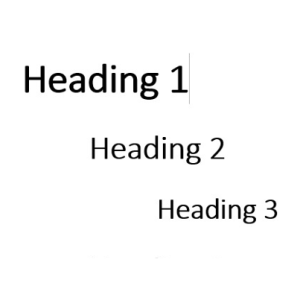
Heading Styles
Use built-in heading styles to designate structure & content organization. Modify them to suit your needs.
-
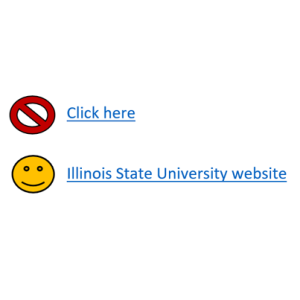
Descriptive Naming of Links
Use descriptive titles for hyperlinks to provide added context for navigation.
-
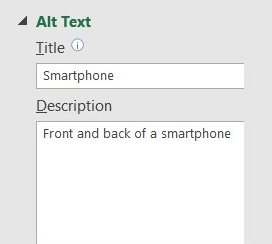
Alternative Text
Provide alternative text for images, graphs and charts.
-
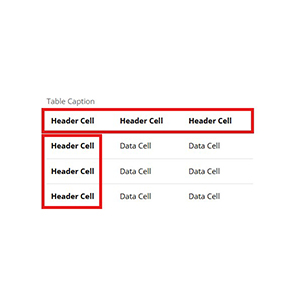
Format Tables with headers
Ensure all tables have marked header cells (Row, Column or Both)
-

Text and Contrast
Check that text and page background display a strong contrast. Do not rely solely on reference to color or shape to describe content.
-

List Styles
Use built-in bulleted or numbered list styles to designate list structure. Format and use built-in simple tables with column and row headers.
-

Closed Captioning
Choose videos that have closed captioning or transcripts.
Next Steps
-
PowerPoint Slides
Follow all content accessibility guidelines above. In addition, check the Outline View to make sure all text from slides appears in Outline View.
-
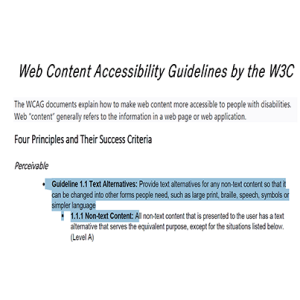
Readable Materials (PDF files)
Can text within your PDF file be selected with a mouse? If so, a text-to-speech reader should be able to read the file. If not, the file will need conversion using programs such as Adobe Acrobat.
-
3rd Party Online Materials
How accessible are the digital materials you want to select to use for your course? Ask about accessibility before deciding on use.
Building an Accessible Course in Canvas
Creating accessible course content in Canvas is not only a legal requirement under various laws and regulations, but it is also a moral obligation to ensure that all learners have an equitable learning experience. Use the Digital Accessibility Canvas Course as a training tool to help improve your accessibility skills
Feedback
To suggest an update to this article, ISU students, faculty, and staff should submit an Update Knowledge/Help Article request and all others should use the Get IT Help form.