Technology
Manage Safe Senders and Blocked Senders in Microsoft 365
This article explains how to manage trusted and blocked email addresses in Microsoft 365. Safe Senders and Blocked Senders settings allow you to control how Outlook handles messages from specific people, organizations, and domains. These settings can help ensure important messages are delivered to your Inbox while reducing unwanted email.
Important!
Microsoft has junk email filtering settings that block messages before they reach your mailbox.
- Manage Safe and Blocked Senders
You can customize how Outlook treats messages from specific email addresses and domains.
Safe Senders and Domains
Add trusted email addresses or domains to the Safe Senders and Domains list to help ensure their messages are not delivered to your Junk Email folder. Examples include:
- username@example.com
- example.com
Blocked Senders and Domains
Add email addresses or domains to the Blocked Senders and Domains list to have their messages treated as junk email.
Managing Email Delivery
If a legitimate message is repeatedly delivered to Junk Email, add the sender or their domain to your Safe Senders and Domains list.
If unwanted messages continue arriving in your Inbox, add the sender or domain to your Blocked Senders and Domains list.
- Access Safe Sender and Blocked Sender Settings
- Sign in to Outlook on the web through the ISU Microsoft 365 Portal.
- Select the Settings icon (gear icon).
- Select View all Outlook settings.
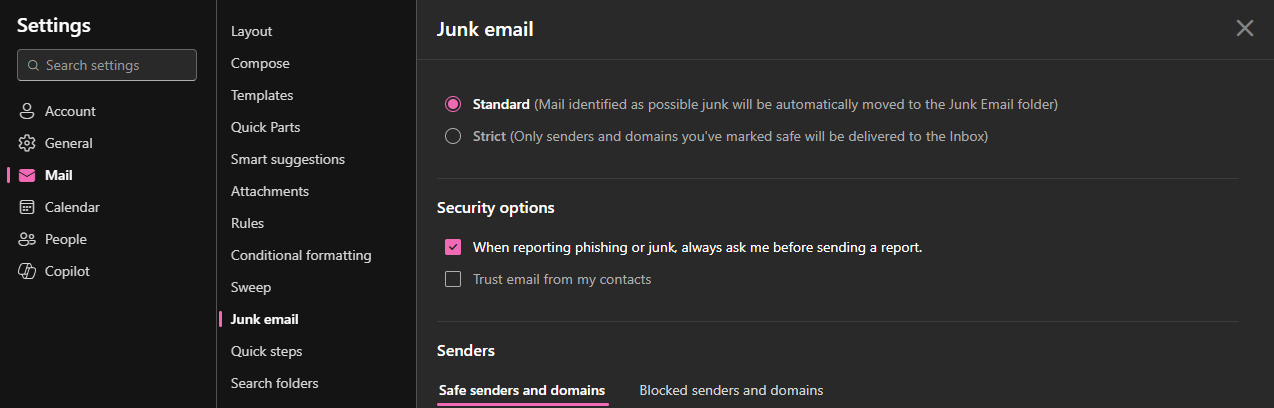
- Navigate to Mail > Junk Email.
- Add, remove, or edit entries in the Safe Senders and Domains or Blocked Senders and Domains lists.
Related articles
How to Get Help
Technical assistance is available through the Illinois State University Technology Support Center at:
- Phone: (309) 438-4357
- Email: SupportCenter@IllinoisState.edu
- Submit a Request via Web Form: Get IT Help Form
- Live Chat: IT Help Live Chat