Technology
Manage Junk and Promotional Email in Microsoft 365
This article explains how to manage messages in the Junk Email and Promotions folders in Microsoft 365.
Note: The Promotions folder is a new feature being implemented by Microsoft, and will begin appearing for ISU users in the late July/early August timeframe.
Microsoft 365 automatically sorts some emails to help reduce spam and inbox clutter:
- The Junk Email folder contains messages Microsoft 365 identifies as spam, phishing attempts, or potentially malicious emails.
- The Promotions folder contains newsletters, advertisements, special offers, marketing communications, and other promotional content. These messages are not considered spam but may be moved from your Inbox to reduce clutter.
When you move messages into or out of these folders, Microsoft 365 may use those actions to help classify similar messages in the future.
- Accessing Your Junk Email and Promotions Folders
You can access your email through:
- Outlook on the web through the ISU Microsoft 365 Portal
- The Outlook desktop application
- The Outlook mobile app
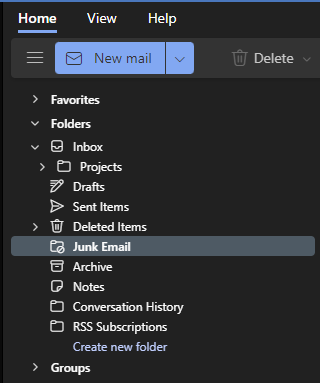
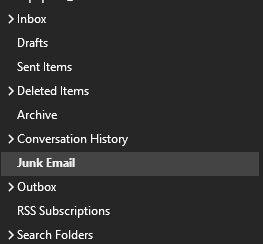
Your Junk Email and Promotions folders appear alongside your Inbox and other mailbox folders. Depending on where you access Outlook, these folders may appear near your Inbox or elsewhere in the folder list
Outlook on the Web | Outlook Desktop App |
|---|---|
|
|
- Manage Messages in the Junk Email Folder
If a legitimate message was marked as junk
- Open the Junk Email folder.
- Select the message.
- Choose Not Junk.
- The message is moved to your Inbox.
If a spam or unwanted message appears in your Inbox
- Select the message.
- Choose Junk, Mark as Junk, or Block Sender, depending on the version of Outlook you are using.
- The message is moved to the Junk Email folder.
- Manage Messages in the Promotions Folder
Microsoft automatically identifies eligible marketing and bulk email and may tag those messages as Promotions. Messages classified as Promotions may be delivered to the Promotions folder instead of your Inbox.
If a message was incorrectly moved to the Promotions folder
- Open the Promotions folder.
- Select the message.
- Move the message to your Inbox.
If a promotional message appears in your Inbox
- Select the message.
- Move it to the Promotions folder.
Related Articles
How to Get Help
Technical assistance is available through the Illinois State University Technology Support Center at:
- Phone: (309) 438-4357
- Email: SupportCenter@IllinoisState.edu
- Submit a Request via Web Form: Get IT Help Form
- Live Chat: IT Help Live Chat