Technology
Voicemail Management in Microsoft Teams Voice
Microsoft Teams Voice provides voicemail that allows the user to receive, listen to, and manage voicemail messages directly within Teams and other Microsoft products.
This article will explain how to access voicemail messages, configure voicemail settings, record or remove greetings, and manage out-of-office voicemail options.
Note: Illinois State University will begin cutting some departments over to Microsoft Teams Voice for phone services beginning in July 2026. If your area has not yet been cut over to this service, you will not be able to use the functions below in Microsoft Teams. If you are unsure if you have been cut over to Microsoft Teams Voice, please reach out to the Technology Support Center (contact information below).
Accessing Voicemail Messages in Microsoft Teams
Voicemail messages can be accessed directly within the Teams application.
- While in Microsoft Teams, Select Calls from the left navigation menu.
- Click the Voicemail tab.
- If you do not see the Voicemail tab, you may need to select the arrow next to the currently highlighted tab to display a list of options, including Voicemail:
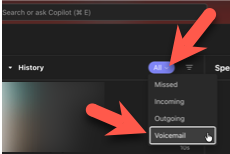
- If you do not see the Voicemail tab, you may need to select the arrow next to the currently highlighted tab to display a list of options, including Voicemail:
- Select a voicemail message to:
- Play the recording.
- Read the voicemail transcript
- Delete the message.
When you receive a voicemail in Microsoft Teams, a copy of the voicemail will also be delivered to your Outlook inbox.
Accessing Voicemail Messages in Microsoft Outlook
- Accessing Your Voicemail
- Open your Outlook inbox.
- Select the voicemail notification email.
- Review the voicemail transcript included in the message.
- Listen to the attached audio recording.
- Sender information in the email
The sender displayed information in the voicemail notification depends on the caller:
- If the caller is another Microsoft Teams user, their name will appear as the sender.
- If the caller is external, the sender will appear as the caller's phone number.
- If the caller ID is blocked, the sender will appear as Anonymous.
- Listening to or Saving the Recording
- Click the drop-down arrow next to the attached audio file.
- Choose one of the following options:
- Open - play the voicemial recording.
- Save As - Save a copy on your computer.
- Save to OneDrive - Save a copy to your OneDrive account.
Setting up a Voicemail Greeting
To create or update your voicemail greeting:
- While in Microsoft Teams, click the three-dot menu (more options) in the upper-right corner.
- Select Settings.
- Choose Calls from the left navigation menu.
- Scroll to the Manage Voicemail section.
- Select Record a Greeting.
You will then have the following options:
- Record a new greeting using your voice.
- Use the text-to-speech option to generate a greeting from typed text.
Microsoft Teams Voice does not currently support deleting voicemail greetings; If you would like to change your greeting, you must record a new one, which will replace the existing greeting.
Setting an Out-of-Office Voicemail Greeting
You can configure a separate voicemail greeting for when you are away from the office.
- Click the three-dot menu (more options) in the upper-right corner of Microsoft Teams.
- Select Settings.
- Choose Calls from the left navigation menu.
- Scroll to the Manage Out-of-Office Voicemail section.
- Enter your desired Voicemail in the text box.
You may also choose when the greeting should be played:
- Always - The greeting plays for all callers.
- Only when automatic replies are enabled in Outlook - The greeting plays only while your Outlook Out-of-Office message is active.
Additional Information
How to Get Help
Technical assistance is available through the Illinois State University Technology Support Center at:
- Phone: (309) 438-4357
- Email: SupportCenter@IllinoisState.edu
- Submit a Request via Web Form: Get IT Help Form
- Live Chat: IT Help Live Chat