Technology
How to Add and Remove a Contact to Microsoft Teams Voice
Microsoft Teams Voice uses the Speed Dial as your personal contact list, allowing you to save frequently contacted Contacts. This guide explains how to add contacts to your Speed Dial list.
Note: Illinois State University will begin cutting some departments over to Microsoft Teams Voice for phone services beginning in July 2026. If your area has not yet been cut over to this service, you will not be able to use the functions below in Microsoft Teams. If you are unsure if you have been cut over to Microsoft Teams Voice, please reach out to the Technology Support Center (contact information below).
Microsoft Teams has a separate Contacts list available through the People tab. Contacts added from this tab will not automatically appear in Speed Dial, which is why the recommended method is to add contacts directly to your Speed Dial list for one-click calling.
Add a Contact to Speed Dial
- Open Microsoft Teams
- Select Calls from the left-hand navigation menu.
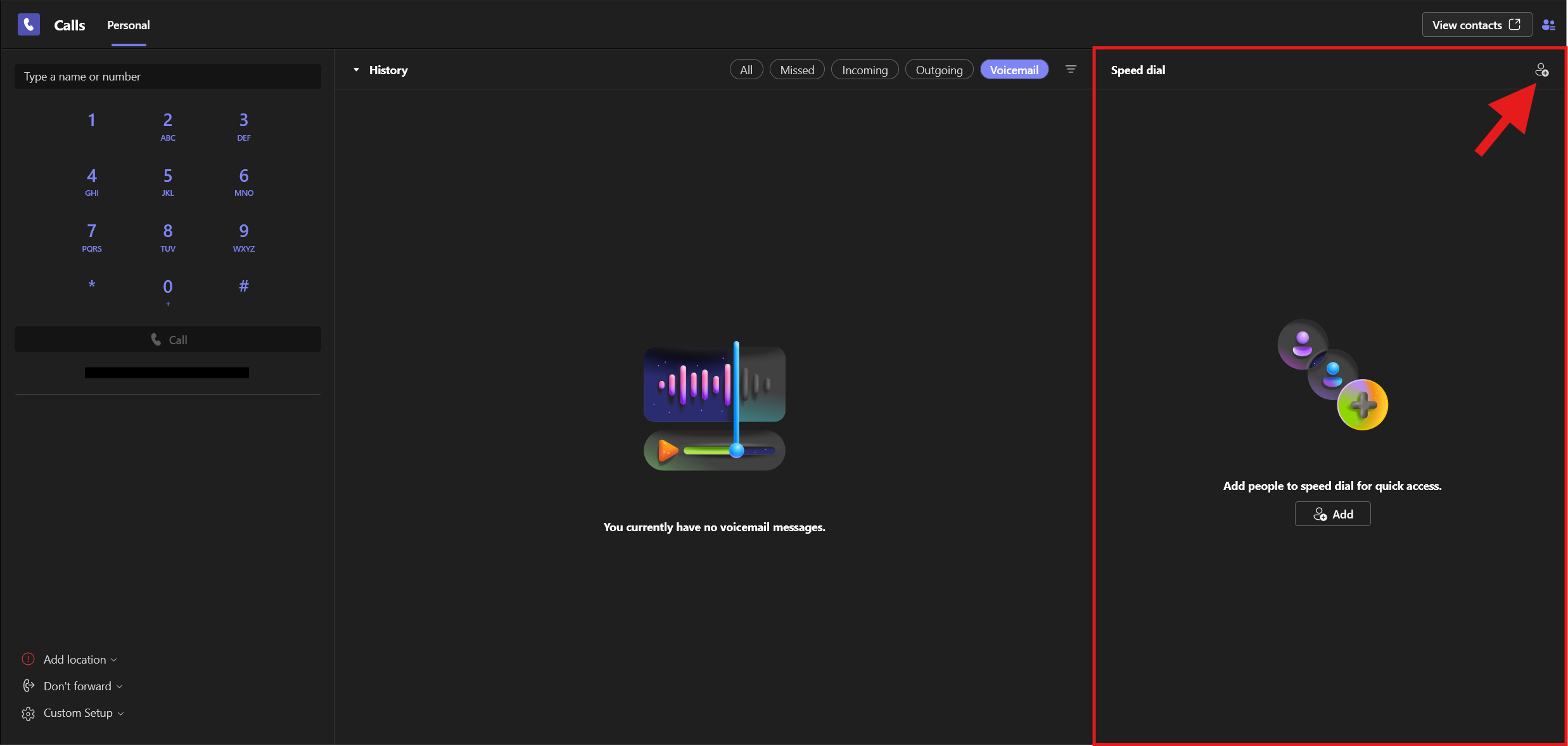
- On the right-hand side of the Calls screen, locate the Speed Dial section (highlighted in red below). select the Add a contact icon in the upper-right corner of the Speed Dial section (indicated by the red arrow)
- Search for the person by name or phone number.
- When adding a user by phone number, you will be prompted to add the following information: First name, Last name, email, phone, and company
- Select the contact from the search results.
- Click Add to save them to your speed Dial list.
Remove a Contact from Speed Dial
- Open Calls in Microsoft Teams.
- Locate the contact in your Speed Dial list.
- Select the More Options (...) option next to the contact.

- Choose Remove from speed dial to remove it from your list or Delete contact to remove completely from your contacts.
Additional Information
How to Get Help
Technical assistance is available through the Illinois State University Technology Support Center at:
- Phone: (309) 438-4357
- Email: SupportCenter@IllinoisState.edu
- Submit a Request via Web Form: Get IT Help Form
- Live Chat: IT Help Live Chat