Technology
Create a New Class Notebook in the Microsoft Education LTI
Instructors wishing to use Microsoft Class Notebook in their courses will need to create a new notebook, or add existing Notebook content to their course before using the tool.
Create a new Class Notebook or Import Existing Notebook Content
Instructors can add a new Class Notebook as follows:
- Navigate to the Microsoft Education LTI in your course.
- Select Class Notebook from within the LTI.
- Select Set up a OneNote Class Notebook.
- Select Blank Notebook from the drop-down menu to create a new Class Notebook, or select From existing notebook content to import existing noteblook content (Figure 1):
Figure 1: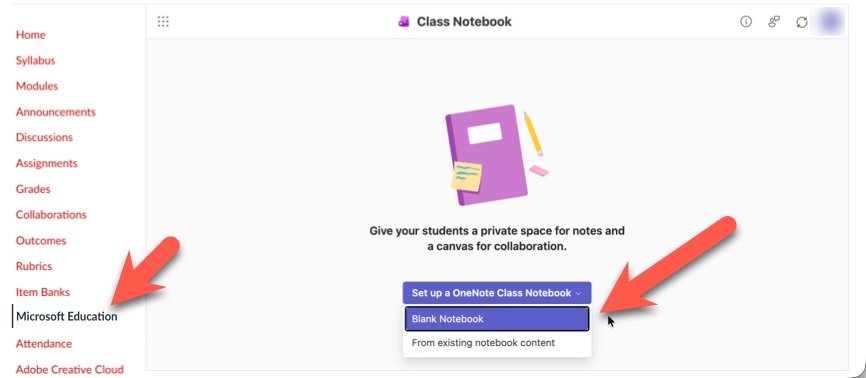
- Read the descriptions and select the settings you would like on the next several screens, clicking Next when you are finished with each set of selections. If you are importing existing content, you will be presented with options to select from.
- When you have finished, you may select Open Notebook to open your new Class Notebook.
How to Get Help
Technical assistance is available through the Illinois State University Technology Support Center at:
- Phone: (309) 438-4357
- Email: SupportCenter@IllinoisState.edu
- Submit a Request via Web Form: Get IT Help Form
- Live Chat: IT Help Live Chat