Technology
Automatically Export Qualtrics Data into an Excel Spreadsheet
As Qualtrics results are submitted, the data is populated in the "Data & Analysis" tab of your Qualtrics project by default.
An Excel spreadsheet can automatically be updated with the data that comes in so that manually exporting the data to the Excel spreadsheet is not necessary; Qualtrics will automatically update the spreadsheet for you.
Before You Begin
Confirm that your Qualtrics account is activated. If you have not activated your Qualtrics account, follow the steps in the article, Logging into the Qualtrics Survey Platform for the First Time.
This will be covered later in this article, but confirm you have access to your OneDrive account; the spreadsheet will be saved in your OneDrive.
Automatically Export Qualtrics Data into an Excel Spreadsheet Steps
- Create your Excel spreadsheet
First, create the Excel spreadsheet into which your data will be exported.
- Open Excel.
- In a blank workbook, title each column at the top with the data you wish to collect. Export as much data/enter as many column headers as you wish; export the responses for all survey questions or just a select few.
Here are some examples of data you can collect and export:
Start Date - Collect the date the respondent started answering your survey questions
End Date- Collect the date the respondent submitted their survey responses
As a best practice, title columns with keywords that indicate the type of data you are collecting with your questions. Some examples of column titles:
Year in School - This column title can be used to collect data for the question, "What year are you in school?"
Major - This column title can be used to collect data for the question, "What is your major?"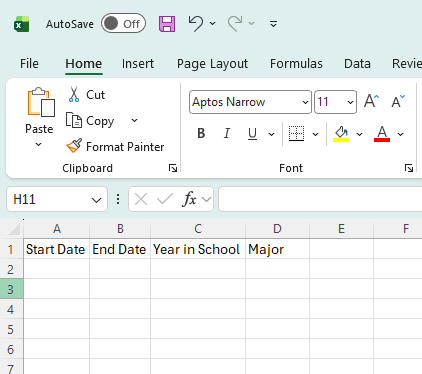
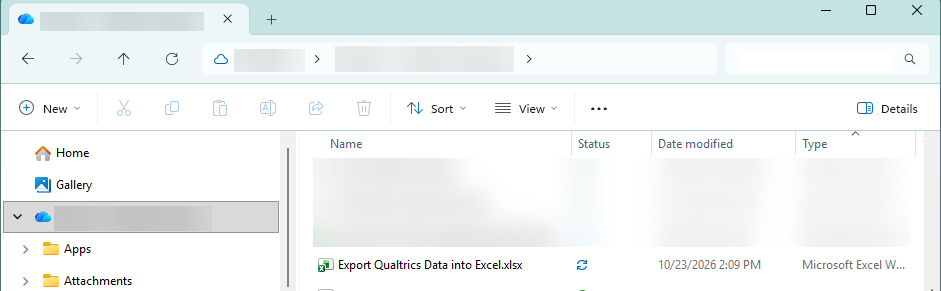
- Save your spreadsheet with the file extension, ".xlsx". Save this spreadsheet into your OneDrive account.
Warning
Verify use of the ".xlsx" file extension. If the file extension is ".csv", the spreadsheet is unable to be used.
- Upload the spreadsheet to your Qualtrics library
- Open a web browser.
- Navigate to the Illinois State University Qualtrics website.
- Go to Main Menu (three horizontal lines) > Library
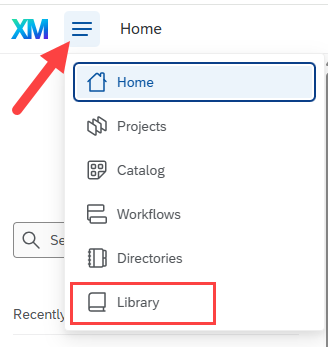
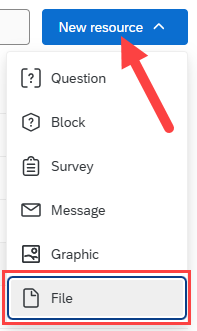
- This will open your "Library" page. Click the New resource button.
- In the dropdown menu that appears, select File.
- Drag and drop the spreadsheet in the designated area.
Alternatively, click the select files link and upload the spreadsheet using "File Explorer".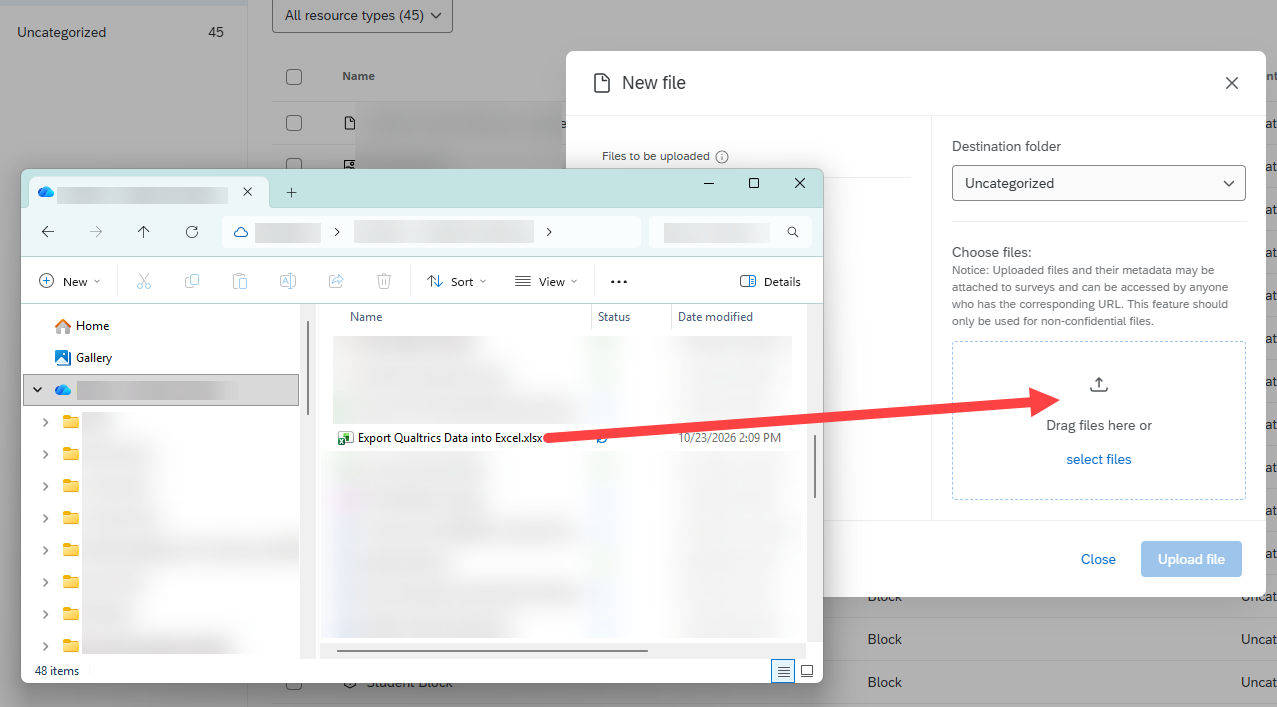
- Click the Upload 1 file button.
- Qualtrics Workflow - Connect your OneDrive to your Qualtrics account
- Open the Qualtrics project for which you will be having the results automatically exported into the Excel spreadsheet that was just created.
- Click the Workflows tab.
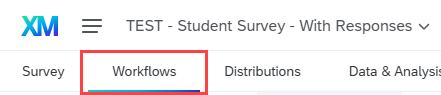
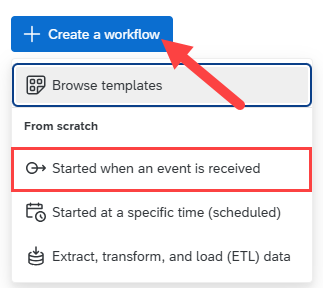
- This will open a new "Workflow" page. Click the Create a workflow button.
- In the dropdown menu that appears, select Start when an event is received.
- In the "Choose Event" window that appears, select Survey response.
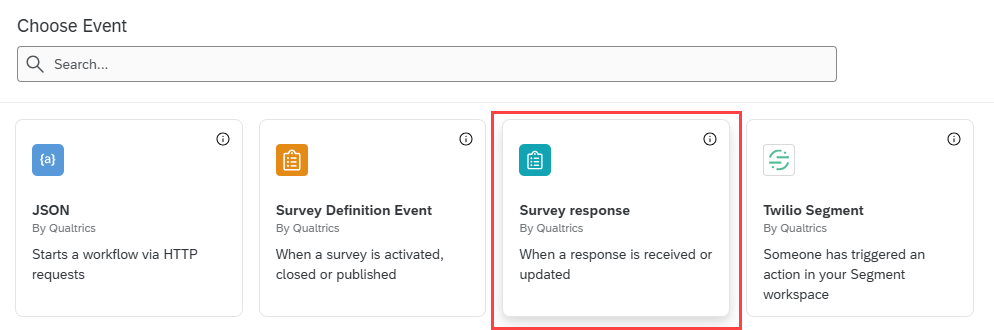
- This will open the "Survey response" window. Leave all the checkboxes as is. Leave the options selected as is.
Click the Save button.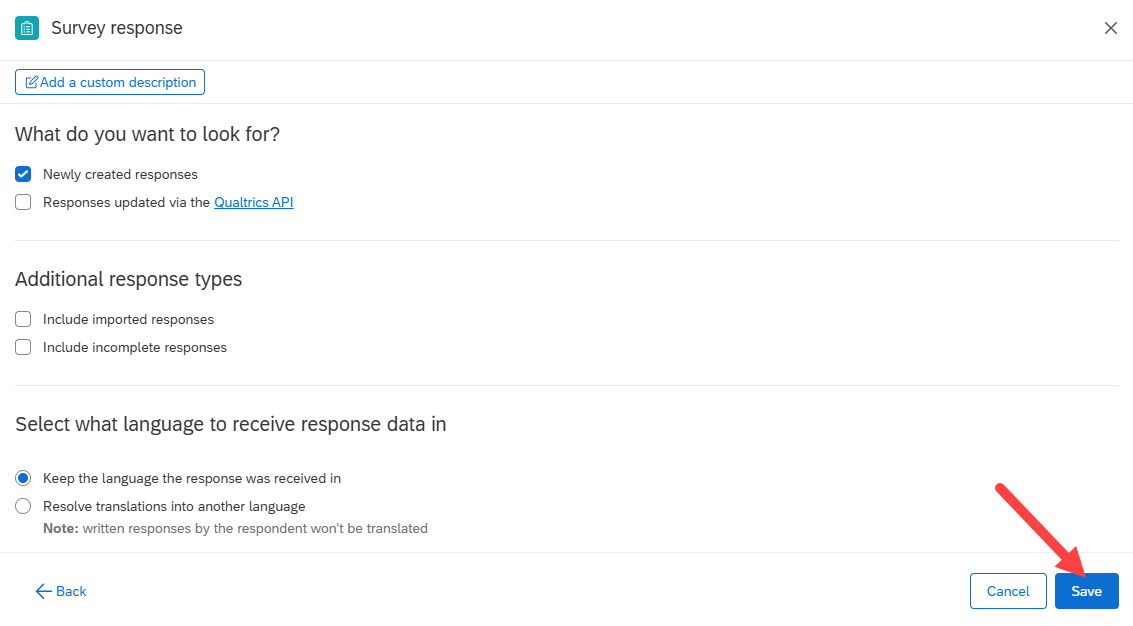
- This will close the window and open your workflow.
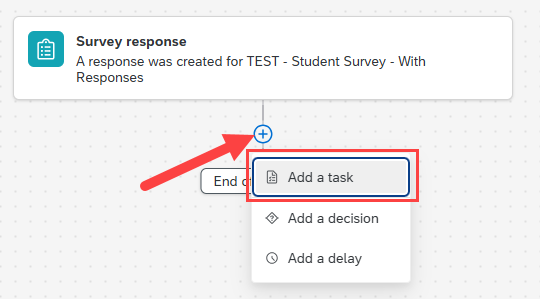
- Click the plus button under "Survey response".
- In the menu that appears, select Add a task.
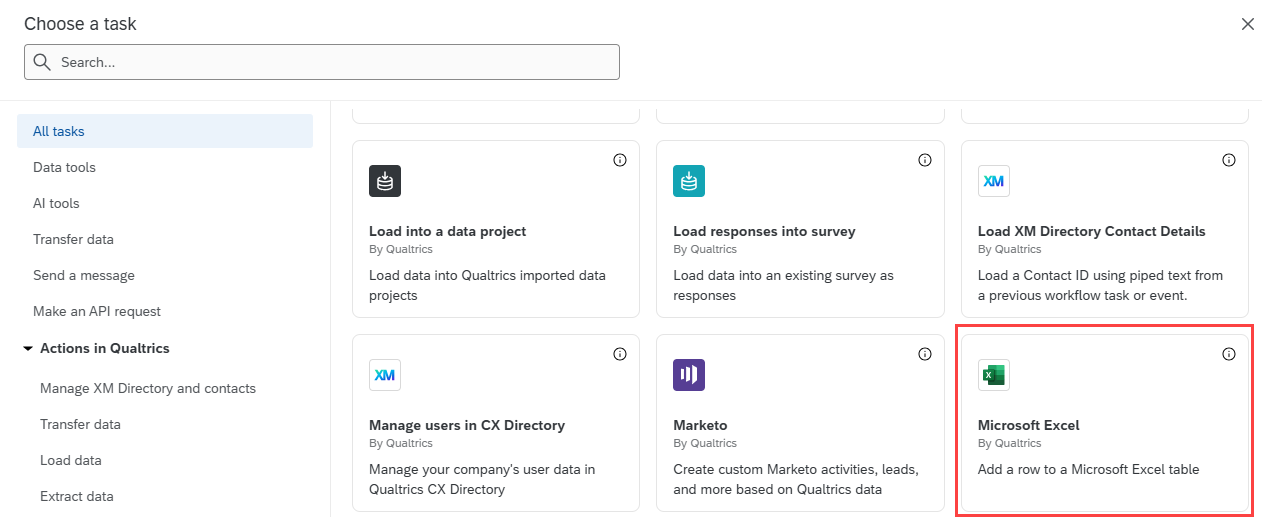
- In the "Choose a task" window that displays, scroll down and select Microsoft Excel.
- The "Microsoft Excel - Add a row to a Microsoft Excel table" window will now display the phrase, "Choose account".
Click the Add a user account button.
- In the "Name" field that appears, enter the name that you wish to display in Qualtrics as the account. You can add your first name, last name, or both.
- Click the Connect Account button.
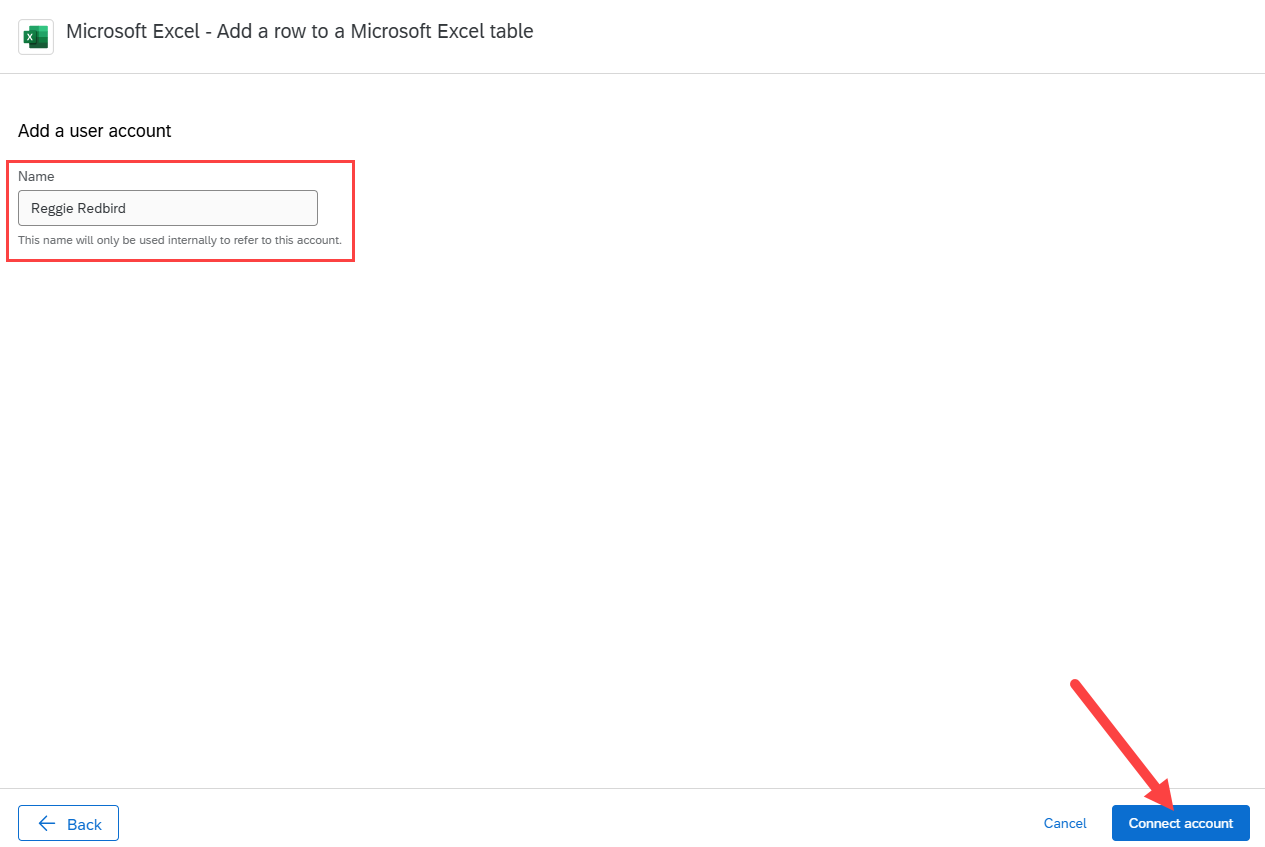
- This will start the process of connecting to your OneDrive. In the "Microsoft login" window that appears, select your ILSTU email address.
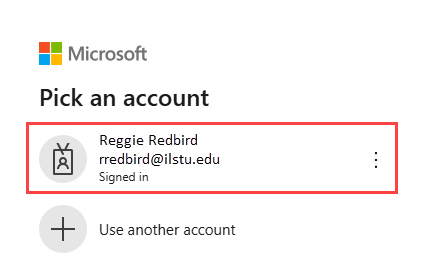
- This will return you to your "Choose account" window with the name you entered listed in this window. Click the Next button.
This step can be skipped in the future if you decide to automatically export data from Qualtrics to Excel with other Qualtrics projects; your OneDrive account is saved in your Qualtrics account. For future automatic exporting projects from Qualtrics to an Excel spreadsheet, simply click the radio button next to your account name.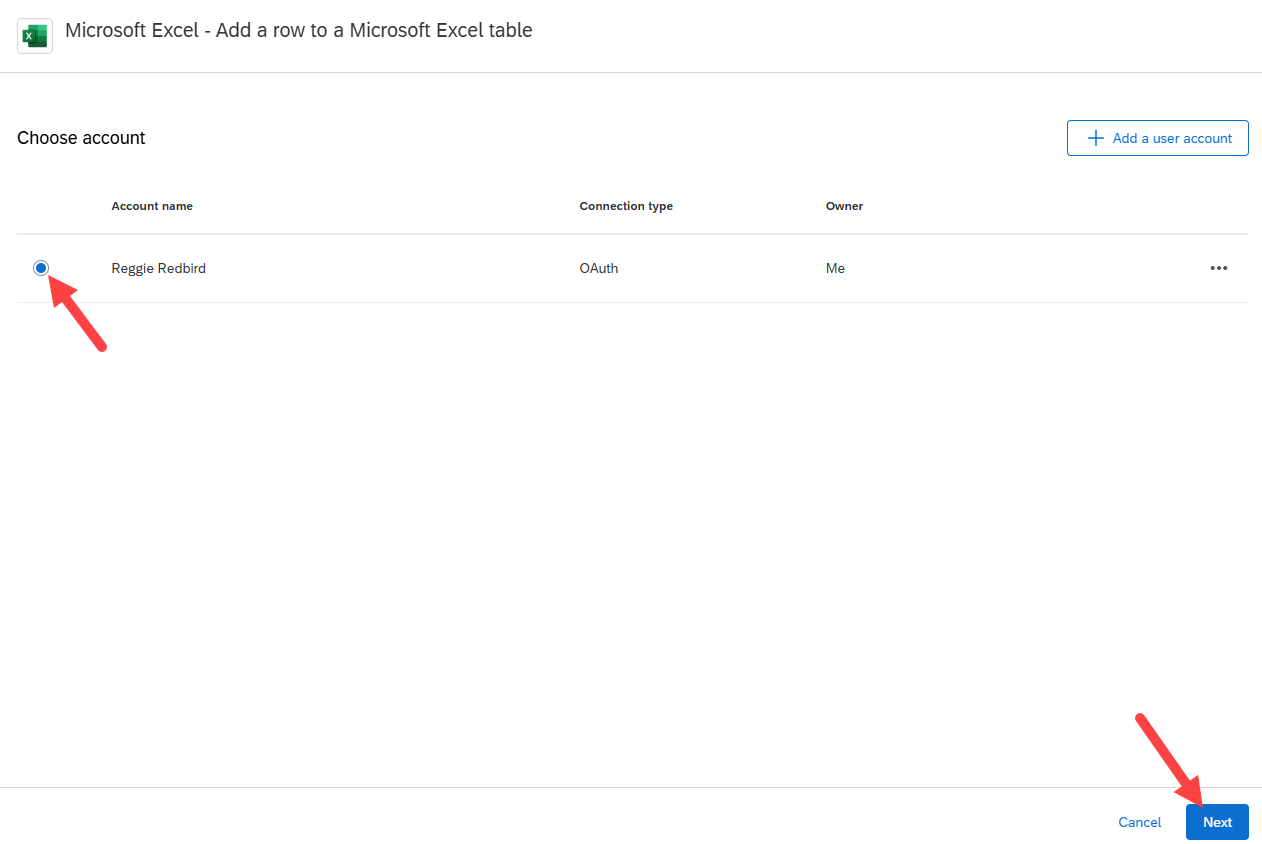
- Qualtrics Workflow - Add fields to identify data for Qualtrics to export
- In the "Select a Microsoft Excel Workbook field" that appears, use the dropdown menu to select the Excel spreadsheet you uploaded into your Qualtrics library.
- This will display the "Worksheet (tab) within Workbook" field. Use the dropdown menu to select the worksheet that contains the created column headers. Usually, there is only one option for this menu; most people do not have multiple tabs in a worksheet with multiple column headers.
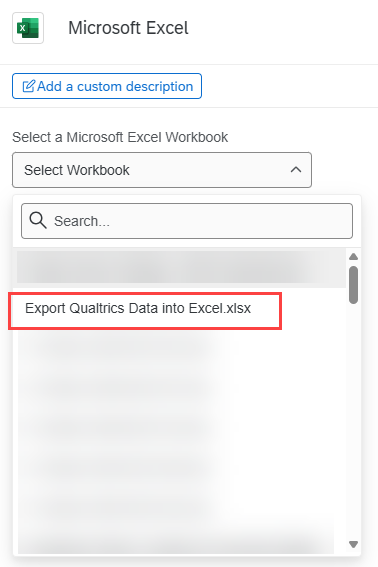
- This will display the "Table data" section. This is where we select the question or source that Qualtrics uses to export the corresponding data under each column header in the spreadsheet.
First, use the dropdown menu under "Select a table within Worksheet" to select Sheet1 (or whichever worksheet name appears in this list).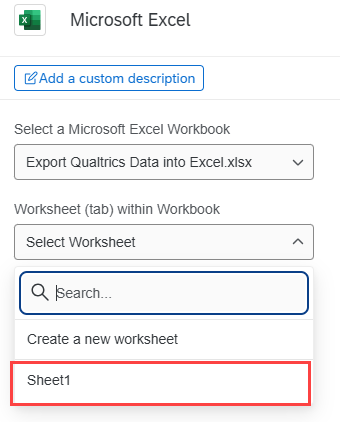
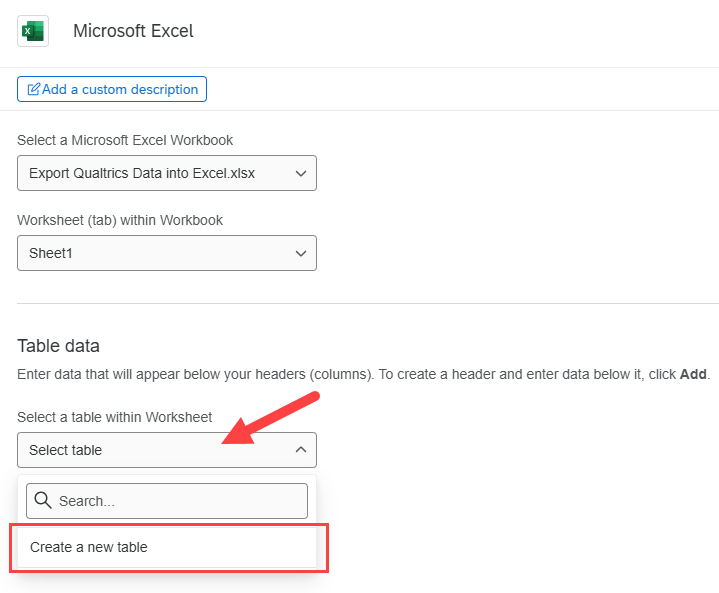
- In the "Table data" section that appears, use the "Select table" dropdown menu to select Create a new table.
- Enter a name for your table in the "Table name" field. Do not leave a space between words or use special characters.
Leave the "Input a starting position for the table" as A1 because our column headers start as A1. If you start your column headers on a cell other than A1, locate the cell number and change A1 to that cell number.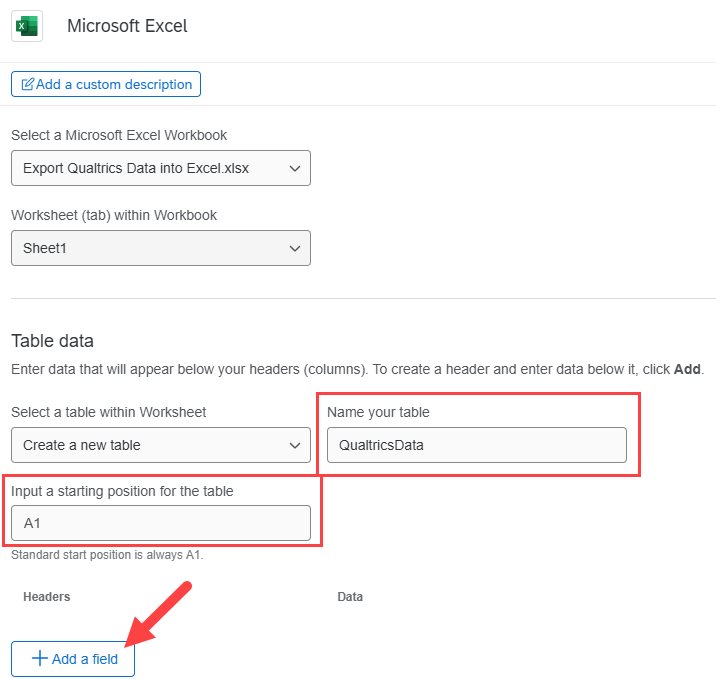
- Click the Add a field button.
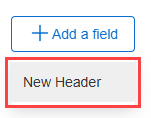
- In the menu that appears, select New Header.
- The "Headers" section will be displayed. Enter the name of your first column header in the "Header Value" field.
- In the "Data" column, click on the Insert piped text icon, which looks like {a}. This will display a dropdown menu. Find the location of the data that you want to collect under this column header.
- In the menu that appears, find the source of the data. Some examples:
If you are looking to export data that is collected by Qualtrics – such as start date and end date – select Response > Start Date or End Date. Or, any other data you choose to collect.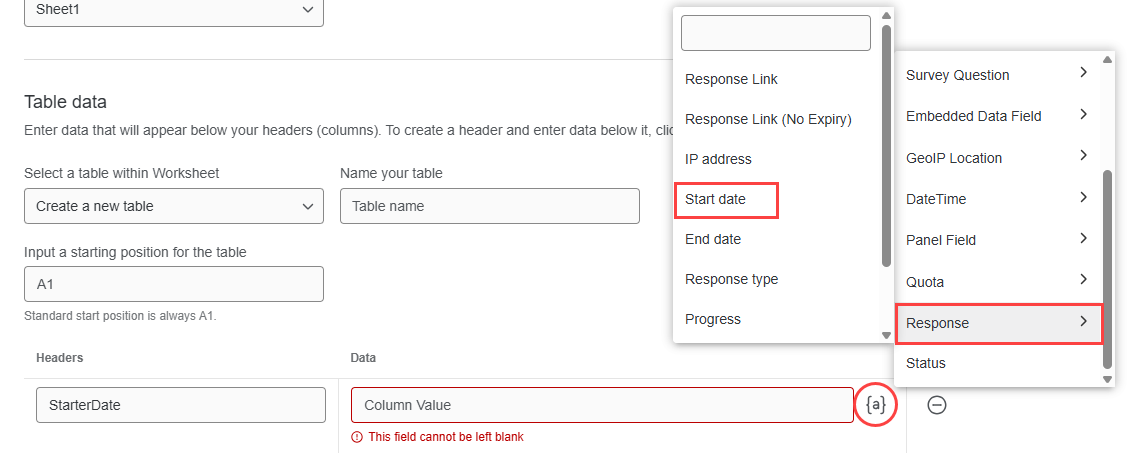
If you are looking to export data from a question you had asked in your survey, go to Survey Question, then pick the question that will collect the applicable data. For example, if there is a question asking, "What year are you in school", select Survey Question > What year are you in school? > Selected Choices
If a second menu appears, asking what specific data type you want exported, click Selected Choices. This ensures that Qualtrics will export any choice the respondent selected into Excel.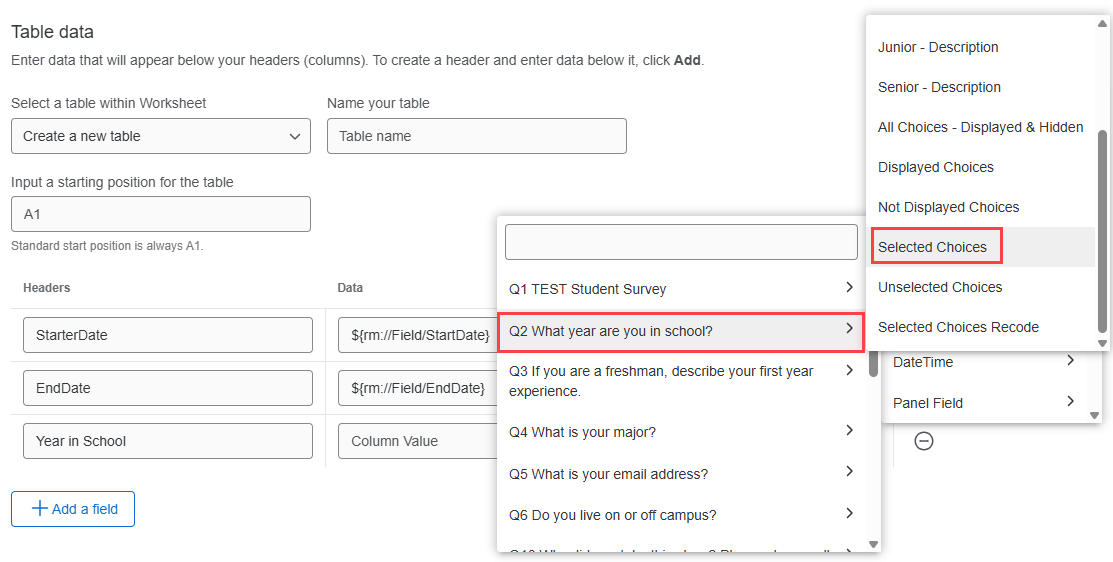
- Repeat steps #4-8 for all column headers in your spreadsheet/all data you wish to export.
Here is the completed "Headers" and "Data" that is reflecting what is in the Excel spreadsheet created at the beginning of this process: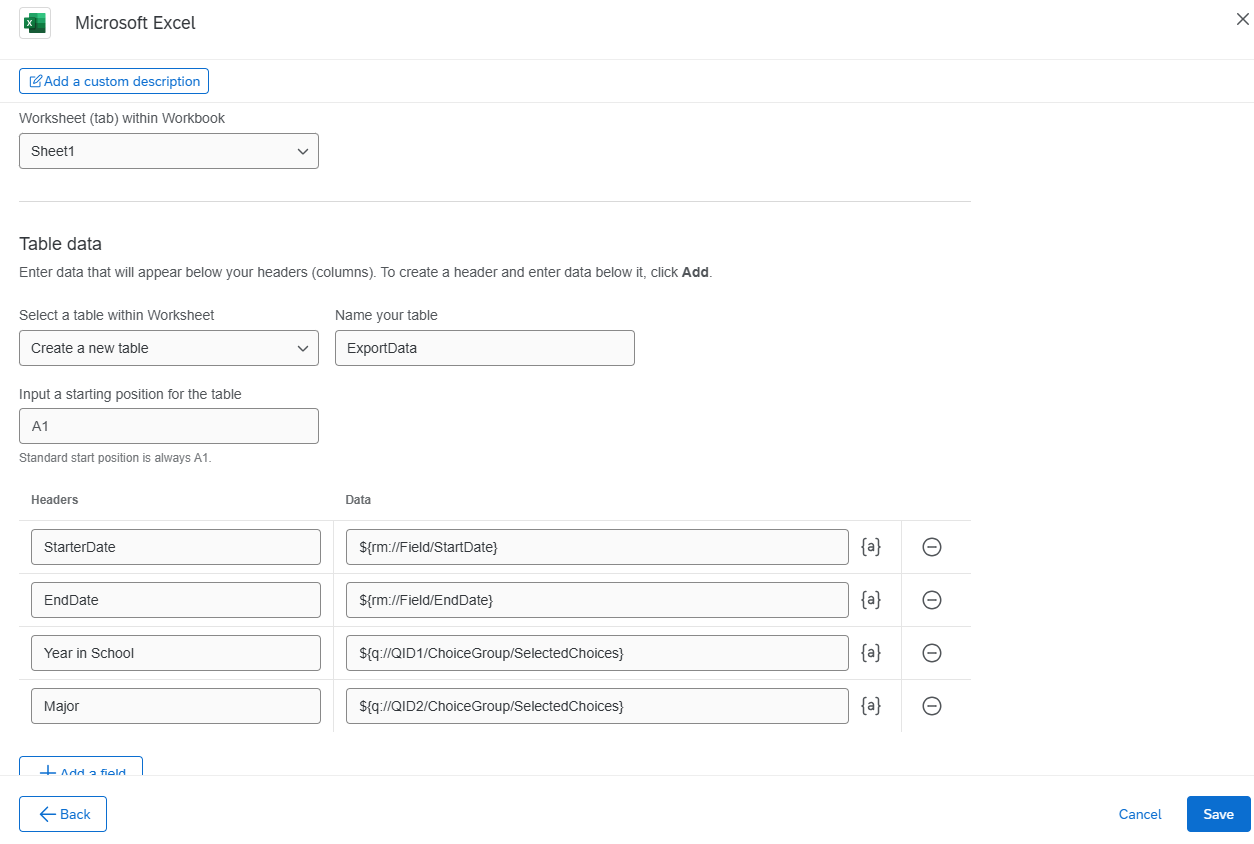
- Click the Save button.
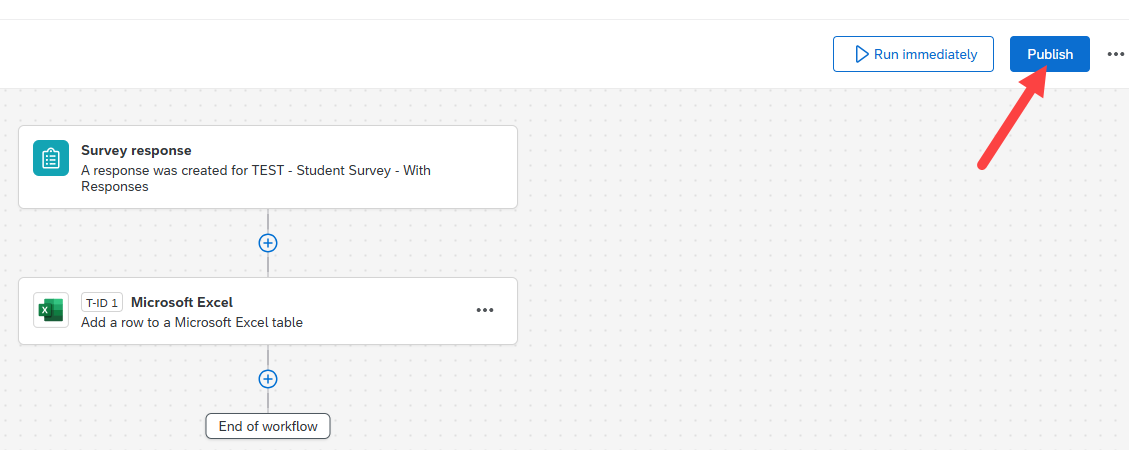
- This will return you to your workflow. Click the Publish button.
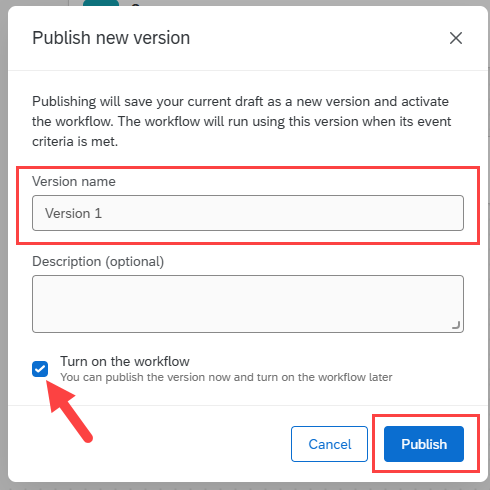
- This will display the "Publish new version" window. As an optional, additional step, you can give your a version a new name. Alternatively, use the default "Version (number)" name.
- Click the checkbox next to "Turn on the workflow".
- Click the Publish button.
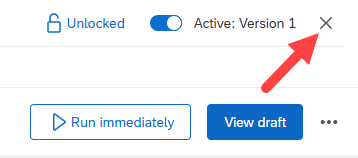
- Click the X button on the upper right of the screen to exit this page. This will return you to your main "Workflows" page.
- View Results in the Excel Spreadsheet
As always, once results are submitted to your survey, the responses are gathered in the "Data & Analysis" tab.
With this automatic export process, you have the additional option of viewing your spreadsheet as it is being updated.
When you are notified that a respondent submitted their survey results or if you wish to simply see if any have been completed, follow these steps:
- Open OneDrive using File Explorer.
- Open your Excel spreadsheet.
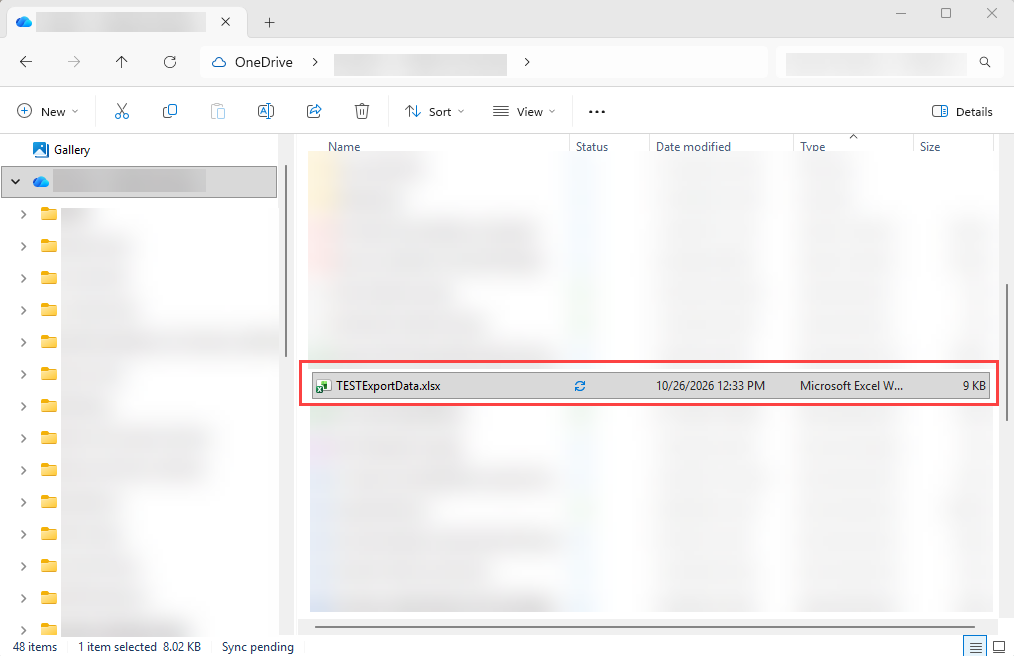
- View the results in this spreadsheet that you selected to collect, which is also stored in the "Data & Analysis" tab.
Excel Spreadsheet:
Data & Analysis Tab: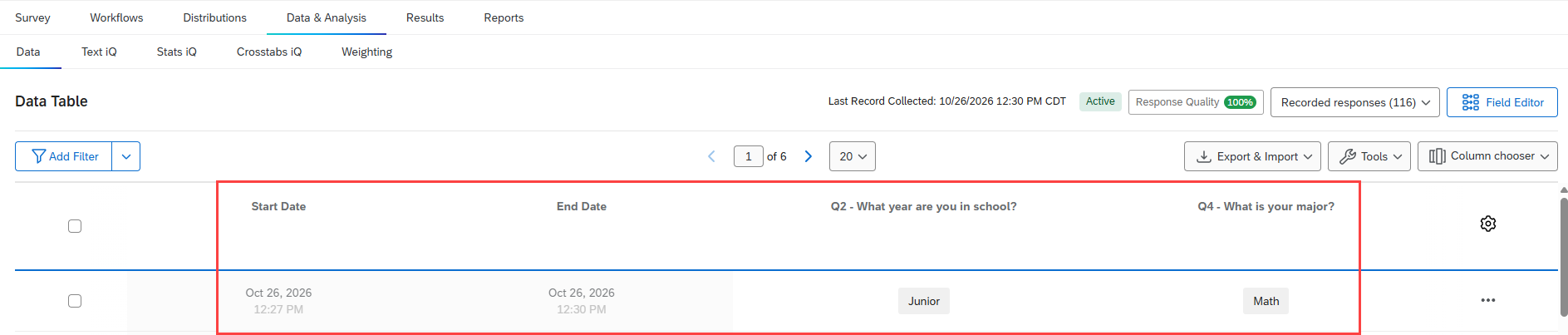
Note
Note that this spreadsheet is updated with responses after these steps have been completed. If this spreadsheet is created after you already started receiving responses, the past responses will not automatically be exported to your spreadsheet. You will be required to manually update the spreadsheet with older responses.
How to Get Help
Technical assistance is available through the Illinois State University Technology Support Center at:
- Phone: (309) 438-4357
- Email: SupportCenter@IllinoisState.edu
- Submit a Request via Web Form: Get IT Help Form
- Live Chat:
IT Help Live Chat