How to Submit an IT Request in ServiceNow
Information Technology (IT) requests at Illinois State University may be submitted by faculty, staff, and students via online form, located in ServiceNow. IT requests include requests for any IT service or product, including, but not limited to, the following examples:
- A new laptop/desktop computer
- Access to an ISU online resource
- Request to download software
- Request to purchase software
- Reset your ISU password
- Reset your Mulit-Factor Authentication (MFA) settings
- Technology training
- Onboarding or offboarding an employee
Previously, many requests were received from customers who emailed the Technology Support Center directly. While this functionality continues to be available in order to facilitate requests from the public, those with active ISU ULID accounts are strongly encouraged to make use of the ServiceNow Portal for all technology requests.
- Why Should I Use ServiceNow to Submit MY IT Requests?
Submitting requests via the ServiceNow speeds up the process by:
- Ensuring all information relevant to the request is captured in the initial request.
- This cuts back on lengthy back-and-forth communication to collect incomplete information, which can significantly delay processing.
- Auto-routing to the appropriate support area for processing.
- This can reduce processing time by bypassing the time otherwise spent triaging and routing requests manually.
- How Do I Submit an IT Request in the ServiceNow?
ISU students, faculty, and staff may submit IT requests in the ServiceNow by:
- Navigate to ServiceNow at https://illinoisstate.service-now.com/esc and log in via Central Login.
- For more information about Central Login at ISU, please refer to: Central Login
- You will see options for submitting a variety of IT requests. Select the appropriate option and follow the prompts to submit your request (Figures 1 & 2):
Figure 1: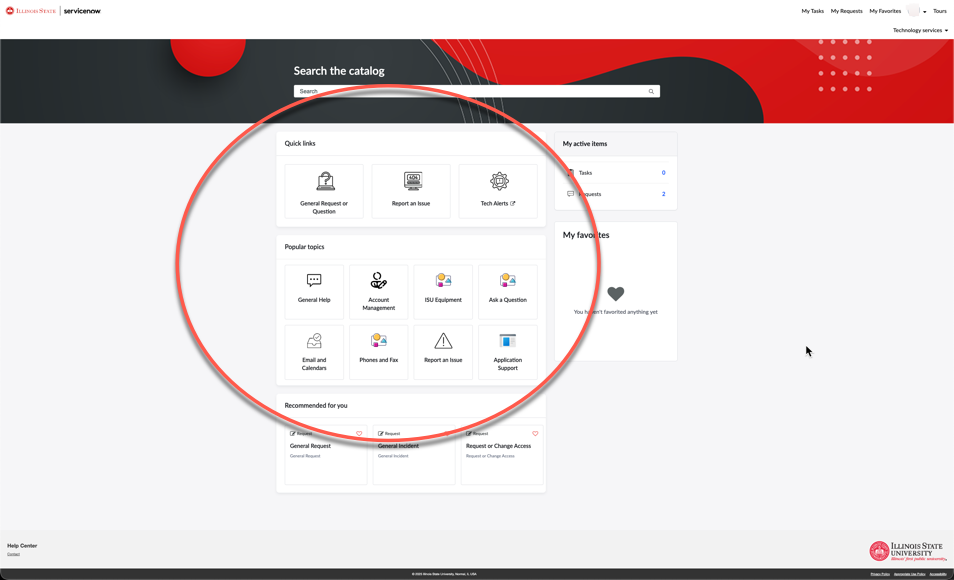
- When you have successfully submitted a request, you will receive a confirmation message with your Request record number (Figures 2 & 3):
Figure 2: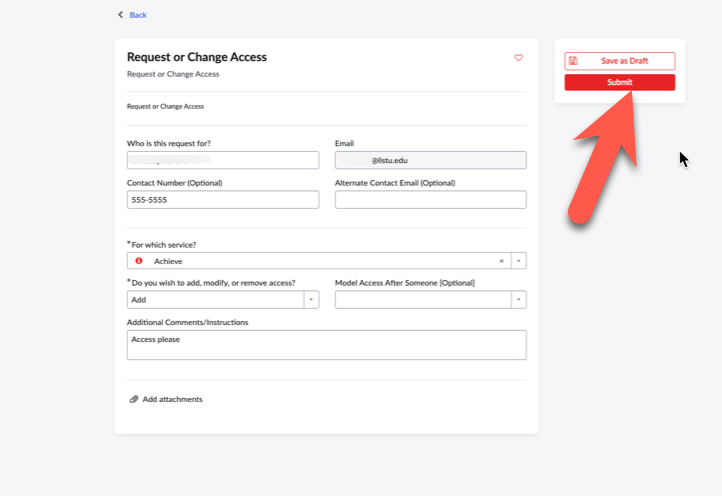
Figure 3: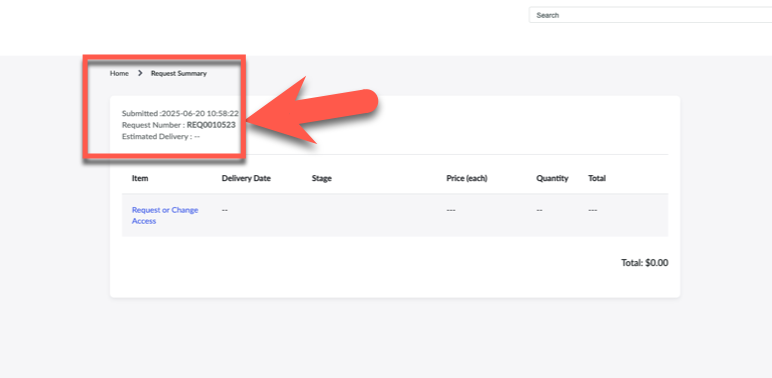
You may view the status of your submitted requests in Service Now. See below section for details.
- How to View My Requests in ServiceNow
You may view the status of your submitted requests in ServiceNow by selecting My Requests from the upper-right of the ServiceNow home page and clicking on the Request you would like to view (Figures 1 &2):
Figure 1: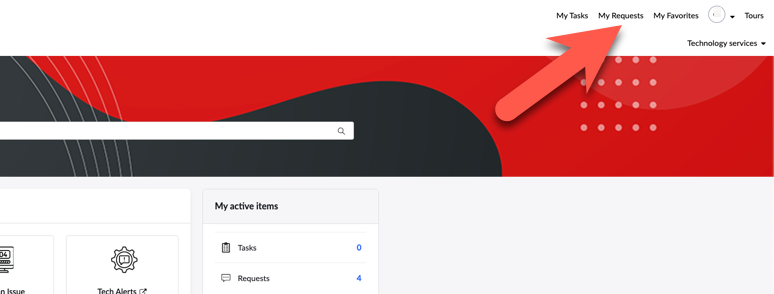
Figure 2: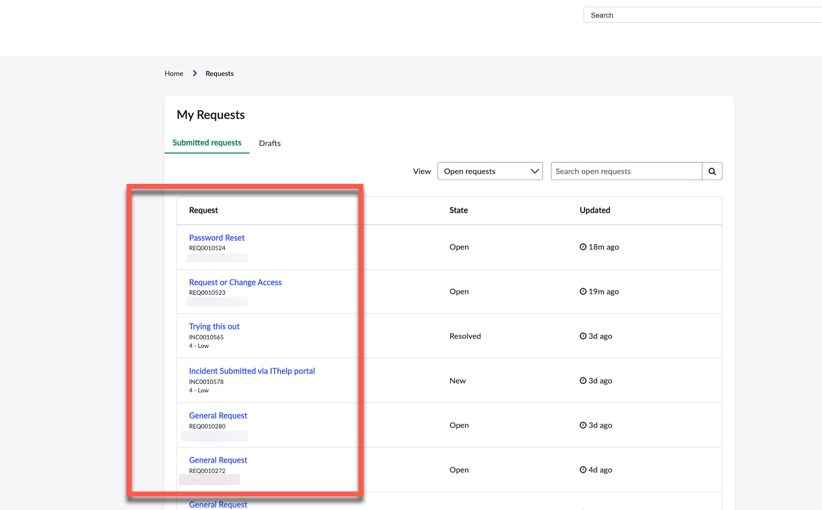
You may now view your Request details, request an update, or send additional information/attachments. See the section below for details.
- Update Your Existing Request
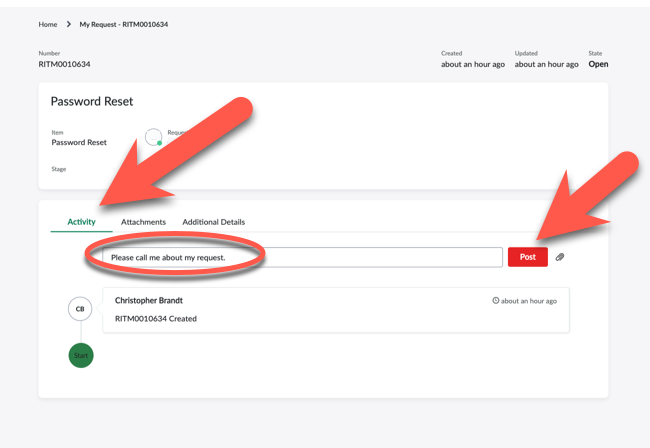
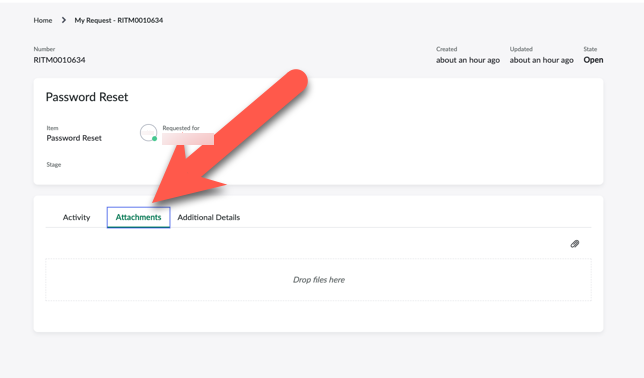
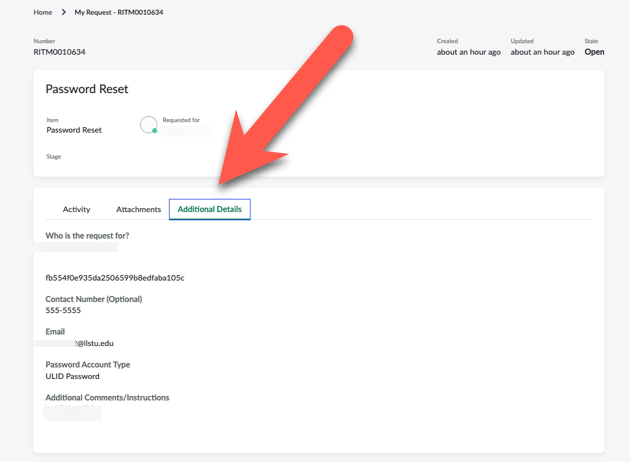
You may update your existing requests via ServiceNow by accessing your request as described in the previous section. Once you have accessed your request, you may select to send a message, add/view attachments, and view ticket details. See screenshots below:
Send a Message:
Add/View Attachments:
View Ticket Details:
How to Get Help
Technical assistance is available through the Illinois State University Technology Support Center at:
- Phone: (309) 438-4357
- Email: SupportCenter@IllinoisState.edu
- Submit a Request via Web Form in ServiceNow: ServiceNow
- Live Chat: Help.IllinoisState.edu/get-it-help