Technology
ZyBooks LTI
zyBooks LTI Resources
Instructors may choose to use zyBooks LTI within their Canvas Course. Vendor information and support regarding zyBooks LTI can be found linked below:
- Adding zyBooks LTI to Your Canvas Course
To add the zyBooks LTI to your Canvas Course, first Navigate to the homepage of the Course you would like to add zyBooks LTI to, open the Modules section and Create a New Module or Click the + sign on an existing one that you would like to add zyBooks LTI to. Once you've created or selected that module, a pop-up window should open. Click the drop down menu and select External Tool, then scroll down until you find zyBooks LTI 1.3 Tool. Click on it, then select Add Item. zyBooks should now be available within the module. (Figure 1)
Figure 1: (Adding zyBooks LTI via the Canvas modules section of your course)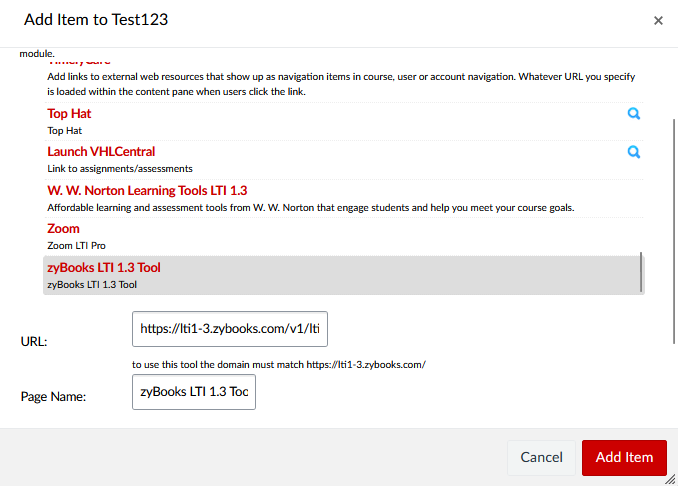
Accessibility Information
- This tool has been authorized for instructional use.
Additional Information
How to Get Help
Technical assistance is available through the Illinois State University Technology Support Center at:
- Phone: (309) 438-4357
- Email: SupportCenter@IllinoisState.edu
- Submit a Request via Web Form: Get IT Help Form
- Live Chat: IT Help Live Chat
Vendor support is available at: