Technology
Where to Find McGraw Hill Connect LTI in Canvas
The McGraw Hill Connect LTI may be enabled by instructors to add a Connect Section within the Modules section of a Canvas course for which they have the Teacher role.
Where to add a Connect Section to McGraw Hill in Canvas
Instructors may navigate to their Canvas course and select the Modules tab (Figure 1):
Figure 1: (Open the Module section within your Canvas course)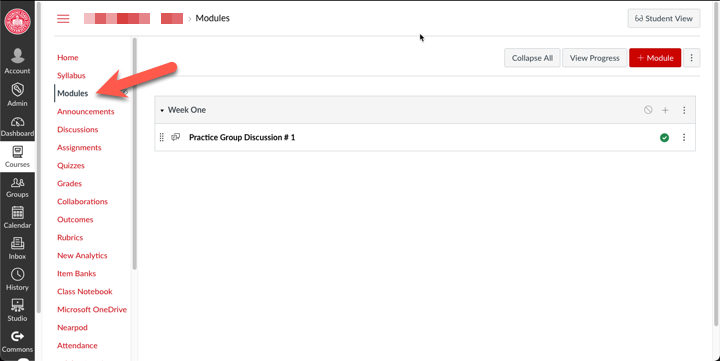
Next, select the three dots icon next to a Module and select McGraw Hill Connect LTIA (Figure 2):
Figure 2: (selecting the 3 dots of the Canvas module you would like to add McGraw Hill Connect to)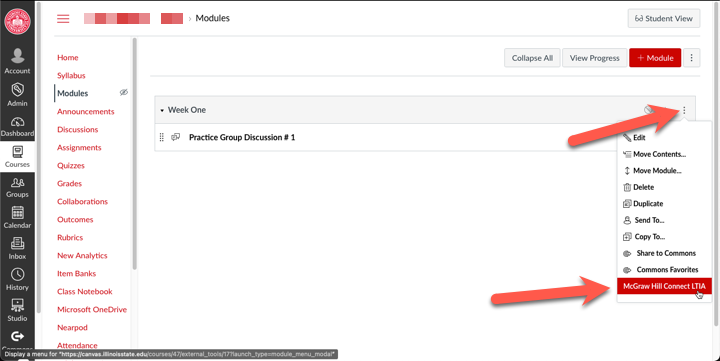
In the pop-up pane, click Begin (Figure 3):
Figure 3: (Click the "Begin" button)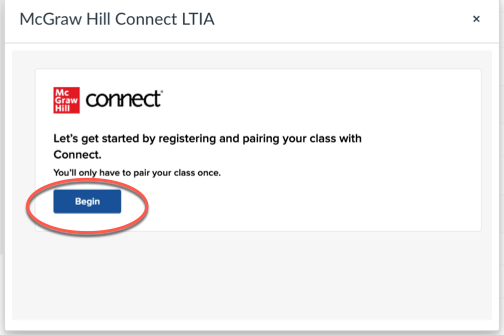
You will then be prompted to either create a new account, or if you have already done so, sign in to your existing account (Figure 4):
Figure 4: (Create a McGraw Hill Connect account or sign-in with existing account)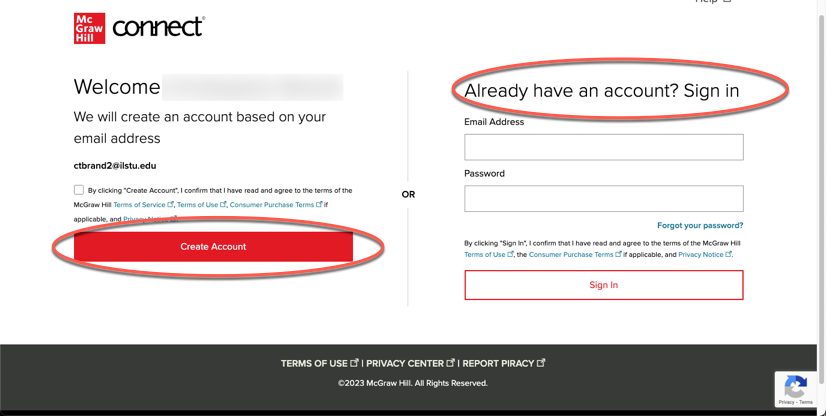
If you have not paired with a Connect Section, you should then see the option to pair with a Connect Section under the Quick Links heading (Figure 5):
Figure 5: (Pair with a Connect Section in McGraw Hill Connect LTIA)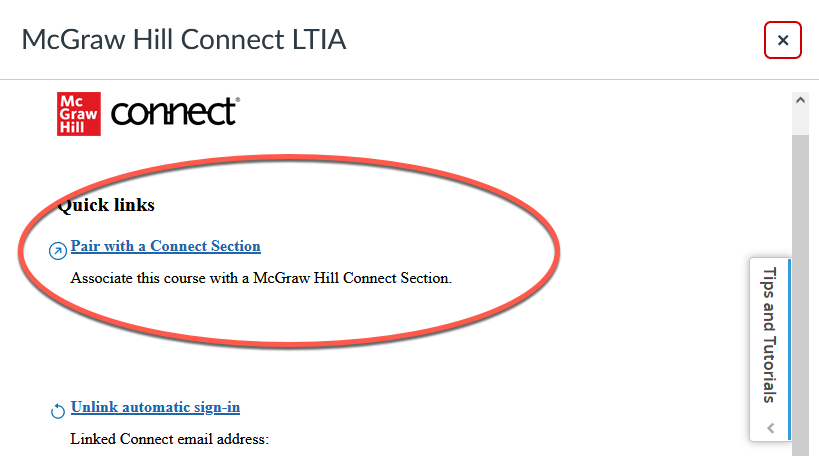
If you have already paired with a Connect Section, you should be able to access it from under the Quick Links heading (Figure 6):
Figure 6: (Accessing already paired Connect Sections via Quick Links)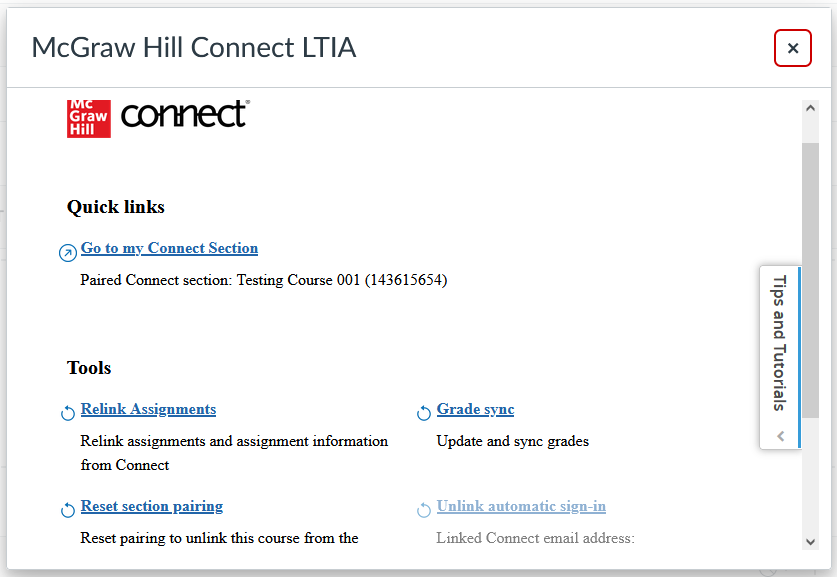
For more information regarding the McGraw Hill Connect, please check out the following McGraw Hill Connect article: Sync Your Connect Section with Canvas - Initial Pairing
How to Get Help
Technical assistance is available through the Illinois State University Technology Support Center at:
- Phone: (309) 438-4357
- Email: SupportCenter@IllinoisState.edu
- Submit a Request via Web Form: Get IT Help Form
- Live Chat: IT Help Live Chat