Accessibility
PDF Accessibility with Foxit PDF Editor
Last modified 8/27/2026
Accessible PDFs ensure that people using screen readers, screen magnifiers, voice control software, and other assistive technologies can effectively access and understand document content. Foxit PDF Editor includes tools to help create, review, and remediate PDFs for accessibility compliance.
Where to Start?
When possible start with an accessible original source document. Accessibility is easier and more effective when built into the original document before creating the PDF. Before converting to PDF make sure your document is designed with accessibility in mind. Whether using products like Microsoft Word or InDesign ensure the document is as accessible as possible before exporting or saving as a PDF.
- Use built-in heading styles
- Create lists using Word's list tools
- Add alternative text to images
- Create data tables with proper header rows
- Use meaningful link text
- Run Accessibility Checkers, if available
Make Simple Text Edits
Foxit PDF Editor allows you to directly edit text within a PDF without converting the document to another format.
- Open the PDF in Foxit PDF Editor.
- Select Edit from the toolbar.
- Click Edit Text.
- Click within the text you want to modify.
- Add, delete, or revise the text as needed.
- Use the formatting tools to adjust the font, size, style, color, alignment, or spacing to match the surrounding content.
- Save your changes when finished.
Accessibility Tip: After making text edits, review the document's heading structure, reading order, links, and alternative text to ensure accessibility has not been affected by the changes.
Note: If the PDF was created from a scanned image, you may need to run OCR (Optical Character Recognition) before the text can be edited.
Run an Accessibility Check
Not all original source files have complete accessibility, it is best practrice to run the Accessibility Check in Foxit.
- Open the PDF in Foxit PDF Editor.
- Open the Accessibility tools.
- Run a Full Accessibility Check.
- Review reported issues.
*Note: AI Assitance with alt text referenced in the video is not currently available for our campus.
Review the Accessibility Tags
Foxit's Tags Panels associates document elements with accessibility tags that are recognized by screen readers and other assisitve technologies. These tags identify content such as headings, paragraph text, links, lists, tables, images and form fields. It is essential to provide these structure elements when creating an accessible document. It is always recommended to manually check the tags, even if the Accessibility Report passed the document.
| Element | Foxit Tag |
|---|---|
| Heading Level 1 | <H1> |
| Heading Level 2 | <H2> |
| Heading Level 3 | <H3> |
| Heading Level 4 | <H4> |
| Heading Level 5 | <H5> |
| Heading Level 6 | <H6> |
| Paragraph Text | <P> |
| Image, Non-Text Content | <Figure> |
| Table | <Table> |
| Table Header | <TH> |
| Table Column | <TD> |
| Table Row | <TR> |
| List | <L> |
| List Item | <LI> |
| Table of Contents | <TOC> |
| Table of Contents Item | <TOCI> |
Add Alternative Text
Alternative text describes meaningful images for screen reader users.
- To Review or Add Alt Text
- Locate <Figure> tags in the Tags panel.
- Open properties for the image.
- Add a concise description.
- Mark decorative images as artifacts if they convey no information.
Verify Reading Order
Screen readers follow the document's reading order rather than the visual appearance on the page.
Review:
- Multi-column layouts
- Sidebars
- Pull quotes
- Text boxes
- Headers and footers
Incorrect reading order is one of the most common accessibility barriers. Foxit's accessibility tools allow users to review and correct reading order issues.
Review Tables
Tables should be used only for presenting data.
Verify:
- Header rows identified
- Logical row and column relationships
- No merged cells that create confusion
- Table tagged properly
Action Wizard
The Action Wizard is an automation tool that allows you to combine muiple PDF tasks into one workflow including common accessibility tasks.
For accessibility the Action Wizard is noted to:
- run accessibility check
- add document meta data
- apply OCR to scanned PDFs
- Auto tag the document
- Check for PDF/UA ot WCAG accessibility requirements
- Process mutiple documents in a single batch
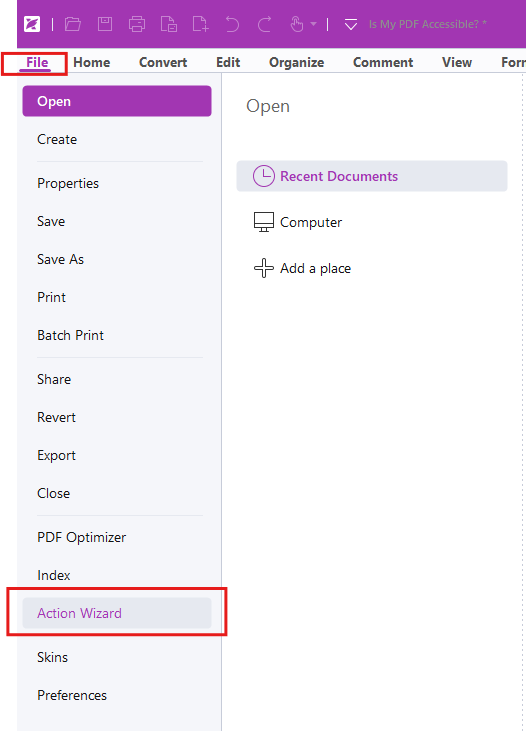
To open the Action Wizard, navigate to the File tab then select Action Wizard.
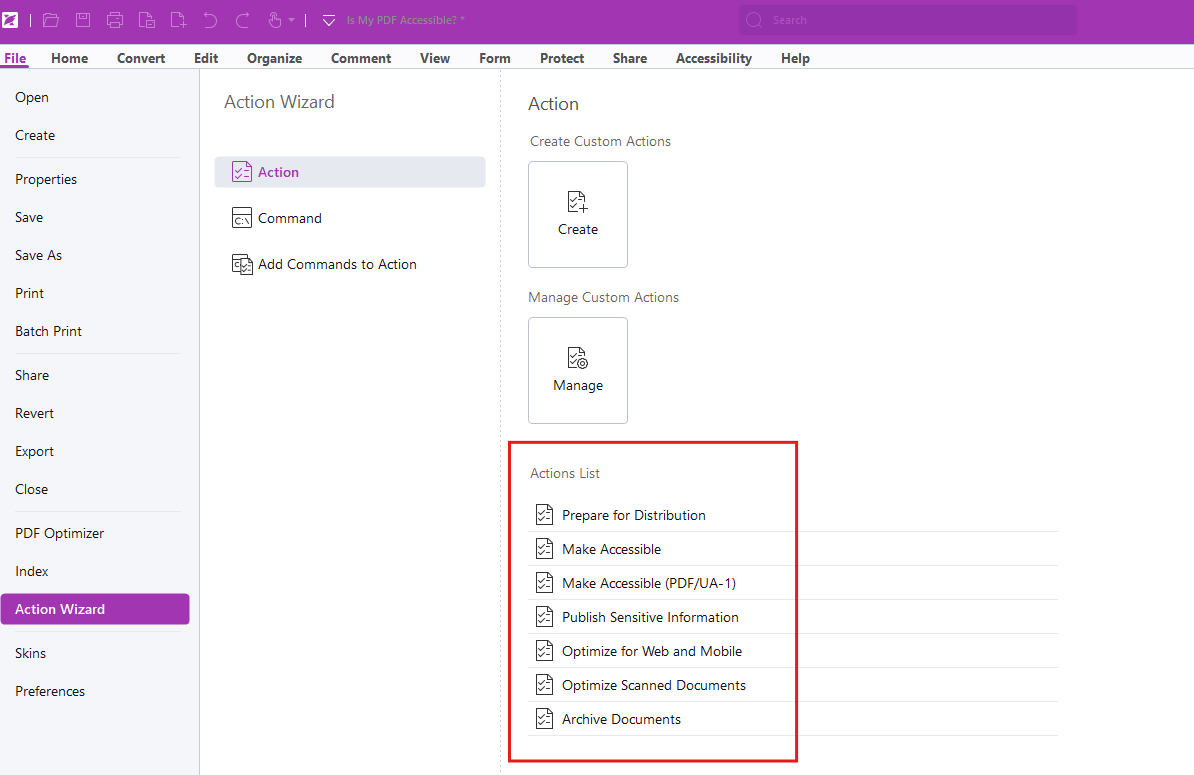
Ensure the Action List includes Make accessible and Make accessible PDF/UA (universal access). These setting should help make your document accessible.
Other Resources
Feedback
To suggest an update to this article, ISU students, faculty, and staff should submit an Update Knowledge/Help Article request and all others should use the Get IT Help form.