Technology
Sync Your MacOS Password with your ULID Password
When you update your Illinois State University ULID password, it is recommended that you update your local MacOS password as well, as it will not sync automatically.
Update Your MacOS Password
To update your MacOS Password please follow the instructions below:
- Click on the Apple logo at the top-left of your MacOS desktop and select System Settings to launch your MacOS System Settings.
- In System Settings, select Users & Groups and click the Information icon next to your ULID account (Figure 1):
Figure 1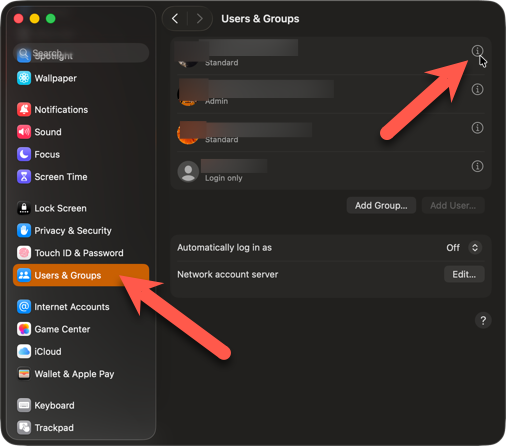
- In the Account Information pop-up, select Change (Figure 2):
Figure 2: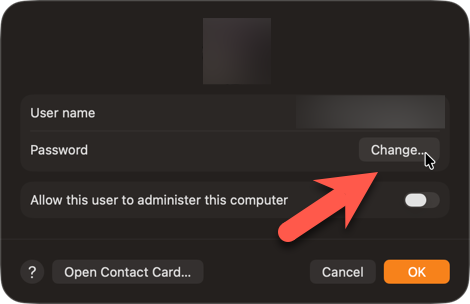
- In the Change Password pop-up, enter your Old Password and New Password in the fields provided. In the Verify field, re-enter your new password. You may enter a password hint in the Password Hint field if you choose. Click Change Password to complete your password change (Figure 3):
Figure 3: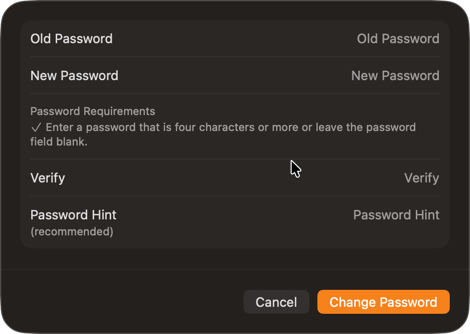
- The next time you are prompted for your local MacOS login, you will now use your new password.
How to Get Help
Technical assistance is available through the Illinois State University Technology Support Center at:
- Phone: (309) 438-4357
- Email: SupportCenter@IllinoisState.edu
- Submit a Request via Web Form: Get IT Help Form
- Live Chat: IT Help Live Chat