Technology
Edit Canvas assignments without replacing existing grades
How Canvas Recalculates Grades
In Canvas, grade posting, submission status, and missing/late policies are all interconnected. For example, if you resubmit a grade for one student and reapply a course-level setting/assignment policy, Canvas will recalculate the entire gradebook.
- Actions that Replace Grades
The following actions may cause Canvas to replace or recalculate all existing grades (not just the ones you intended to update):
- Use SpeedGrader to resubmit grades for multiple students at once
- Post grades from the assignment column menu
- Sync grades after changing due dates, availability dates, or assignment settings
- Best Practices to Prevent Grade Loss
To avoid unintended grade changes:
- Do not repost or resubmit an assignment to update late work. Enter the grade directly into the student’s individual grade cell, or use SpeedGrader to enter grades for one student at a time.
- Do not change assignment settings (due dates, grading types, and enabling/disabling missing/late policies) after you have started grading.
- Do not use the Set Default Grade option unless you overwrite grades for every student. This action cannot be undone.
- Do export the gradebook to a CSV file as a backup before making changes.
- Known Issue: Removing Everyone from Assign To can immediately delete all other student submissions and grades.
Example of a Common Mistake
Removing Everyone from the Assign To field and assigning the work to a single student causes Canvas to remove all other students’ submissions and grades. This mistake commonly occurs when an instructor attempts to extend an assignment to one student.
Correct Method to Extend an Assignment
To provide a student with an extension or reassign a missed exam:
1. Open the assignment and click Edit.
2. Scroll to the Assign Access section.
3. Click the +Assign To button to create a second assignment box (Figure 1).
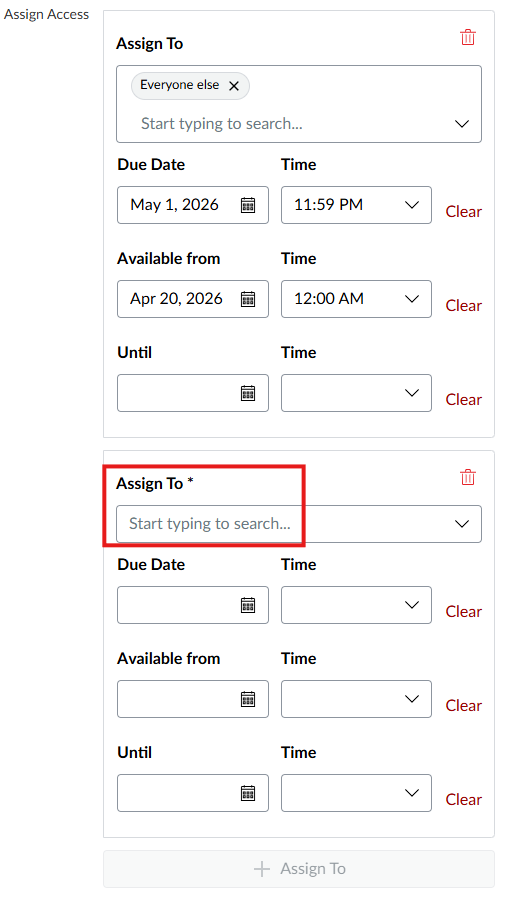
5. Select the name of the student (Figure 2).
6. Adjust the dates for the individual student only.
7. Click Save.
Figure 1:
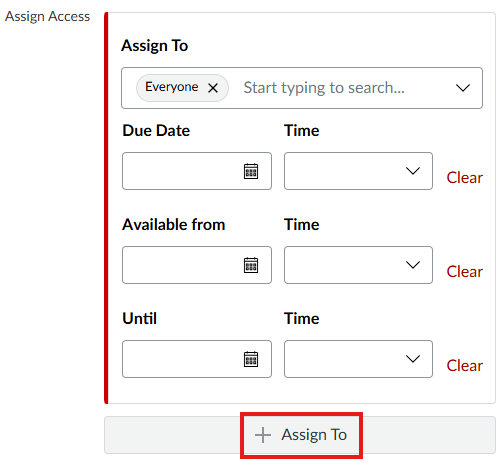
Figure 2:
Incorrect Method to Extend an Assignment
The incorrect workflow includes:
- Edit the assignment to allow one student to resubmit.
- Change the number of Submission Attempts (thinking it applies to only one student).
- Remove Everyone from the Assign To field (Figure 1) and add only the individual student.
- Click Save to remove all other students’ submissions and grades.
This issue occurs whenever Everyone is removed from the Assign To field instead of adding a separate rule for the individual student.
Suggested Fix for Previous Error
If this mistake occurs:
- Open the assignment and click Edit.
- Scroll to the Assign Access section.
- Click the +Assign To button to create a second assignment box.
- Select Everyone else (Figure 3).
- Click Save.
- Verify missing submissions are present in SpeedGrader.
Figure 3:
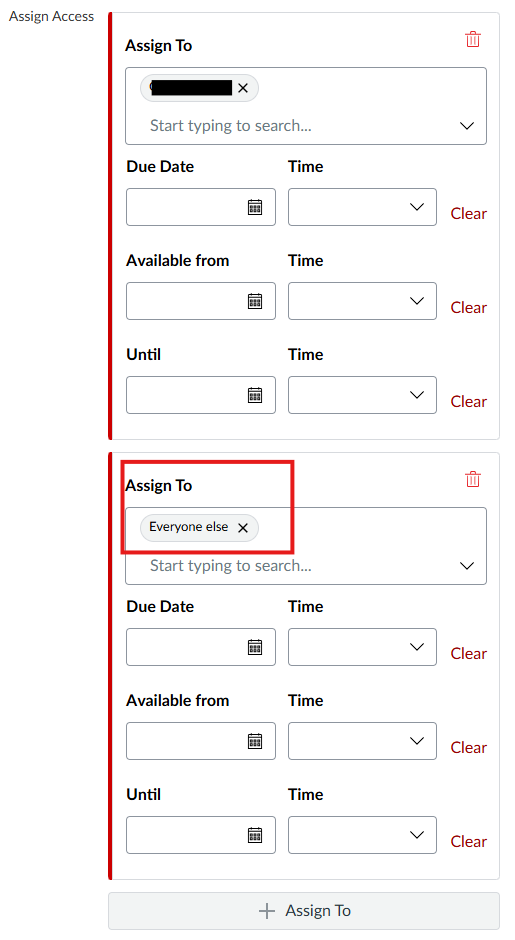
Instructors should ensure that Everyone else is under Assigned To when removing Everyone.
How to Get Help
Technical assistance is available through the Illinois State University Technology Support Center at:
- Phone: (309) 438-4357
- Email: SupportCenter@IllinoisState.edu
- Submit a Request via Web Form: Get IT Help Form
- Live Chat: IT Help Live Chat