Endpoint Management
Releasing Jamf Pro Licenses for Inactive Devices (Without Deleting Inventory)
Last modified 9/15/2025
These instructions outline how to stop active management of a computer in Jamf Pro to release its license back to the pool without deleting the device's inventory record. This is useful for devices that are no longer in regular use and do not need to be currently licensed but whose historical data and inventory record you wish to retain (*for up to three months). These instructions are written for computers, but will also work for devices in Jamf.
Steps
- Log in to Jamf Pro at https://illinoisstate.jamfcloud.com/
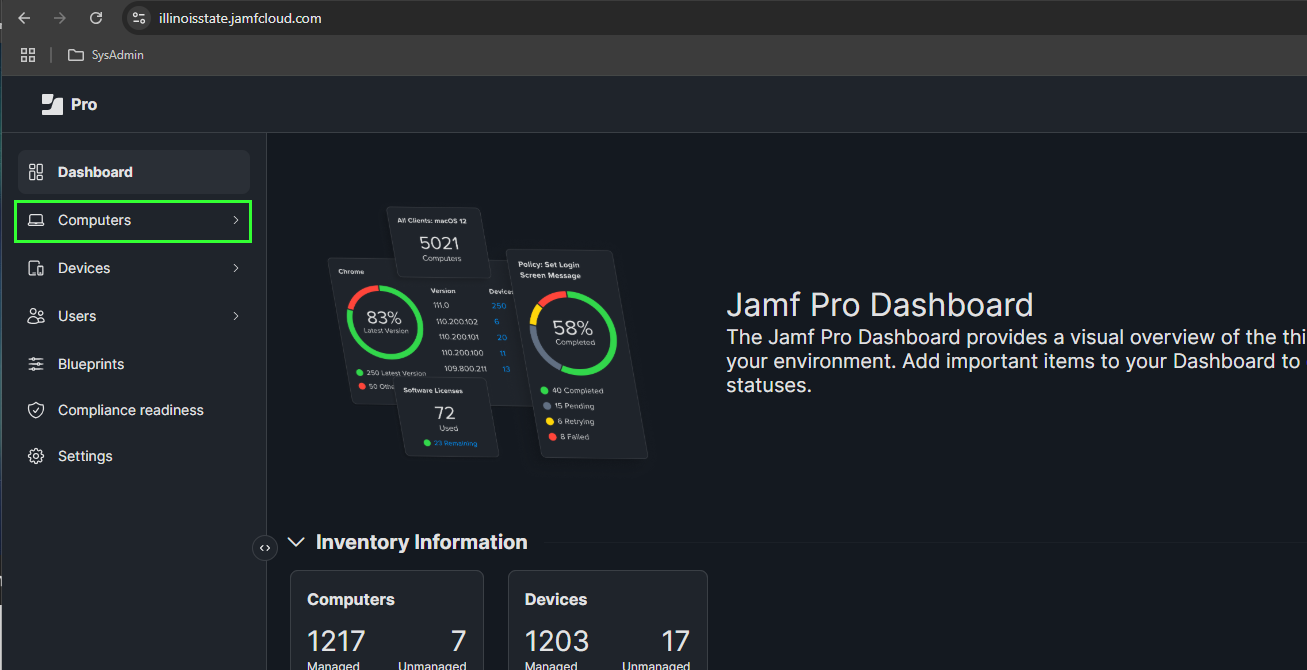
- Navigate to computer inventory:
- Once logged in, click "Computers" (or "Devices") at the left side of the page
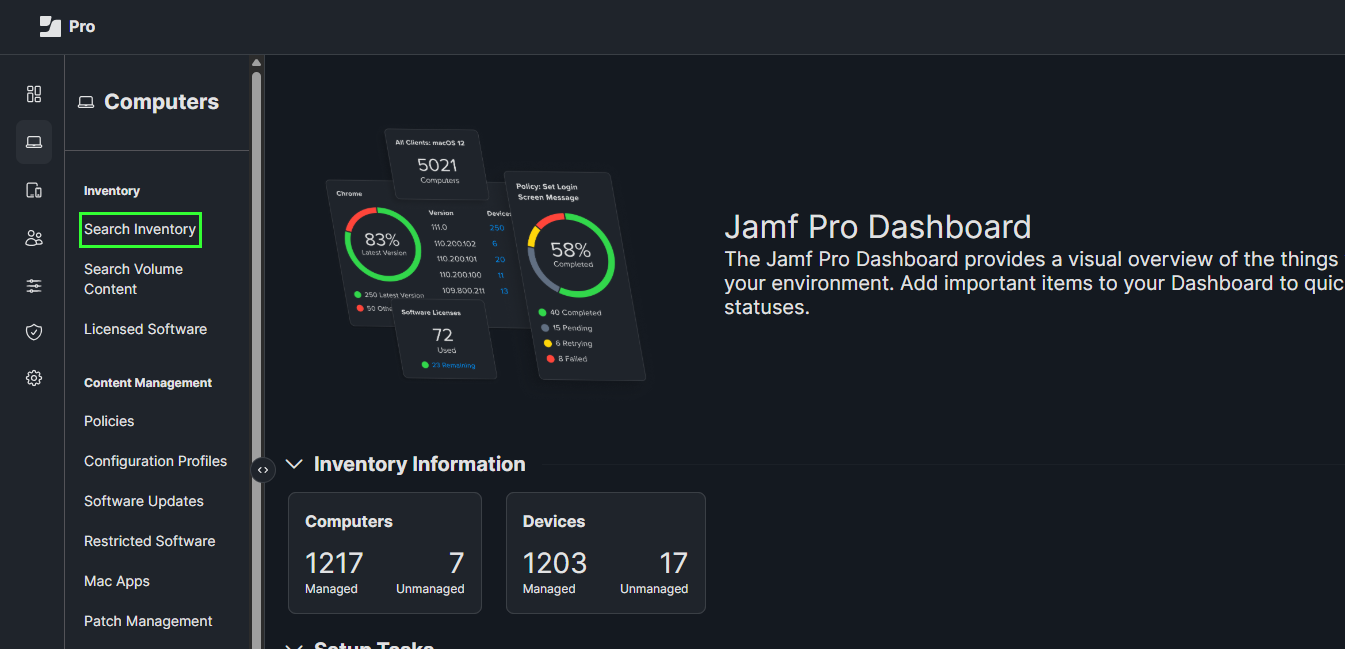
- Under "Inventory", click "Search Inventory"
- Once logged in, click "Computers" (or "Devices") at the left side of the page
- Find the target computer:
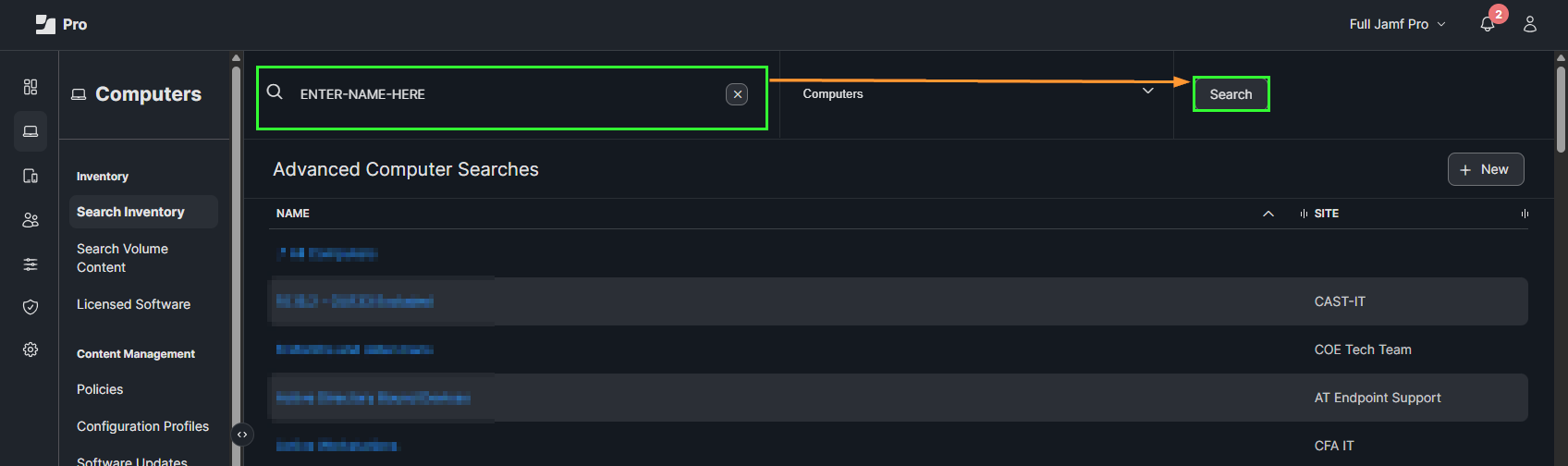
- At the top of the "Computers" inventory page, locate the search bar.
- Enter the name, serial number, or asset tag of the computer you wish to unmanage.
- Press Enter or click the "Search" button.
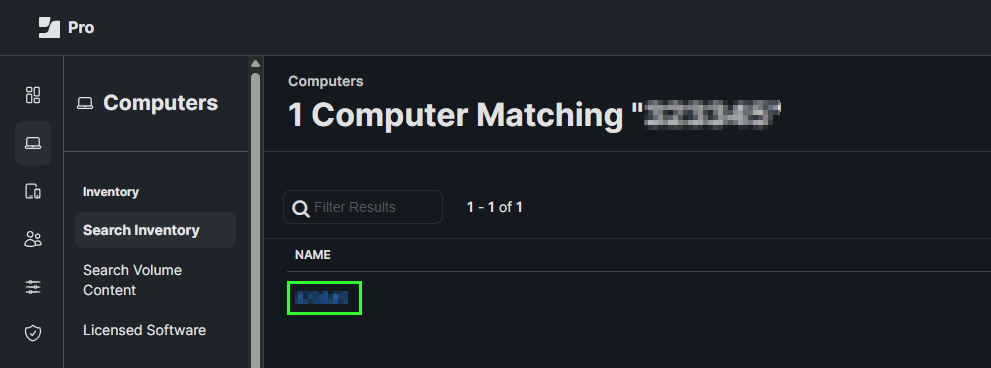
- In the search results, click on the name of the computer to open its inventory record.
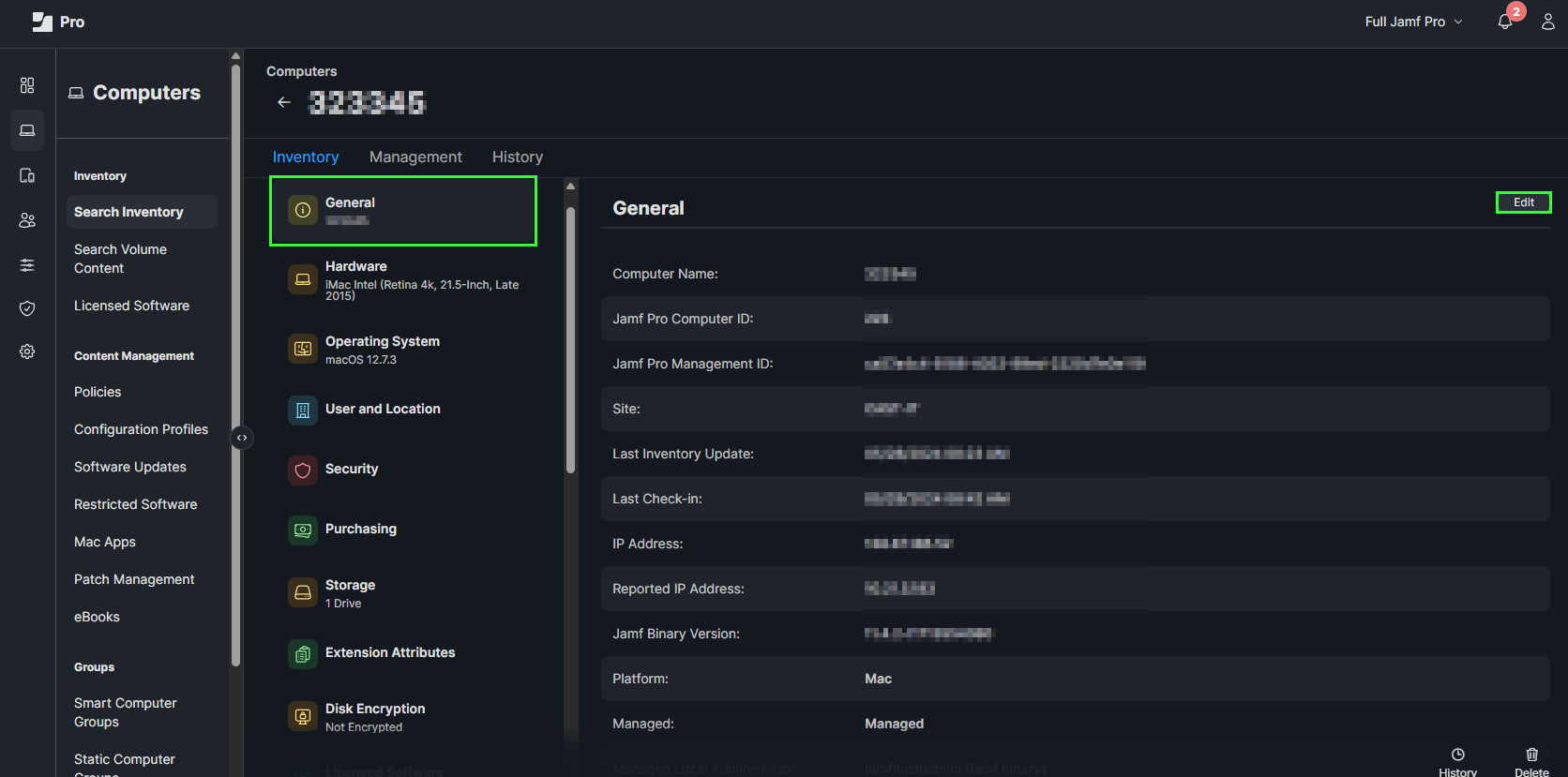
- Access "General" settings:
- On the left side of the computer's inventory record, click on the "General" category.
- On the right side, click the button labeled "Edit."
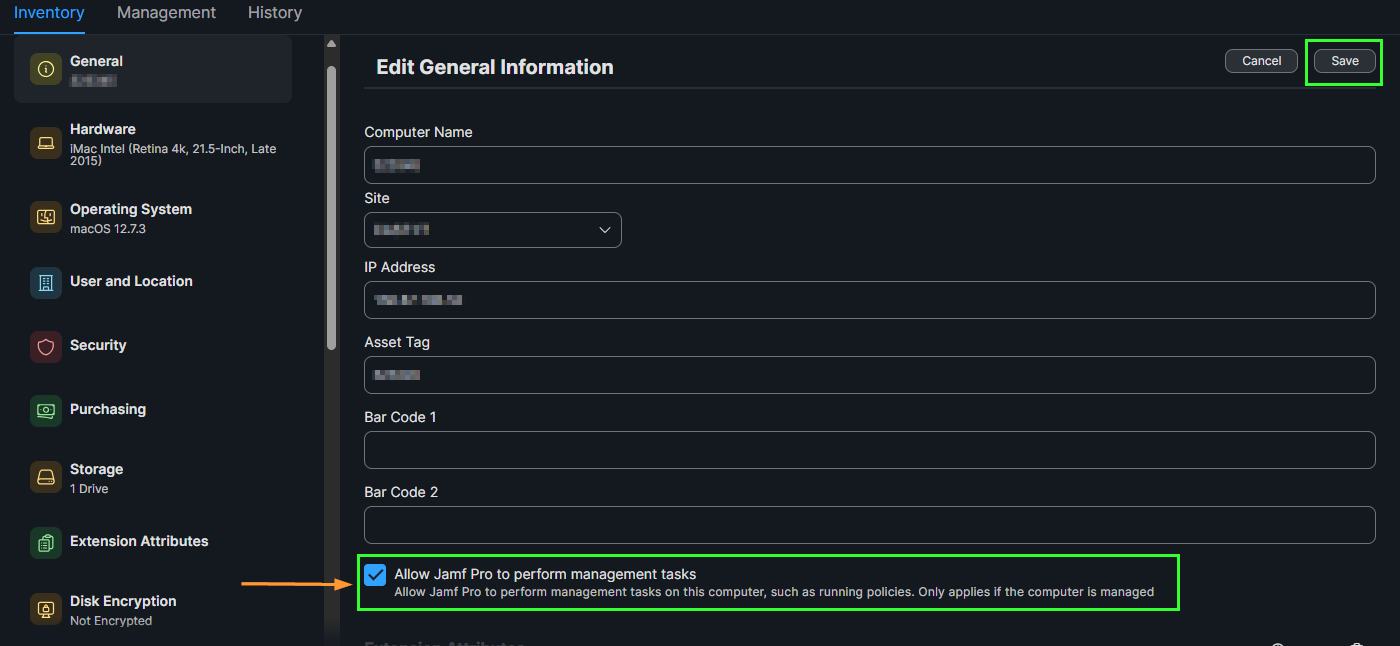
- Uncheck management task allowance:
- Locate the checkbox labeled "Allow Jamf Pro to perform management tasks".
- Click on this checkbox to deselect it. The checkmark should disappear.
- In the upper-right, click the "Save" button to apply your changes
Result
- After saving, the computer will no longer be actively managed by Jamf Pro and will release its license.
- The device's inventory record will remain in Jamf Pro, allowing you to retain its historical information.
Important Considerations
- Unmanaging a device will prevent it from receiving any new policies, profiles, or commands from Jamf Pro.
- The device will be removed from any Smart Groups that require actively managed computers.
- If the device needs to be managed again in the future, you can simply re-check the Allow Jamf Pro to perform management tasks checkbox and click Save. This will bring the device back under management without requiring a full re-enrollment.
Feedback
To suggest an update to this article, ISU students, faculty, and staff should submit an Update Knowledge/Help Article request and all others should use the Get IT Help form.