Accessibility
Monitoring Your Website with DubBot
Last modified 4/29/2026
DubBot is a web governance platform designed to help teams stay compliant with ADA Title II and other accessibility standards. This guide will help you understand how to navigate the platform and manage accessibility issues efficiently.
Log In to DubBot
- Go to the DubBot login page: https://illinoisstate.dubbot.com/.
- Enter your assigned username and password.
- Click "Sign In”.
Once logged in, you’ll land on the Dashboard—your control center for monitoring and managing website accessibility.
Understanding the Dashboard Layout
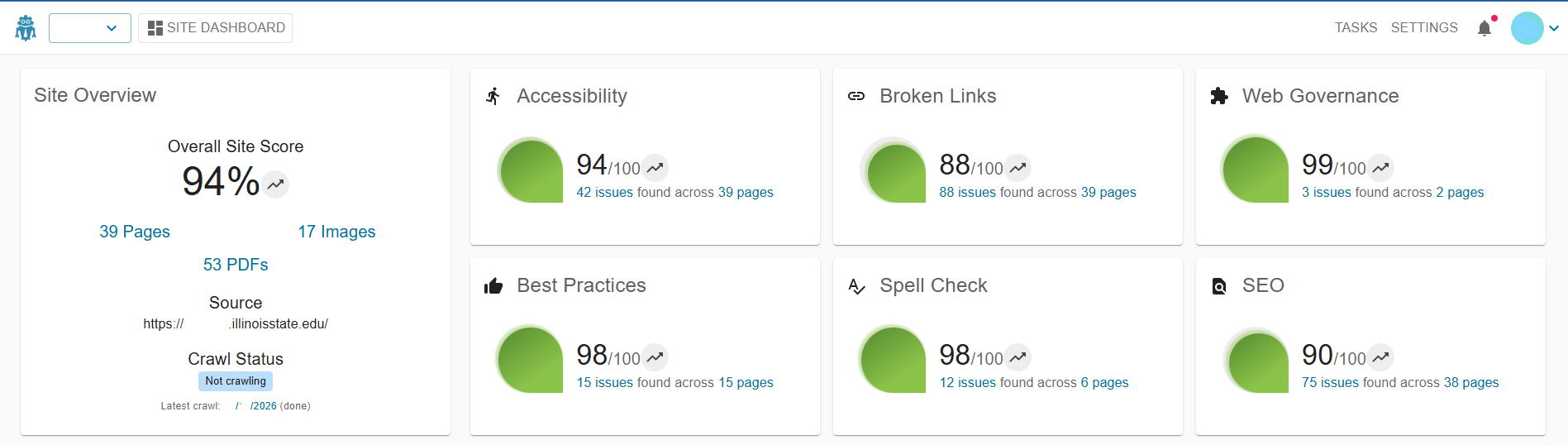
Key sections include:
- Site Overview: A summary of your website’s accessibility health, including total issues and compliance score.
- Recent Reports: Quick access to the latest automated email reports that link directly to detailed findings.
- Priority Issues: A list of high-impact issues that need immediate attention.
- Navigation Menu: Access additional tools such as Site Scan, Historical Reports, Team Settings, and Help Center.
Accessing Your Accessibility Reports
When you receive a DubBot email report, select the Visit Site link to open the detailed dashboard report. Select any issue to see step-by-step remediation guidance, including code examples and best practices.
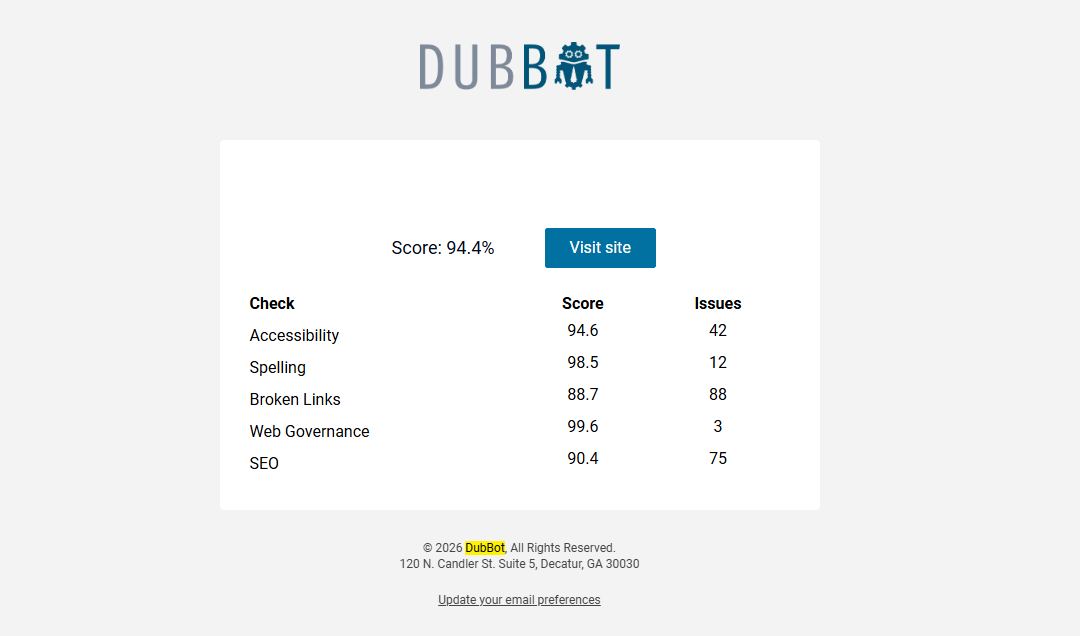
Each issue is listed with:
- Page URL
- Issue Type (e.g., color contrast, missing alt text)
- Severity (Critical, Moderate, Low)
- Status (Open, In Progress, Resolved)
Prioritizing Issues
- On the dashboard, go to the Priority Issues section.
- Use filters to sort by Severity, Page, or Issue Type.
Unable to fix an issue?
If you are not able to access an area of your website through your CMS editor to fix an issue, you can submit a Accessibility Review Request ticket for assistance.
Other Reports in DubBot
Spell-Check
- What to do?
- Correct spelling from suggestions
- If Spanish or dropdown menu, press the ‘actions’ dropdown
- Either ‘ignore on page’ or ‘add to site/account dictionary’
- Notes
- Often reads Spanish words as misspelled
- Also, words and phrases in dropdown menus are read as misspelled
SEO Issues
- Page description (too long/too short/missing)
- Meta descriptions allow for hand-curated explanations of the webpage content.
- Search engines will give additional weight to keywords contained in a page’s description. This is optimal for SEO initiatives. Descriptions are sometimes used by tools to show additional details about what is contained in a linked page.
- Descriptions should be concise and readable, ideally between 50 to 160 characters.
- Page title (too long/too short/missing)
- A page’s title will often be shown in the Web Browser title area, the user-friendly link in search results. This content will be used for determining SEO value.
- The title should be between 30 - 60 characters for display and SEO purposes.
- Page headings (missing)
- A page should highlight the topics it covers using headings. Utilize the H1, H2, H3, etc. tools.
- Page H1 tag(s) (multiple/missing)
- A page should use an H1 tag to highlight the main topic it covers. As the first heading on the page, this should give initial information to the reader.
Broken Links
- Page vs. issue/broken link
- Navigate to the ‘pages’ and select one
- A menu of broken links should automatically be generated on the left-hand side, select one
- Once on ‘Page’ looking at a ‘issue/broken link’
- First, open the link in a new window (beneath ‘reason’)
- Determine how to fix broken link based on the stated error
- List of common errors:
- 300’s: Usually a redirect, make sure the page URL matches the actual URL
- 400’s: Always an error code
- 404: Common, always a broken link essential to fix
- The URL might have changed
- The site might have been deleted
- Contact web support for help if needed
- 403: Common, determine if source is accessible or not
- Sometimes the site requires a login, and Dubbot will flag it as a ‘broken link’ if not able to access without a password
- 404: Common, always a broken link essential to fix
- All other errors (and 500’s): contact web support for help
Feedback
To suggest an update to this article, ISU students, faculty, and staff should submit an Update Knowledge/Help Article request and all others should use the Get IT Help form.