Logging in to Keeper on Another Device (Device Approval Needed) in the Division of Student Affairs (VPSA)
Last modified 2/13/2025
This article is intended for staff members in the Division of Student Affairs.
Understanding Keeper and Devices
When you were originally granted access to Keeper, you received an invitation email which allowed you to set up your access to Keeper. This process registered the first device (laptop, desktop, tablet, phone, etc.) you used to login to Keeper. As a security measure, you cannot automatically log in to Keeper on a different device (i.e., a different laptop, desktop, tablet, phone, etc.). When you try to login to Keeper using another device, you are prompted with a message that says, Device Approval Needed.
Device Approval Needed
If you attempt to login to Keeper on a second (or third, fourth, etc.) device, you will be required to grant Device Approval before you can complete your login. You are given two options:
- Keeper Push (Recommended) - Click on Keeper Push to send an approval request. Then, when you login to Keeper on a device that you previously registered, a pop-up will appear that allows you to approve the request. This method is recommended because it enables you to register another device on your own without needing to contact IT support.
- Admin Approval - Click on Admin Approval to send the approval request to a Keeper administrator. The administrator must approve your request before the new device can be registered. This method may result in a longer wait period before you can gain access to Keeper on the second device.
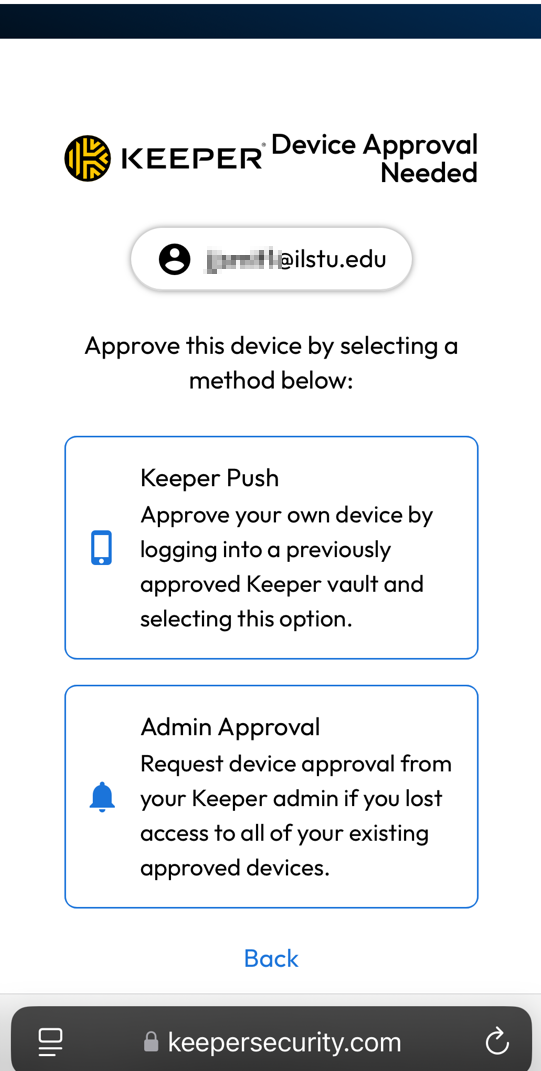
Keeper Push (Recommended)
To register your device using Keeper Push, do the following:
- Click on Keeper Push,
- Go to the original device you used to login to Keeper.
- Login to Keeper on the original device.
- You will see a message pop-up that asks, Are you trying to sign in? Click Yes (but only if you initiated a Keeper Push).
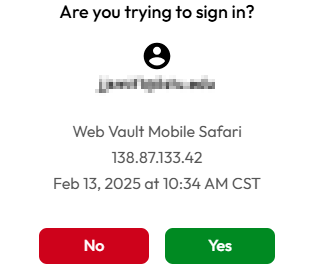
- You will see a message on the screen (in the lower right corner) that says, Device approved.
- Now, go back to the second device. You may need to login to Keeper again on the second device, but when you do, you will be presented with the Keeper screen, and you can access your accounts and passwords through My Vault.
Admin Approval
If you no longer have access to any of your previously registered devices, you will need to choose Admin Approval. For example, if your workstation was replaced by IT and you try to login to Keeper on your new computer, you will be unable to access Keeper on your old device (unless IT allows you to have both the old and new computers on your desk at the same time).
The Admin Approval option requires you to also submit a ticket. A Keeper admin will contact you by phone to assist you with registering the new device.
To register your device using Admin Approval, do the following:
- Click on Admin Approval.
- As a member of the Division of Student Affairs, your IT support is provided by Student Affairs IT. Contact Student Affairs IT to open a ticket for this request. You will need to explain that you are trying to login to Keeper on a new device and selected Admin Approval.
- Student Affairs IT will work with Technology Solutions to identify a Keeper admin who can assist you. This may involve a phone call between you and the Keeper admin.
- Once the Keeper admin has validated your identify, they will approve the request.
Once the request has been approved, your new device is registered and you are able to login to Keeper.
Feedback
To suggest an update to this article, ISU students, faculty, and staff should submit an Update Knowledge/Help Article request and all others should use the Get IT Help form.