Accessibility
Monitoring Your Website with DubBot
Last modified 4/23/2026
DubBot is a web governance platform designed to help teams stay compliant with ADA Title II and other accessibility standards. This guide will help you understand how to navigate the platform and manage accessibility issues efficiently.
Log In to DubBot
- Go to the DubBot login page: [your DubBot portal link].
- Enter your assigned username and password.
- Click "Sign In”.
Once logged in, you’ll land on the Dashboard—your control center for monitoring and managing website accessibility.
Understanding the Dashboard Layout
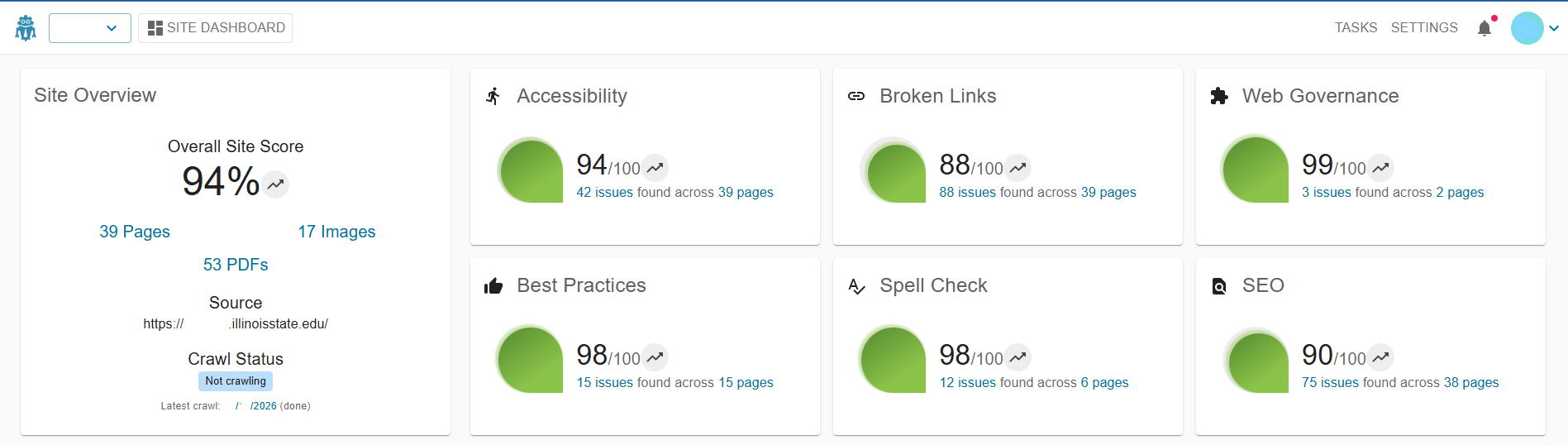
Key sections include:
- Site Overview: A summary of your website’s accessibility health, including total issues and compliance score.
- Recent Reports: Quick access to the latest automated email reports that link directly to detailed findings.
- Priority Issues: A list of high-impact issues that need immediate attention.
- Navigation Menu: Access additional tools such as Site Scan, Historical Reports, Team Settings, and Help Center.
Accessing Your Accessibility Reports
When you receive a DubBot email report, select the Visit Site link to open the detailed dashboard report. Select any issue to see step-by-step remediation guidance, including code examples and best practices.
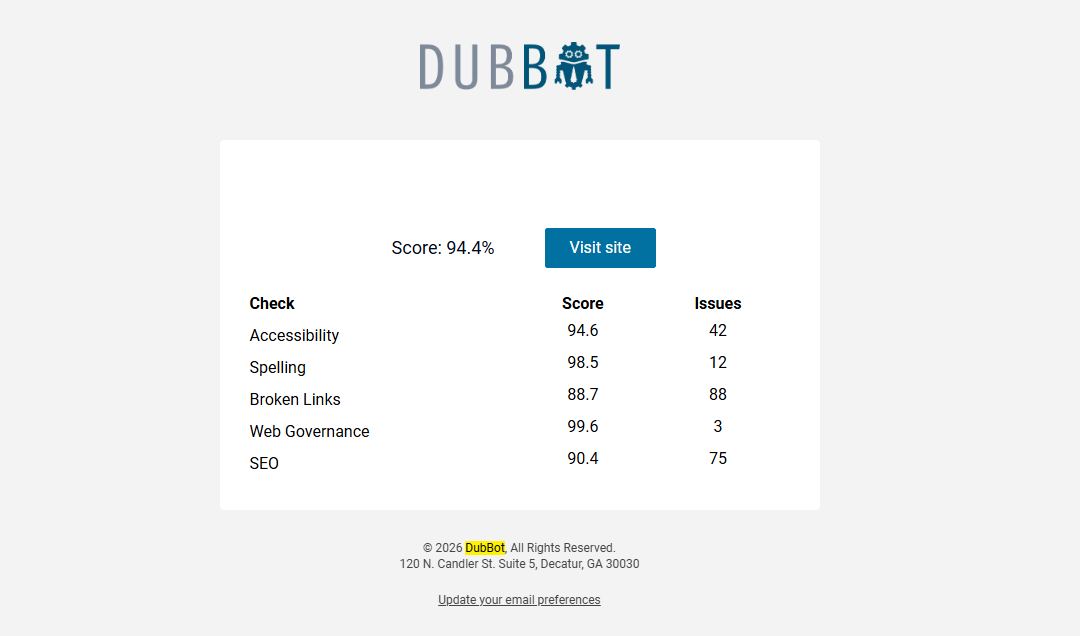
Each issue is listed with:
- Page URL
- Issue Type (e.g., color contrast, missing alt text)
- Severity (Critical, Moderate, Low)
- Status (Open, In Progress, Resolved)
Prioritizing Issues
- On the dashboard, go to the Priority Issues section.
- Use filters to sort by Severity, Page, or Issue Type.
Feedback
To suggest an update to this article, ISU students, faculty, and staff should submit an Update Knowledge/Help Article request and all others should use the Get IT Help form.